This monitor calibration guide shows in-depth how to achieve a properly calibrated system for photo editing. Having a properly calibrated monitor has always been high on my priority list when it comes to photo editing. It's the only way I can ensure that the color and tonality of the photos as I see them on my display look the same on the calibrated display of photographers, editors or customers. Color accuracy is key in the professional photography world where photos are sold via multiple outlets for countless different uses. So, it should be out of question that we as photographers should edit our photos on a calibrated screen to ensure an accurate color representation.
Monitor calibration is the process of aligning your screen’s colors with the standards set by the RGB (red, green, blue) color model. This model dates back to the nineteenth century, but it’s also the standard for most TVs and computers. A colorimeter is a small calibration device that fastens to your screen and works with calibration software to optimize display color for your particular screen and your room’s particular lighting conditions. Before beginning the process, let your monitor warm up for about 30 minutes.
To calibrate a display we need a calibration tool that can measure colors. Such a device is called a colorimeter. The most popular calibration devices are available from Calibrite, formerly X-Rite, and Datacolor. I myself use the X-Rite i1 Display Pro, which after some rebranding is now called ColorChecker Display Pro by Calibrite. But a colorimeter alone is not enough. What's also necessary are drivers and calibration software. Typically, if you purchase a calibration device, it comes with the proper software and drivers. There is also an open source software available called DisplayCAL. The combination of colorimeter, drivers and calibration software then allows you to create a monitor specific color profile in form of an ICM file.
White Point and ambient conditions play a crucial role. With CRT monitors, the standard recommendation is to set your display to around 6500K (aka D65), which is a little cooler than daylight. However, with LCD monitors it's become a bit more complicated. While many LCD's have a color temperature option, the back light for these displays always has a native color temperature. Any deviation from this native value will end up reducing your display's color gamut. For this reason, it's generally recommended to leave your LCD at its default color temperature unless you have a good reason to set it otherwise.
Display Gamma is the rate at which shades appear to increase from black to white. A display gamma of 2.2 has become a standard for image editing and viewing, so it's generally recommended to use this setting. The gamma setting influences how different tones are represented on the display, with the darker tones being most noticeably affected. The sRGB curve is similar to the 2.2 default curve, but deviates in the darker areas, where you might notice a difference. There are also professional monitors that allow you to set a custom tone curve. In practice, most editors leave this in Native mode for consistent results.
Luminance, or brightness, should reflect your working environment and the final use of the images. A common practical guidance is to set luminance around 110 cd/m2 as a compromise for normally lit rooms; however, the optimal value depends on ambient light and whether you print or publish online. If you print, beware that prints often look darker than what you see on the screen when the luminance is too high. A good approach is to print a test on a blank sheet and try to match the brightness to the print under controlled lighting. For many editors, a compromise luminance around 110 cd/m2 works well, but adjustment based on experience and environment is essential.
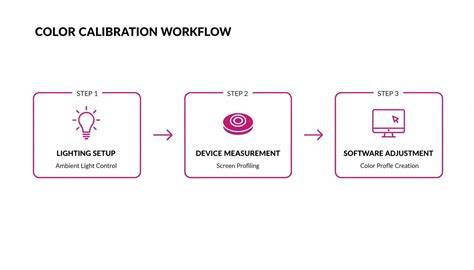
Calibration steps. After warming up, the calibration software detects the colorimeter, assuming drivers are installed correctly. The first step is to create a profile for the displays you use. If you work with multiple displays, you can move the calibration software window between them. The software shows the connected displays, and you choose the correct display type (White LED is a safe default for most modern monitors) and the common sRGB space or other target spaces. The next settings include choosing the correct ICC Profile Version (MAC: 4, Windows: 2), Patch set size (often medium for better results on some displays), and verifying the brightness adjustment is allowed during measurement.
The measurement sequence begins with brightness, then proceeds to color measurements. During the process, you should adjust brightness, contrast, and RGB gains manually if your monitor allows. The calibration device is positioned in the center of the screen as the software guides you. If you need to adjust brightness on a second monitor, you can use a dual-monitor setup to show OS brightness controls on one screen while calibrating the other. Do not change brightness after calibration begins, and disable automatic ambient-light-based brightness changes if possible. External monitors may have presets like Cine, Vibrant, or Gaming; use the one that aligns with your editing workflow and room lighting.
After profiling, save the ICC profile. It becomes the active profile and applies at startup. On Windows there can be a slight delay before the profile is applied. Advanced QA and uniformity checks help ensure the profile quality. In the Display QA view, a 24-patch color test provides an average delta and maximum deviation values; aim for maximum delta under 2 and average under 1. You can also generate a time-trend graph of calibration accuracy using the Add to Trending feature. Uniformity measurements show brightness distribution across the panel, highlighting center-to-edge differences that can affect editing consistency.
Alongside device calibration, eye calibration matters. Lighting in your editing environment affects color perception; avoid overly colorful walls and clutter. Before editing, review a selection of your favorite photos to prime your vision for the typical color and contrast you aim to reproduce. This practice helps you maintain consistent edits across different viewing conditions and outputs, from screens to prints.
To ensure the color translation across devices, you should understand the difference between calibration and profiling. Calibration is the process of bringing your monitor to a well-defined state, while profiling characterizes that calibrated state using a color profile. The color profile defines the color space and gamma of your display, enabling color-managed software to translate images correctly across devices. If a color-managed application opens an image with an embedded profile, it will convert it to the monitor’s profile; otherwise, you may see mismatches due to gamut differences.
Practical viewing checks help verify calibration quality. A large grayscale gradient image in a color-managed viewer can reveal banding or shading irregularities. In Photoshop, Proof Colors set to Monitor RGB toggles the profile on and off to compare results. If you observe banding, re-calibration or better hardware may be required. Note that a higher bit-depth LUT does not necessarily increase the number of colors displayed; it improves the precision of mapping but not the color count itself. Most displays use 8-bit LUTs, though some have 6-bit or higher-bit LUTs.
Other considerations include the importance of reliable print workflow. The relationship between on-screen color and printed output is imperfect, and color management must bridge that gap. Soft proofing features in calibration software help simulate different print finishes. While some editors rely on device-agnostic workflows, professional printing often requires strict adherence to ICC profiles and color-managed viewing conditions to preserve intent across media.
For readers who want quick-start guidance: the easiest (but least precise) calibration approach is to adjust brightness and contrast. For more accurate results, follow the full calibration workflow outlined above, including selecting the correct white point, gamma, and luminance, performing an initial device warm-up, and validating results with QA tools and uniformity checks. If color accuracy isn’t a top priority, you can test colors on a few devices to ensure nothing looks drastically wrong, but remember that true consistency comes from regular calibration and adherence to color-managed workflows.
In addition to hardware and software, there are practical considerations about specific display technologies. IPS panels generally offer better color accuracy and viewing angles suitable for photo editing, while TN panels may be cheaper and faster for other tasks. The choice of panel can influence the baseline color reproduction, and choosing a display with good native color performance reduces the required corrections during calibration.
Some example workflows and devices mentioned in practical guides include:
- Colorimeter options from Calibrite and Datacolor, and open-source options like DisplayCAL.
- ColorMunki and i1Display Pro examples used in real-world setups, including advanced modes and licensing considerations.
- Profile management on Windows and Mac, with attention to ICC profiles and color-managed software.
Remember that even with perfect calibration, device-to-device color differences persist. The goal is to minimize these differences to maintain consistent color reproduction across viewers and outputs. If you’re sharing online, you can rely on standardized color spaces (sRGB for web) and ensure your workflow uses color-managed tools to maintain intent across devices.