Capture One has a great reputation for image quality but comes with a premium price tag. Does it live up to its reputation, and is that extra cost worth it compared to other programs? If you read my previous article, you will have seen that I was testing different cameras' raw files in Lightroom Classic. Using Lightroom as a benchmark, I now compare how the same images appear in other programs, and my first stop is Capture One.
Capture One Pro is very different in its layout from Lightroom, and that took me a little while to get used to it. From a Digital Asset Management DAM perspective, the range of functions is very similar, but they are presented and operated in very different ways. I like the layout better in Lightroom, but that may be because it is what I am used to.
An even more significant difference falls in how the adjustment sliders behave. For example, the contrast slider in Lightroom emphasizes darkening the shadows to increase contrast. Whereas, in Capture One, the overall effect is brightening and darkening the tonal extremes of the image much more evenly, even perhaps with an emphasis on brightening.
I ran the same pictures through Capture One as I had with Lightroom for my previous article. I've also tested some additional ones but have not included them in the article for copyright reasons. These tests are solely image quality results on raw files straight out of the cameras. The raw files can be adjusted. Every program is unique and has its own extra features besides its raw engine algorithms. Consequently, other factors may persuade you to use one program or another.
Where appropriate, I've mentioned that I have developed photos to achieve what I think are better outcomes. Still, these results are subjective, so I have only included them to illustrate a particular point. Furthermore, as I have said before, I am more experienced at adjusting images in Lightroom Classic than in Capture One. So, others will be more skilled.
In my previous article, I said Nikon users would be happy with the resulting image quality if they owned Lightroom. Now that I have tried Capture One, I am amending that statement. With Capture One at default values, the raw previews with Nikon images are bolder and sharper than with Lightroom. JPEG produced from Capture One with default settings. There is more contrast with the unadjusted image too. This gives the overall effect of the preview image looking darker. Despite the darker shadows, I increased them without producing any noise in the picture.
The other thing that Capture One did better was the handling of global color adjustments. With a landscape shot, I reduced the highlights slider, and the pale blues in the sky became visible. In Lightroom, achieving the same effect required significantly increasing the Vibrance slider. Skin tones in portraits also looked bright and vibrant, and the color seemed accurate too. The overall look of the default image was similarly improved in Capture One over Lightroom Classic. As I reported in my previous article, Lightroom did not accurately reproduce colors, and this difference is stark when comparing the same photo with Capture One and Lightroom. Similarly, at default, the skin tones in Lightroom appear flat in Lightroom, whereas Capture One gave bright and impactful results.
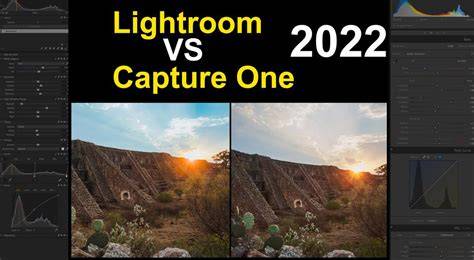
The results from Capture One with raw files from the OM System didn't surprise me. Several top pros who use the system develop images in Capture One for one good reason: the resulting pictures look far better. In Capture One (right in the above shot), the overall exposure is much closer to what one sees through the viewfinder; it's brighter. Unexpectedly, in the shot shown above, I could entirely recover the sun's blown highlights without them turning grey in Capture One; I needed to reduce the exposure by 1.5 stops for that to happen. One would expect the reverse to be true at the other end. On the contrary, a hugely underexposed image took 2.46 stops of exposure adjustment to recover shadow details and only two stops in Capture One.
However, there was one area where Lightroom outperformed Capture One. In the under-exposed image shot at night, +2 EV has been added in exposure during processing. Some faint reds and blues are reflected in the water, seen center-left of the above heavily cropped images. Lightroom Classic (left) could recover these colors, but Capture One (right) couldn't see them. Even on adjustment, only the tones appeared, and they were colorless.
As I reported in the previous article, Lightroom's big failure is that it produces some nasty digital artifacts with OM System files at default settings. At default, all images are hugely over-sharpened, and even reducing the sharpening to zero leaves some graininess. The exposure differences experienced with Lightroom images with the OM System camera were evident with Sony raw files. However, although the Lightroom images appeared darker, the browns in Capture One appeared both darker and a lot more yellow. Consequently, in Capture One, a man's brown face appeared jaundiced at default values. This was not evident with caucasian models. If you photograph people of color, the combination of Sony and Capture One does not seem a good choice.
Below is the straight-out-of-camera result. I am sure some readers do photograph people of color using a Sony camera and develop in Capture One. The strange thing was that when I compared the same image of a caucasian climber in the two programs, the subject appeared more yellow in Lightroom. Capture One produces brighter previews for Sony raw files than Lightroom Classic. Furthermore, Adobe's program also produces some nasty-looking artifacts with images shot at ISO 400 that were not there in Capture One.
You may remember from my Lightroom tests that it performed poorly with Fujifilm images, lacking detail in greens. Noise control is great in Capture One. Although chromatic aberrations were very pronounced in the default settings - the Fujifilm lens was the only one I tested that showed it significantly - those were removed by checking the appropriate box in the lens correction panel. Also, its removal didn't leave a thin halo, as can happen with Adobe's programs. The colored fringing visible here could be quickly removed. The details in the tree is still not perfect, but it's better than in Lightroom. All colors were bolder and more saturated in Capture One than in Lightroom and grays were slightly warmer, giving landscapes a richer look. This warming seemed less than in the Sony images.
Compared to Lightroom, in most circumstances, Capture One's image results compared favorably to Lightroom's. Where it fell behind using the default values, it could be adjusted to match or surpass Lightroom. Across all brands, the images looked more vibrant, had better contrast, and had better detail. I prefer Lightroom's layout. The elephant in the room, though, is the cost. The lowest subscription price is $179/year, around $60/year more than the Adobe Photographer Plan, and you get a lot more tools from Adobe; it includes Photoshop and its mobile cloud service. That doesn't make Lightroom Classic a lousy program for developing images. If it were, it would not be as successful as it is. However, as these real-world tests show, there are other choices, and Capture One produces excellent results. Next time, I'll review DxO PhotoLab 6 and see how it compares with Lightroom Classic.
I'm back with my annual review of Lightroom VS Capture One pro in 2025, and we have a lot to compare this year. C1 VS LR. They are King and Queen of editors. When using presets I used as many free pack as I could like the Silver 5 and Filmist 2 samplers. For speed masks I used Elegance 4. In the video we test new features, noise and look at the whole picture. No, nothing this year is a game changer. But there are improvements coming from both Lightroom and Capture One. I do say almost, because there is still no sky mask and this is actually a big lack. Capture One Studio has also been added with a few extra features that are mostly collaborative, a few extra Ai tools etc. And it costs nearly twice as much. Making C1 alone nearly as spendy as the entire Adobe Creative Suite. Most won't need this and it's a bad look for C1 as these features should be in the pro version. What about Lightroom instead of Lightroom Classic. The develop and base features are the same and with Lightroom you get both and the mobile app for one price. You can can switch around as needed, but in general I use Lightroom Classic and it has more features. There is also an App for Capture One but it's still IOS only. In the video I’ll give my opening and final conclusion for the best photo RAW app of 2025 and whether you should use Lightroom or Capture One. Either way you’ll still need a pixel level editing app like Photoshop, even if you use an older version like CS6. What I am confident in saying is that both meet my own high standards and can create world class images.
Alright, let me just say this upfront: I’ve used both Capture One and Lightroom for years. I’ve cussed at both. I’ve praised both. And I’ve probably switched camps a dozen times depending on which feature was working (or not working) that month. But after thousands of hours editing dusty lion shots, misty mornings in the Alps, and ISO 25000 encounters with elusive leopards, I think I can finally give you a real-world take on how these two beasts stack up-especially for wildlife photography. I’ll break it down in a narrative way, the way you’d tell a story to a fellow photographer over a beer around the campfire. This isn’t a lab test.
Like most people, I started on Lightroom. Back when it was Lightroom 3 and everyone thought clarity was the coolest thing ever. I liked it because it was easy. Intuitive. I could import a card from my Nikon D90 and just get to work. For someone doing a lot of batch editing, Lightroom’s Library module was like gold. When I started shooting wildlife more seriously, I noticed I needed a little more. That’s when I started poking around with Capture One.
The Image Quality Debate: Is Capture One Really Better? So here’s the thing. For years, I’d argue that Capture One gave me better image quality out of the box. The RAW rendering was just cleaner. Colors had more pop. Tones looked more "filmic" somehow. And for high-end wildlife prints, that mattered. But now Lightroom has caught up. Big time.
Since around 2023, Adobe has made serious gains. Their new noise reduction model? Game changer. I tested it side by side with Topaz, DxO and Capture One's internal tools, and Lightroom's AI denoise was not only cleaner but kept more detail-without introducing those weird plasticky textures. The external plugins still have a lot of edge when it comes to also add sharpening, and might use them from time to time, but for most images I can just stay within Lightroom, batch editing and saving a lot of time. And best of all: now they removed that annoying extra DNG step. You can now batch-denoise inside Lightroom without bloating your catalog with doubles.
Speed, Workflow & Culling: Who Wins? If you're coming back from a 10-day safari with 20000 images, you need speed. Like, actual usable speed. Capture One has always been more nimble in terms of preview rendering. Especially tethered or on sessions, it chews through files fast. But Lightroom Classic with GPU acceleration and smart previews has finally caught up. If your computer is even halfway decent, LR won’t slow you down.
AI Features: Lightroom is Taking the Lead. Here’s where things start to tip. Lightroom’s AI masking is scary good. Want to mask the subject? One click. Sky? Boom. Background? Easy. Capture One still relies heavily on manual masking. Yes, there is an AI masking function but I find it to be nowhere as accurate as the LR one. And while its layers are great for precision, they can slow things down when you’re editing large batches. Also: Lightroom’s new generative remove tool? It’s like a mini Photoshop built-in. I cloned out a sensor spot on 40 images with brush strokes in under two minutes.
Color Grading: Capture One Still Rules Here. I won’t lie. Capture One’s color tools are still top of the game. The color editor is insane. The skin tone tool-which also works wonders on lions, believe it or not-lets you unify color patches with ridiculous precision. And the advanced color wheels? So intuitive once you get used to them. If I’m editing a portfolio shot, I’ll usually roundtrip it through Capture One.
Catalog vs Sessions: Different Strokes. I prefer sessions when I’m working on trips. Capture One makes it super easy to stay organized without polluting a master catalog. Lightroom’s catalog is better if you want to search your entire archive. But it’s also more prone to getting bloated or crashing if you’re sloppy with backups. Stability, Bugs & Overall UX. Capture One has been a bit crashy lately. Especially with the latest versions. On the other hand, Lightroom is smoother these days, especially when syncing across devices. I never thought I’d say that. Also, Lightroom has better plug-in support. Whether it's export to JPEGmini, connect to Luminar, or using Excire for AI tagging-it’s all smoother in Adobe’s ecosystem.
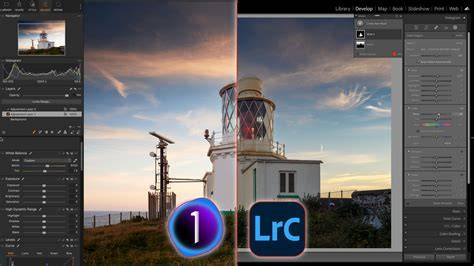
So Which One Do I Use? I still have both. If I’m traveling light, want to edit from a laptop or even my iPad, and need mobile access: Lightroom all the way. If I’m home, editing a limited set of commercial images and want maximum control over colors and layers: Capture One. But 90% of my workflow, and all my wildlife photos, these days is in Lightroom. Just because it plays better with everything, and the new AI tools save me literal hours.
You don’t need to pick one and never look back. These are tools. The pace of innovation in autofocus technology has been astounding. Only a few years ago, tracking a bird in flight or a leopard racing through the savannah required constant manual intervention and a hefty dose of luck. Today, sophisticated algorithms recognise and lock onto eyes, heads and bodies with uncanny accuracy. In 2026, Eye‑AF and subject tracking are not just features; they are integral components that shape how we compose, anticipate and capture wildlife imagery.
But these tools are only as effective as the photographer behind them. Few debates stir more passion in photography circles than the one about sensor size. Should you invest in a full‑frame camera or stick with an APS‑C or Micro Four Thirds body? The answer, as with most gear questions, depends on context. In this article, I’ll explain the practical differences between sensor formats, dispel common myths and help you decide which is right for your wildlife photography. We’ll explore how crop factors affect reach, why weight savings are sometimes overstated and how sensor size influences image quality and depth of field.
When we think of wildlife photography, our minds often jump to cameras and lenses. Yet the success of a shoot frequently hinges on the humble accessories that keep us steady, protect our equipment and allow us to work efficiently. In this article I’ll share ten essential add‑ons every wildlife photographer should consider in 2026. These aren’t impulse purchases; they’re tools I rely on day in and day out, both at home and in the field. I’ll explain why each item matters, how to choose the right version for your needs and how it fits into a thoughtful kit.
Packing for a wildlife expedition is a balancing act between preparedness and mobility. Over the years, I’ve honed a kit that allows me to respond to almost any situation, from epic Namibian landscapes to intimate portraits of elephants in South Luangwa. In this post, I’ll open my bag for 2026 and explain not just what I bring, but why.
Camera Gear For Wildlife Photography
Heading into the field with long glass feels like preparing for an expedition. A 600 mm lens isn’t just another tool; it’s a commitment. Those of us who photograph wildlife know that reach brings its own set of challenges long before you take the first image-airline restrictions, weight limits, fragile optics and the very real worry of theft or damage. In this post, I’ll share hard‑earned strategies for safely and efficiently transporting heavy telephotos. I’ll draw on lessons learned from years of remote travel, the current airline policies and the latest advances in bag design.
When I started photographing wildlife I did so with a second‑hand DSLR and a lens held together with duct tape. I missed more shots than I captured, but those early experiences taught me that curiosity and fieldcraft matter more than megapixels. Today’s entry‑level cameras are far more capable and choosing one can feel overwhelming. This guide is here to cut through the noise. We’ll look at the most compelling beginner‑friendly bodies of 2026, focusing on the features that matter for wildlife photography: autofocus, burst rate, sensor size, ergonomics and price.
A safari is an exercise in extremes. One moment you’re framing a vast landscape under pastel dawn; the next you’re trying to fill the frame with a cheetah sprinting through golden grass. The lens you choose becomes your interpreter, translating the drama of the bush into an image that can convey both the intimacy of an encounter and the scale of a wild horizon. In 2026 the lens market is overflowing with choices. Manufacturers have released zooms and primes covering every focal length imaginable and each promises to be the answer to your photographic dreams. I have spent years traveling around with most of these lenses and I know that no single optic is perfect for every situation.
There’s a nostalgic pleasure in the click of a mirror slapping up and down inside a well‑worn DSLR. That sound has accompanied countless photographs over the last two decades and for many of us it’s tied to memories of late nights in hides, damp mornings on forest trails and the patient anticipation before a moment arrives. Yet when I look at my camera bag today, mirrorless bodies outnumber the old workhorses. The tools we carry are evolving, and 2026 feels like a watershed year. This is not a manifesto for dumping your DSLR if you still have one, nor is it a sales pitch for the latest mirrorless release.
Photomator is an excellent alternative to Adobe Lightroom Mobile. I say this confidently because I switched to Photomator after using Lightroom Mobile since it was released. In this Photomator review, I’ll provide an overview of its features, where it excels and which features are missing compared to Lightroom Mobile. Pixelmator vs. I took this opportunity to re-evaluate Photomator for editing my iPhone travel photos. For the evaluation, I re-edited around 50 photos I previously edited with Lightroom Mobile. As of June 2025, Photomator has almost all the features I need. As a context, please mind, I exclusively edit travel photos. I don’t do e.g. Photomator is available on iOS, iPadOS, on macOS and even on VisionOS for Apple’s Vision Pro. As of June 2025, a yearly subscription for Photomator costs either 34.99 USD per year or is available for a one-time purchase of 119 USD for lifetime. With the new Adobe pricing, even the lifetime purchase is chapter than a full-year subscription of Adobe Lightroom Mobile.
The excellent iOS Integration is the first feature I’d like to highlight. Instead of its own library, Photomator uses the iOS Photo Library and all of its features. Moreover, you can also “accept” or “decline” a photo in Photomator and add a star rating to it. Photomator also supports nested iOS albums. That helps you to keep your photos organized. This is a helpful feature because Photomator does not support tags like Lightroom Mobile does. For example, I have a “Best of” Folder. It contains an additional folder for each photo topic, which can be e.g. Inside the “lost places” folder, I generate an album with the name of e.g. the lost place. In the “landscape” folder I have a folder for each country like e.g. A photo can be in multiple albums in the iOS Photo App. Edits in Photomator are non-destructive because it saves the edited photo as a new version, just like the iOS Photo App does. However, Photomator does not support multiple versions of photo edits like Lightroom does. Edits in Photomator are non-destructive, like in Adobe Lightroom. Photomator archives this similarly Lightroom mobile does. Then the edits are applied and saved in a so-called “sidecar” file. This sidecar file is stored in iCloud in a folder called “Photomator”. Thus, these sidecar files are also accessible from an iPad and even from Photomator on the Mac. This functionality is enabled by default. However, Photomator does not support multiple versions of photo edits like Lightroom does.
One of the main reasons I turned to Photomator instead of other Lightroom alternatives is its extremely clean user interface on all platforms. I really love that. You can see these main menu items in the following screenshot. At the bottom (on iPhone) or on the right side (on iPad) you get the adjustment panels once you tap the proper main menu item. You can simply turn them on if you want to use them or turn them off. If you turn them off, they’re collapsed and do not consume much screen real estate.
Supported file formats Photomator by Pixelmator supports many photo formats. I've successfully tested importing old RAWs from my Nikon, DNG RAW files shot with ProCamera, JPGs and photos that I took in HEIF format. Of course, Photomator supports Apple ProRAW, too. Selective Masks One of the most important features for me is to be able to use a “selective mask”. With such a selective mask, I select a certain part of the photo and apply adjustments to it. Photomator excels here. You can either create a selective mask using machine learning by asking Photomator to select the sky, the main subject or a color range. Here’s a screenshot illustrating how Photmator created a selective mask for the main subject of the photo. Once you’ve created a selective mask and scroll down the adjustments panel, you’ll always see a small drop-down on the left. In the screenshot above, it says “subject”. From this drop-down, you can easily select the mask or the entire image if you’ve created multiple masks. This makes switching masks and applying adjustments to different parts of the photo so easy.
Then you can refine a selective mask by adding or subtracting areas using a brush or by simply inverting the selection. I love how simple that is. You can apply a more meaningful name than “Subject” to the mask if you’ve created multiple masks. That helps managing and selecting the right mask during the editing process. Adjustments Photomator offers all the major adjustments you’d expect from an app like this e.g. exposure, shadows, lights, blackpoint, white point, clarity, structure, colors, saturation, selective color adjustments, just to name a few. Just like in Lightroom Mobile, the adjustments are grouped. You can see the adjustment groups in the screenshot below. To use an adjustment in a group, just enable the group by flipping the switch on the right. If you tap the “ML-Button”, Photomator will apply suggested adjustments from the adjustment group to the photo or mask (if selected).
There’s only one adjustment I miss a little bit, and that is the “dehaze” adjustment that’s available in Lightroom Mobile. But I’ll try to figure out another way how to simulate it and write about it here as soon as I find it. LUTs and Presets Photomator uses LUTs and Adjustment Presets. A LUT is basically a custom color adjustment setting for a photo that you can apply with a click. But Photmator also supports presets, which are in many forms similar to a LUT with one major difference: a LUT is a standard format for applying color correction. A LUT file with not only work in Photomator but also in other editing software from photo to video editing. A preset is Photomator’s way of saving adjustments that you can later re-use and apply to other photos. As I don’t do video editing and thus need no sharable color adjustments file, I mainly use the presets to save adjustments.
Super Resolution is the one single feature that I’ve been using even while I used Lightroom mobile. By applying super resolution, you’ll basically upscale a photo using machine learning. The results are stunning. Here’s an old photo from a DSLR where I lost the original. I only had a 1024 pixel wide version, and Photomator created a 22 megapixel version of it. Instead of uploading the full 22 megapixel photo here, I encourage you to download Photomator from the App Store and try that feature yourself during the free trial period.
Denoise is an important feature for me. Especially for denoising the sky in night photos or dark areas in lost places. Photomator supports two ways for denoising. The first one is via the “grain” adjustment. Slide it to the left to soften the grain a bit. Once you’ve applied the machine-learning based denoise from the document menu, you can adjust its intensity in %. The perspective correction options in Photomator are a bit simple compared to the ones in Lightroom Mobile. Photomator only supports horizontal and vertical perspective correction but, for example, does not support fixing barrel distortion you may get from an ultra-wide or fisheye lens. Retouching is the one feature where Photomator is way behind Lightroom with it’s AI-features. But on the other hand, there are other alternatives that I can use.
Pixelmator vs. I took this opportunity to re-evaluate Photomator for editing my iPhone travel photos. As of June 2025, Photomator has almost all the features I need. The developers for Photomator, a company named “Pixelmator”, also sells a photo editing software named “Pixelmator”. That’s basically a replacement for Photoshop. Cull through my photos and select 15 photos to edit. Next, I open and edit the photos in Photomator and select 7 photos by adding them to my favorites. Previously, when I used Lightroom Mobile, I exported the edited photo to the Photos App and hid the original photo to avoid a cluttered photo library. I don’t need that step anymore. Yes, I definitely would switch from Lightroom Mobile to Photomator again under the same circumstances (pricing!). Photomator is a true Lightroom alternative for mobile photo editing. I recommend Photomator for everyone looking for a Lightroom-like photo editing app experience that’s extremely well integrated into the iOS and iPadOS.
- There is always a second fiddle - a silver medalist who chases after gold, a challenger just half a step behind the leader.
- In the world of RAW post-processing software, the undisputed champion is Adobe Lightroom; competing products enjoy nowhere near its popularity.
- Below, I’ve tested both side-by-side to see which comes out ahead.
Keep in mind that I’m comparing the newest version of Capture One Pro 12 versus Lightroom Classic CC, updated in November and December of 2018, respectively. Table of Contents
Where Lightroom Beats Capture One
- Organizing Photos: Lightroom’s face detection and automatic keywording (in Lightroom CC) offer strong organizational tools that some users find superior to Capture One’s capabilities.
- Third-Party Resources: Lightroom benefits from a larger ecosystem of tutorials, plugins, and presets, making problem solving easier for new users.
- Panoramas and HDR: Lightroom offers built-in panorama and HDR features with natural rendering, while Capture One lacks native panorama/HDR and relies on external tools.
- History Panel: Lightroom provides a comprehensive edit history view that some photographers miss in Capture One.
- Price: Lightroom’s bundled subscription is often more affordable and includes Photoshop and cloud services.
2. Where Capture One Beats Lightroom
- Interface: Capture One’s layout is highly customizable, with assignable keyboard shortcuts and movable panels that let you tailor your workflow.
- Layers: Capture One offers a robust layered approach with more granular control over local edits, improving flexibility for complex edits.
- Color Adjustments: Capture One’s color editing capabilities are deeper and more precise, particularly for tricky lighting conditions.
- Spot Healing: The healing workflow in Capture One tends to be quicker and more natural-looking for many users.
- Tethering and Annotations: Strong tethering options and useful annotations workflow make Capture One favorable for studio work.
3. Ties and Mixed Results
- Learning Curve: Lightroom is generally easier to learn; Capture One rewards longer onboarding with deeper customization.
- Export Options: Both offer robust export capabilities, though their interfaces differ; Capture One can feel more segmented but is very powerful once configured.
- Default Color Quality: Capture One tends to render colors and skin tones with more pop out of the box, while Lightroom’s defaults may require more tweaks.
In practice, you don’t have to choose one tool forever. The data shows that Lightroom and Capture One each have strengths, and photographers often combine workflows to leverage the best of both worlds. For wildlife photography, the decision often comes down to your emphasis on speed, color control, and the preferred workflow architecture-catalogs versus sessions, and how you want to manage color and layers.
tags: #capture #one #vs #photomator