CapCut is a popular video editing tool known for its robust features, making it suitable for creators of all levels. It is also a fantastic tool for applying masking, allowing users to hide or highlight specific parts of the video easily. Its features, like customizable mask shapes and motion tracking, will enable you to enhance your edits creatively.
What masking is and why it matters
Masking in video editing allows you to hide or reveal specific parts of your video. Think of it as a way to cut out sections of your footage, enabling you to create unique effects such as blending multiple clips together, spotlighting a subject, or even creating transition effects. Masking is particularly useful for creating professional-looking edits without needing advanced software.
Masking effects are beneficial in drawing attention to different products or services, protecting privacy by obscuring faces, or highlighting key elements in social media content. CapCut’s masking features empower creators to elevate their videos with precise control and creative flexibility.
CapCut masking features you’ll use
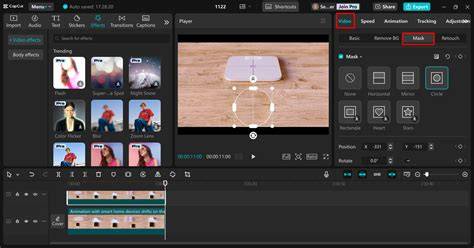
- Different mask shapes: CapCut offers a variety of mask shapes, such as circles, rectangles, or custom shapes, enabling flexible design masking options.
- Feather control: The Feather control feature allows you to soften the edges of your mask, resulting in smoother transitions between masked and unmasked areas.
- Motion tracking: CapCut provides motion tracking, ensuring the mask follows moving objects for consistent effects.
- Keyframe support: CapCut supports keyframe animations, allowing you to animate the mask movement over time for precise controls.
Step-by-step guide: masking in CapCut
- STEP 1: Import the video
Open CapCut and create a new project. Click "Import" and select a video from your PC or MAC, or drag and drop the video to the timeline. If the video is already present, go to "My Spaces" to access it. - STEP 2: Create a mask
Select the clip in the timeline, then tap on the right sidebar and choose "Mask." Pick a mask shape (circle, rectangle, or custom shapes) and adjust its size, position, and shape. Use the "Feather" control to soften edges for a natural look. You can also rotate or invert the mask as needed. - STEP 3: Export and share
When you’re satisfied, tap "Export" in the top right corner. Choose your resolution and format, then export to save the masked video to your PC or MAC.
Tips for better masks in CapCut
- Use keyframe animation to create smooth, dynamic mask movements that follow subjects.
- Feather edges to avoid harsh lines and blend the mask with the background, especially in close-ups.
- Prefer custom shapes for irregular subjects to improve precision and final polish.
- Refine mask path frame-by-frame when the subject is moving irregularly, ensuring consistent masking.
- Combine masks with motion tracking for scenes with moving objects to minimize manual adjustments.
Masking in the broader editing context
Masking is not limited to CapCut; it is a universal technique across editors like Final Cut Pro, After Effects, and Premiere Pro. Each tool offers shape, color, and draw masks with varying levels of complexity. CapCut stands out for its beginner-friendly interface, free access, and powerful masking capabilities that work on Windows and macOS.
Comparative note: importance of accessibility
For creators who need a cross-platform solution, CapCut provides a quick entry point to masking without the subscription requirements of some desktop-only software. Its motion tracking and keyframe features help you achieve professional-level masking effects with a streamlined workflow.
5 Must Know MASKING Tips in CapCut PC
Masking in CapCut supports adding effects to masked areas, such as blurs, color adjustments, or overlays, enabling creative storytelling and practical edits for social media, tutorials, or marketing videos.
| What you can mask | Capabilities |
|---|---|
| Subject isolation | Circle, rectangle, or custom shapes; feathered edges; motion tracking |
| Background effects | Blur, color changes, overlays applied only inside/outside the mask |
| Dynamic reveals | Mask path animation via keyframes |