When it comes to cleaning up images in Photoshop, understanding the best tools for the job is essential. You might think AI tools are the obvious choice, but the classic Clone Stamp and Healing Brush tools can sometimes be more effective. Coming to you from Aaron Nace with Phlearn, this practical video explains the Clone Stamp, Healing Brush, and AI-driven Generative Fill tools and explores their specific strengths.
Nace starts by outlining why traditional methods still matter, even with AI becoming more common in post-processing. Social media platforms may tag your image as AI-generated if you use AI tools, even for minor edits. This can be frustrating when only a small part of your image was edited. The Clone Stamp tool, as Nace explains, is ideal when you need precise control. This tool allows you to copy pixels directly from one part of an image to another, which can help keep textures and details intact. However, it’s a manual process, requiring you to repeatedly sample and blend small areas. Nace demonstrates this with a red umbrella in an image, showing how to remove it by carefully cloning adjacent textures.
The Healing Brush tool, on the other hand, offers a bit more automation without diving into AI territory. This tool works by analyzing the area surrounding your selection and filling it in to match. Nace shows how this can handle simpler edits faster, like removing smaller elements or cleaning up isolated objects. For those willing to use AI, Nace demonstrates how Generative Fill quickly removes complex elements, generating entirely new pixels to blend with the image. This tool works well for large or detailed areas, such as people or intricate backgrounds, creating convincing results with minimal input. However, using it does mean your image may be flagged with an AI tag, which some photographers may want to avoid. Nace emphasizes that for beginners or those needing fast edits, AI is a powerful tool, but traditional methods still have their place when AI tags aren’t desirable.
Using Clone Stamp: source, target, and precise control
In this tutorial, you’ll learn the basics of how to use the Clone Brush tool to cover parts of an image (target area) by copying colors or patterns from another part of the image (source area). To select a clone source, hover your mouse to where you want to start cloning from, then right-click. Alternatively, hold down your left mouse key and drag to cover up the area. The circle with the X will move as well and shows you what area you are cloning from as you go. There will be a semi-transparent overlay of the source material in the circle as you hover over your target area. Open the images you want to work with. Now click on the layer in the Layers palette that contains your clone target area (i.e. Click or drag to clone over your target area). Setting the Sample Point - Option-click (Mac) | Alt-click (Win) in the document to set the sample point. By default, the Clone Stamp and Healing Brush tools return to the original sample point every time the cursor is released. If however you want to maintain the relationship between the original sample point and the retouched area, enable the Align option (in the Options bar).
Clone to a Second Document - Cloning (and Healing) isn’t limited to within a single document. With multiple documents open, Option-click (Mac) | Alt-click (Win) in the source document to set the sample point then, select another open document and start cloning! Previewing the Sample Area Overlay - By default, the Clone Stamp and Healing Brush tools display an overlay of the sampled area within the brush preview making it easier to preview and align areas when cloning and healing. If you find the preview distracting, in the Clone Source panel, uncheck the “Show Overlay” option. While the Overlay is hidden, use Option + Shift (Mac) | Alt + Shift (Win) to temporarily display the overlay.
Practical tips for effective cloning
- Clone with care: move your source around to avoid repetitive pixels-a dead giveaway that cloning has been done.
- Work in small sections and blend edges with care; the goal is invisible retouching.
- Save layers to back out easily if a clone doesn’t look right.
- Use multiple source points to sample from different areas, especially when working across documents or frames.
- Combine tools: the Clone Stamp, Healing Brush, and even Generative Fill can be used together to achieve natural results.
“Healing” in Real Time - By default, the Healing Brush algorithm starts making adjustments as you paint with the brush. If you prefer to finish your brush stroke before Photoshop begins adjusting the area, enable “Use Legacy” in the Options bar. Healing Brush Diffusion Option - To reduce artifacts in images with high frequency information such as grain and fine details, try setting the Diffusion option (in the Options bar) to a lower value.
In practice, the Clone Stamp can remove distracting elements by sampling from nearby textures and painting over them, and the Healing Brush can speed up simpler edits. The Generative Fill tool, when used, generates new pixels to replace complex areas, offering a powerful alternative for larger, intricate edits, but with the caveat of potential AI tagging.
Remember: the single most important thing in retouching is hiding it; if you can see it, it’s not done well enough. The clone stamp can be used alone or as part of a retouching arsenal of a combination of tools to arrive at the goal: retouching that is invisible to the naked eye. To remove distracting elements, start with the clone tool, then blend with other tools as needed. The approach is a blend of patience, sampling, and careful attention to texture and lighting so the final image remains authentic.
Historical perspective and practical anecdotes
In the long-form narrative examples, the clone tool has helped remove various elements across landscapes and scenes, from walkers and poles to subtle shadows, with careful sampling and layering. The process can be tedious but yields natural results when done thoughtfully, and many retouchers save layers to revisit edits later. The clone tool’s versatility shines when working across similar documents or video frames, where maintaining consistent textures and patterns is crucial.
Thanks for watching and exploring these techniques. The Clone Stamp, Healing Brush, and Generative Fill each have their role, and understanding their strengths helps you choose the right tool for the right job, whether you need precise control, faster automation, or AI-assisted replacements. The practical workflow emphasizes starting with non-AI methods for clean, undetectable edits, and turning to AI where appropriate for larger, more complex changes.
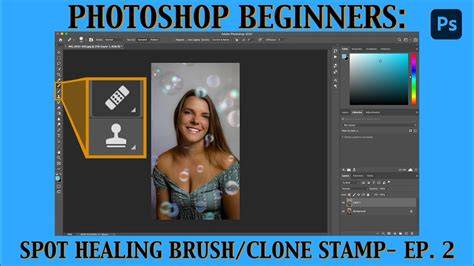
Generative Fill vs Clone Stamp vs Spot Healing Brush: Tools Explained
In closing, the core idea is to build a flexible retouching approach: begin with Clone Stamp for precision, use Healing Brush for smoother patches, and apply Generative Fill when a large, complex edit is needed. Saving progress, sampling carefully, and moving through the image methodically ensures professional results that stand up to scrutiny.