Selecting by colour range is a way of selecting broken/disbursed areas that are the same colour, and would otherwise be time consuming and/or hard to select. These selections would be difficult to do using lasoo tools, macquee tools or even something like quick select. Lets start by opening a new photo. Go to the file menu and choose the open option.
One this is done go back to the ‘File’ menu and select ‘Place Embedded’, choosing your second photo (the one you want to use for the new background). Resize this second image by clicking on one of the corners, and dragging it until it is the same size as the other photo. Next go to the layers panel on the right of your page and click on the padlock on the bottom layer.
Now make sure you have the top layer selected (the layer which you want to perform the selection on), and go to the ‘Select’ menu at the top of your page and click on it. In the select dialog box you will also see two sliders. If you slide the bar named Fuzziness to 200 (right), you’ll see that the colour values picked up are increased. If you slide the bar to 0 (left), you will see that very few colours are picked up. The Range bar is the distance it spreads while picking up colours. First, however, you need to make sure that the ‘Localised Colour Clusters’ box is ticked, because otherwise the Range Bar won’t work. So, by sliding the bar to 100 (right), it would pick up colours around a larger distance compared to if it was at 0 (left).
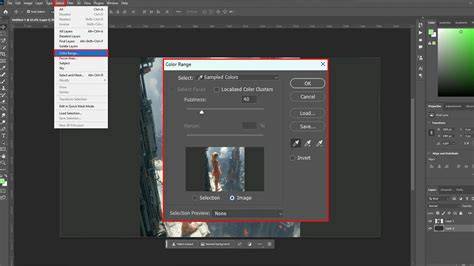
Underneath the ‘Save’ button on the Colour Range dialog box, you should see three eyedroppers. The first will be plain, the second will have a small plus, and the third will have a small minus sign. The first will automatically be selected. By selecting the second one, you are adding to the selection (shortcut key=shift). When you are selecting, make sure to be holding the eyedropper over the actual image, not the mask preview. However, keep one eye on the Colour Range dialog box preview while you are selecting. Make sure to note that the area that will end up staying is white, and the area that will be replaced is the black on the pop-up menu. Once you are happy with your selection, press ‘OK’.
Learn how to select and refine a specific color or tonal range in Photoshop using the Color Range command. The Color Range in Photoshop lets you create selections based on specific colors or tones within an image. Unlike manual selection tools, it provides more precision and flexibility by allowing you to sample colors, detect skin tones, or even identify out-of-gamut colors that cannot be printed in CMYK.
Skin Tones: Select colors that resemble common skin tones. Sampled Colors: Use the Eyedropper tool to pick sample colors from the image. - [Instructor] All right, we've seen how using the Color Range command is a simple matter of clicking inside the image, just as you might with the Magic Wand tool, but there's so much more. Which is why in this movie, I'm going to show you how to customize a color range selection.
Now, the first thing we want to do is deselect the image, because otherwise we'll create a new selection inside the existing one, which is not what we want. And so I'll go up to the Select menu and choose the Deselect command. Or you can just press Control + D or Command + D on the Mac. Next I'll return to the Select menu and choose Color Range, which once again brings up the Color Range dialog box, complete with the last selection represented inside this preview. And, as you can see here at the bottom of the toolbox, I've managed to change the foreground color to that color I clicked on here inside the clouds.
Static selection vs. A quick tutorial for you today on how to change a color from an image in Photoshop using a Color Range selection. Color Range is a selection tool that allows you to select parts of an image based on its color. This makes it easy to select one a specific color and then change its hue, saturation and/or brightness. To make a color range selection, simply go to Select > Color Range. With the selection radio button active, click around the little preview area or in your image behind the dialog to select the color you want to select. You'll also see that there are two additional sampling tools. One to add colors to your selection (the eye dropper tool with a plus sign), and one to remove colors (the eye dropper tool with a minus sign). These are really useful if you want to select more than one color.
These are really useful if you want to select more than one color. The default color range selection works with sampling colors that you choose yourself in the preview area, but there are also a few other very useful selection modes. If you want to select a color from an image, but only from a certain area of the image, just make a rough selection first using something like the Lasso Tool before opening the Color Range dialog. Use the Selection Preview dropdown to also see a larger preview of the selected areas in your actual image. With your selection active, just add a Hue/Saturation adjustment layer. Hue/Saturation is what we’ll use to change the color. Now just play around with the hue slider to select the color you want to change to. 🎨
And that’s all there is to it! Now, this method is usually really flexible, but may not work in all situations. Color Range is an almost hidden selection tool. It is available via the Select menu, unlike several selection tools that live on the Toolbar. But don't let that fool you. It does take a little getting used to, as it works differently to other selection tools. You can either select from a few colors, or you can sample your own colors. The Object Selection Tool and the Quick Selection Tool both make selections that include tiny areas of green, among the poppies.
Stepwise practice notes: 1) 2) 3. You have choices for how your image looks and how the preview looks, within the Color Range panel. 4. 5. If you select one of the colors, as I've selected the Reds here, the color is automatically selected within your image. 6. 7. I have added a Hue/Saturation Adjustment Layer. 8. Here is the Hue/Saturation Adjustment Layer before and after my adjustment. 9. At first glance it looks very good. 10. The close-up also looks good. As I said, this may be good enough. 11. Inspect a Layer Mask by pressing the Alt key and clicking directly on the Layer Mask. You will see the Layer Mask in black and white (and shades of gray). Black indicates an area is completely hidden. White indicates an area is completely visible. The building is dark gray, which indicates that it has been partially selected. 12. In the above steps, selecting Reds and letting Color Range automatically select all red areas in the image, worked pretty well. However, there will be images where this is not going to work as well. Also, there are only 6 colors to choose from. We will now look at manually sampling colors and if done so carefully, you can achieve a higher quality result, even in this image.
To enhance precision, you can sample multiple areas, refine with Fuzziness, and use Localized Color Clusters to limit sampling to nearby regions. The Color Range command is similar to the Magic Wand Tool in that both are used to select areas based on tonal and color values, but that's really where the similarities end. The Magic Wand was first introduced way back in the very first version of Photoshop, and while it can still prove useful at times, it didn't take long for the folks at Adobe to realize they could have done better. In Photoshop 3, they introduced the Color Range command as a replacement of sorts for the Magic Wand. Yet for all its advanced features and flexibility, not to mention its vastly improved results, the Color Range command became nothing more than one of Photoshop's best kept secrets while the Magic Wand remained the tool of choice for most users.
In this tutorial, we'll learn why the Color Range command, not the Magic Wand, is the tool you should be using when making tone and color-based selections. The first difference between Color Range and the Magic Wand is that Color Range isn't actually a selection tool at all; it's a selection command accessible from the Menu Bar. This opens the Color Range dialog box. If you've been using the Magic Wand for a while and are just now seeing Color Range for the first time, you may be thinking "Geez, no wonder most people still use the Magic Wand! What the heck am I looking at here?". At first glance, Color Range can seem intimidating, but a quick run through the options helps demystify it.
Key settings include Select (Sampled Colors, Hues, Highlights, Midtones, Shadows, Skin Tones, Out of Gamut) and the ability to adjust Fuzziness and Range. The three eyedroppers manage initial sampling, adding to a sample, or subtracting from a sample. The Preview window shows how much of the image is selected, with grayscale, image view, and multiple preview modes to aid accuracy. With practice, Color Range enables smooth, natural selections that are hard to achieve with basic tools.
When you’re ready to apply changes, you can add a Hue/Saturation adjustment layer to modify color within the selected areas non-destructively. The combination of Color Range with adjustment layers lets you target only the areas you sampled, leaving the rest of the image untouched.
Color Range Selections in Photoshop
Table example: The Color Range dialog offers these key parameters and outcomes:
| Parameter | Effect | Best Use |
|---|---|---|
| Select: Sampled Colors | Base sampling mode | General color targets |
| Fuzziness | Tolerance of color range | Fine-tuning to include nearby tones |
| Range | Distance the selection expands | Broader color spreading |
| Localized Color Clusters | Limit sampling to nearby areas | Sharper, localized selections |
Color Range is an almost hidden yet powerful tool for precise color and tone selections. It can significantly speed up background changes, color retouching, and targeted color edits when used with non-destructive adjustment layers. Try combining it with different preview modes to ensure the selection meets your creative intent, and remember that practice with sampling and Fuzziness will yield the best results.