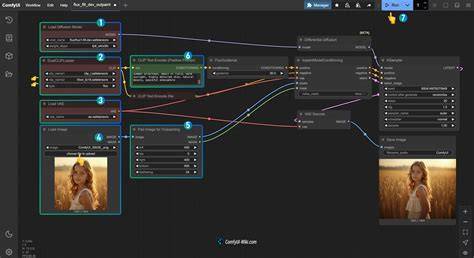
Installing Triton and SageAttention for ComfyUI takes about 10-15 minutes - install Triton first, then SageAttention, restart ComfyUI, and enable it in your workflow's sampler settings for faster generation and better GPU temperature management. Local Optimization: Installing Triton & SageAttention enhances ComfyUI performance (lower temps, faster runs). Quick answer: SageAttention is an attention kernel - a piece of code that speeds up one of the slowest calculations ComfyUI runs during image and video generation. It does not change what your images look like; it only makes that one calculation faster, which is why the install itself is where almost all the problems happen. If you run into issues, check version compatibilities, revisit installation steps, or consider the Promptus cloud option for a hassle-free experience.
What SageAttention is and why it matters
SageAttention is an attention kernel that speeds up one of the slowest calculations ComfyUI performs during image and video generation. It does not change image appearance; it speeds up the attention calculation, which translates to faster generations and improved GPU temperature management when properly installed. The speed boost is most noticeable in heavier workflows such as FLUX workflows - the larger the model, the more time SageAttention saves.
Common installation blockers and their fixes (in order)
- A version mismatch between Python, CUDA, PyTorch, and Triton - ensure all four components match the SageAttention wheel you download.
- A missing Triton include/libs copy into the embedded Python - copy the include and libs folders into the python_embeded directory.
- The wrong wheel file downloaded - the ABI tag (cp39-abi3) and CUDA version must match your setup.
- An outdated PyTorch build - SageAttention requires a PyTorch build compiled against the correct CUDA version.
These four issues are addressed in the exact sequence below, with precise commands and version checks at each step.
What you need before installing SageAttention
- Supported GPUs: NVIDIA RTX 20xx, 30xx, 40xx, or 50xx series (RTX 50xx requires Triton ≥ 3.3, PyTorch ≥ 2.7, and CUDA ≥ 12.8).
- Operating System: Windows 10 or Windows 11 with the ComfyUI Windows portable version already installed.
- Required Packages: Visual C++ Redistributable, triton-windows, torch + torchvision + torchaudio, and the SageAttention .whl file.
- Version Matching: All four components must have compatible versions - Python, CUDA, Triton, and PyTorch must match the SageAttention wheel you download.
It also helps to update ComfyUI to the latest version before starting, as older portable builds can include outdated bundled PyTorch conflicting with CUDA 12.8 needed by SageAttention.
Step-by-step installation
Step 1 - Install Visual C++ Redistributable
The Visual C++ Redistributable provides runtime libraries that Triton and SageAttention depend on. Run the installer, click Install or Repair when prompted, and restart Windows if advised. This is required before any other steps.
Step 2 - Install Triton (triton-windows)
Triton is a GPU kernel compiler required by SageAttention. Windows-specific builds exist as triton-windows. Open the ComfyUI Folder Terminal from your ComfyUI_windows_portable folder, then remove any old Triton installation and install the Windows package.
- Remove old Triton: .\python_embeded\python.exe -m pip uninstall triton
- Install Windows build: .\python_embeded\python.exe -m pip install -U "triton-windows<3.7"
Copy include and libs files matching your embedded Python version into the python_embeded folder. Determine Python version with: .\python_embeded\python.exe --version. Then download the matching Python include/libs zip (e.g., python_3.13.2_include_libs.zip) from Triton releases, extract, and copy include and libs into the ComfyUI's python_embeded directory. This step is critical - missing include/libs is the most common cause of Triton loading failures.
Step 3 - Install or update PyTorch
SageAttention requires a specific PyTorch build that matches both your CUDA version and the wheel you will install. For RTX 30xx or 40xx, the recommended PyTorch version remains compatible with SageAttention. Ensure your PyTorch installation aligns with the CUDA version used by the wheel you plan to install.
Step 4 - Download and install the correct SageAttention wheel
Before downloading, verify your CUDA and PyTorch versions. The wheel filenames encode these versions. Pick the wheel that matches your setup:
- sageattention-2.2.0+cu128torch2.10.0andhigher.post4-cp39-abi3-win_amd64.whl - CUDA 12.8 (cu128) and PyTorch 2.10+
- sageattention-2.2.0+cu130torch2.9.1andhigher.post4-cp39-abi3-win_amd64.whl - CUDA 13.0 (cu130) and PyTorch 2.9.1+
Download the wheel that matches CUDA and PyTorch versions, move it to your C omfyUI_windows_portable folder, and install with:
.\python_embeded\python.exe -m pip install ./sageattention-.whl
If pip fails, re-check version compatibilities and ensure the wheel matches your setup exactly. The wheel filename must be exact. After installation, you should see SageAttention loading in the console when starting ComfyUI.
Step 5 - Verify SageAttention is working
Start ComfyUI and verify that both SageAttention and Triton load correctly. Launch the server using the run_nvidia_gpu file, observe console messages indicating SageAttention and Triton loading, and load a workflow that uses attention operations. If the workflow runs without errors, installation was successful. If you see import errors, re-check the include/libs placement and version matching.
Working setup example for reference (Windows 11): GPU RTX 4090, Python 3.13.11 (embedded), Triton: triton-windows 3.5.1.post24, PyTorch: torch 2.12.0.dev20260219+cu128, SageAttention wheel: sageattention-2.2.0+cu128torch2.9.0andhigher.post4-cp39-abi3-win_amd64.whl.
What to expect after installation
Does SageAttention slow down or change image quality?
- No. SageAttention speeds up the attention calculation during generation without changing the output. You should see a real drop in generation time with no visible difference in results. In many cases, generation time drops by 30-50%, sometimes more depending on model and hardware.
Tip: For FLUX-based models, the biggest speed gains occur when generating longer prompts or larger resolutions. If SageAttention isn’t speeding things up, verify that the include/libs are correctly placed, and that the wheel ABI tag matches your embedded Python version.
Common pitfalls and troubleshooting
- Triton import errors - ensure include/libs were copied into python_embeded.
- Pip install errors - re-check CUDA/PyTorch/Python version compatibility and download the exact wheel.
- SageAttention appears but has no speed boost - confirm that SageAttention is actually being called in your workflow nodes.
- Black or corrupted frames on RTX 50xx - known issue with fp8 kernel; try standard resolutions first.
If all steps fail, reinstall the ComfyUI Windows portable version from scratch and re-run steps in order. Ensure your GPU is supported (RTX 20xx or newer). If an issue persists beyond this guide, consult the general ComfyUI troubleshooting guide for node errors and dependency conflicts unrelated to attention kernels.
Working tips and options
- Bookmark this guide for quick reference.
- Consider the Promptus cloud option for a hassle-free setup if you encounter repeated issues.
- Try running the same prompt multiple times to gauge average timings and confirm stability.