Learn how to use CorelDRAW’s Focus Mode to isolate an object, or group of objects, making it easy to work on only those elements of your artwork. This tutorial also covers CorelDRAW’s print merge feature to insert variable data, such as text, images and QR codes, into a single design to create personalized documents. It reviews the template workflow in CorelDRAW, including where to download free templates, and how to organize and manage your template library.
Isolating elements with Focus Mode and mastering object selection
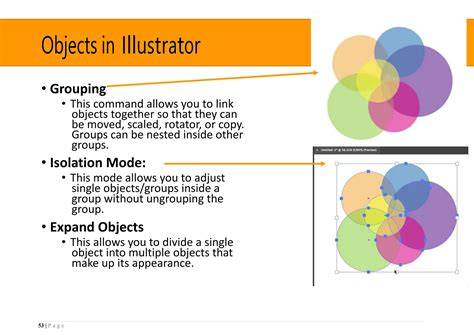
Learn how to use CorelDRAW’s Focus Mode to isolate an object, or group of objects, making it easy to work on only those elements of your artwork. Get tips on duplicating an object and selecting an object in a large group to boost your productivity. The Hints docker provides context-sensitive information about the active tool, helping you learn how to use it from within the application. This tutorial also covers how to use the Pan and Zoom tools to navigate large design files and focus on required sections.
Print Merge: personalizing designs with variable data
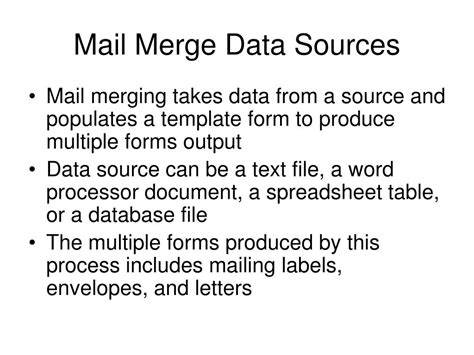
Learn how to use CorelDRAW’s print merge feature to insert variable data, such as text, images and QR codes, into a single design to create personalized documents. This section explains how to set up data sources and merge fields, enabling efficient production of customized materials like letters, labels and invitations.
Templates workflow: templates library management
This tutorial reviews the template workflow in CorelDRAW, including where to download free templates, and how to organize and manage your template library. You’ll discover how to access and download templates, and how to keep your library organized for quick reuse across projects.
Perspective drawing tools: drawing in perspective with ease
Learn how to use CorelDRAW’s perspective drawing tools to easily draw objects or scenes in perspective, without needing to set up complex grids. This makes creating architectural layouts, scenes, and product visuals more efficient, with intuitive controls for vanishing points and perspective grids where needed.
Image adjustments: non-destructive editing with Adjustments
Learn how to use the Adjustments docker and Adjust menu to easily apply a variety of filters and effects to an image or specific image area. This includes applying artistic and photographic adjustments while preserving the original image data for flexibility and reversibility.
Assets, Pages, and collaboration: asset management in CorelDRAW
Learn how you can easily view, manage and edit all your project’s digital assets in one view, using CorelDRAW’s Pages docker and Multipage View. Learn how to sync and share symbols with CorelDRAW’s Assets docker, so that design teams are in sync and always working with the most current assets. This supports efficient collaboration and consistent usage of design elements across projects.
CorelDRAW interface essentials: Property bar, Status bar, Toolbars
Get to know the Property bar in CorelDRAW - a context-sensitive toolbar that changes to display the most common functions specific to the active tool. In this tutorial, we’ll review the features of CorelDRAW’s Status bar and show you the different options for display preferences and customization. This tutorial also reviews the tools and features on CorelDRAW’s Standard toolbar along with shortcuts, display preferences and customization.
Positioning tools: guidelines, alignment, and live guides
Learn about the various CorelDRAW tools that will help you position objects with precision and ease: guidelines, align and distribute options, and live guides. These features help ensure accurate layouts and clean alignment across complex compositions.
Templates and symbols: template workflow andAssets
This tutorial reviews the template workflow in CorelDRAW, including where to download free templates, and how to organize and manage your template library. Learn how to sync and share symbols with CorelDRAW’s Assets docker, so that design teams are in sync and always working with the most current assets. Turn frequently used graphics into CorelDRAW symbols to save time and reduce file size.
Text and typography: artistic and paragraph text, fonts, and effects
Get an overview of artistic and paragraph text, and the various text formatting options available with CorelDRAW’s Text tool and Text docker. This tutorial is all about adding and editing artistic and paragraph text in CorelDRAW, including fitting text to curves and shapes. Learn how to use CorelDRAW’s new variable fonts to fine-tune the look of text by changing font properties such as width, slant, weight and more.
In this tutorial, you’ll learn how to apply and experiment with non-destructive effects to achieve the desired look without altering the original image. This includes using Interactive Effects and Shape toolboxes to create fun text effects, mosaic text, and distressed appearances. You’ll also learn how to create an interlaced effect to give the appearance that text and objects are intertwined.
Text effects and image enhancements: fill, gradients, and powerclip
Learn how to use the Text tool, Fountain Fill tool and PowerClip in CorelDRAW to create unique titles using a mosaic text effect. Discover how to apply gradient fills, outline, transparency, and fills quickly and easily using Object Properties and the Edit Fill tools. The PowerTRACE feature enables you to convert JPG to vector, or to enhance clipart by tracing it for scalable output.
Shapes and drawing tools: basic shapes, polygons, and curves
Learn the basics of drawing rectangles and squares with the Rectangle tools in CorelDRAW, plus how to resize, fill, and change corner shapes. Learn the basics of drawing ellipses with the Ellipse tools in CorelDRAW, plus how to resize, fill, and create pie and arc shapes. In this tutorial, we’ll show you how to draw and edit polygons in CorelDRAW, plus how to transform polygons into complex and interesting shapes. Watch a curve drawing tools tutorial to understand node types and how to edit curves effectively.
3D effects, shadows, and depth
CorelDRAW’s Extrude tool is used to give objects a 3D appearance. Learn how to add, edit, copy, modify and enhance extrusions on objects and text. See how easy it is to add depth to your designs with CorelDRAW’s Block Shadow tool. Shadow tools provide easy depth; learn to apply and fine-tune a drop shadow or inner shadow effect to enhance your design elements.
Color, gradients, and fills
Learn how to sample exact colors with the Color Eyedropper and copy attributes with the Attributes Eyedropper. Explore Interactive Fill and Smart Fill tools to fill objects and enclosed areas with color, pattern, and texture fills. Discover multi-color gradients (fountain fills) for shapes, text, and other objects, and how to adjust outlines, transparencies, and fills quickly using Object Properties and related tools. This includes a guide to color theory, RGB and CMYK color modes, and color management tools in CorelDRAW.
Font management and typography workflows
Learn about installed vs. non-installed fonts, how to preview and filter fonts, and how to use the Font Sampler to compare fonts in CorelDRAW. See how you can preserve your font collections with Corel Font Manager, which has new features to import and export font collections and folders. Learn how to use the Font Manager included in CorelDRAW Graphics Suite to easily manage your font library and keep your font collections organized. Learn how to find the perfect font for your project and how to use the Insert Character docker to filter and add characters and symbols.
Special effects and non-destructive editing
This tutorial explores applying artistic effects with non-destructive workflows and AI-assisted Art Style effects. Learn how to use Gaussian Blur in PHOTO-PAINT for lens blurs and feathering, and how to apply and adjust non-destructive effects to achieve the desired look. Also covered are techniques to convert bitmap to vector with PowerTRACE, upsampling, and JPEG artifact removal to improve trace quality.
Practical projects and real-world applications
From creating a custom vehicle wrap using templates to designing a logo, a business card, or a magazine cover, this guide offers practical steps for applying CorelDRAW tools to professional and personal projects. Tutorials on poster design, brochure design, magazine layouts, and signage are included, along with workflows for document setup and print-ready PDFs.

In addition to the techniques described, the tutorials emphasize how to design clean, crisp web graphics with Pixels view and pixel snapping, as well as how to use the Objects docker to manage objects, layers and pages. The importance of organizing assets, templates, fonts, and symbols is highlighted to maintain consistency across teams and projects. The guide also showcases the benefits of context-aware Toolbars like the Property bar and the customizable Standard toolbar for efficient workflow.
Whether you are new to CorelDRAW or seeking to refine your skills, this compilation of tutorial concepts covers essential tools and features to streamline design, enhance productivity, and produce professional results across a wide range of graphic design tasks.