The Direct Selection tool should directly select control points regardless of whether the object is already selected, allowing you to manipulate individual anchor points on a path or shape.
Understanding anchor point states and interaction
Key to using the Direct Selection tool effectively is recognizing that anchor points have two states: selected (solid) and deflected (hollow).
If you have a shape selected with the Selection tool and switch to the Direct Selection tool, all four anchors on a rectangle appear selected. Moving one will move all anchors if they are all in the selected state. To isolate a single point for distortion, deselect the entire object or ensure that the object is not selected when you begin:
- Click away from the shape to deselect everything.
- Then switch to the Direct Selection tool and click on a single anchor point to move it.
When the anchors are hollow (unselected), clicking on one anchor with the Direct Selection tool will select that point (solid) and allow precise distortion.
Practical steps to distort a corner point
- Ensure no object is selected with the Selection tool.
- Activate the Direct Selection tool.
- Click on a single anchor point of the shape to select only that point (it should become solid).
- Drag the point to distort the shape as needed. Other anchor points remain unaffected if they are hollow/unselected.
Common pitfalls and fixes
- If all anchor points appear solid and the direct selection tool moves the entire shape, click away from the shape first, then try selecting a single anchor point with the Direct Selection tool.
- If nothing happens when clicking an anchor point, ensure the object is not preselected. Deselect with the Selection tool or click empty space before trying again.
- Corrupted preferences can cause erratic behavior. If issues persist, reset InDesign preferences by following platform-specific steps and restarting the application.
In practice, the workflow hinges on understanding the two-state behavior of anchor points and ensuring the correct tool interaction order: deselect → Direct Selection → click an anchor point → distort.
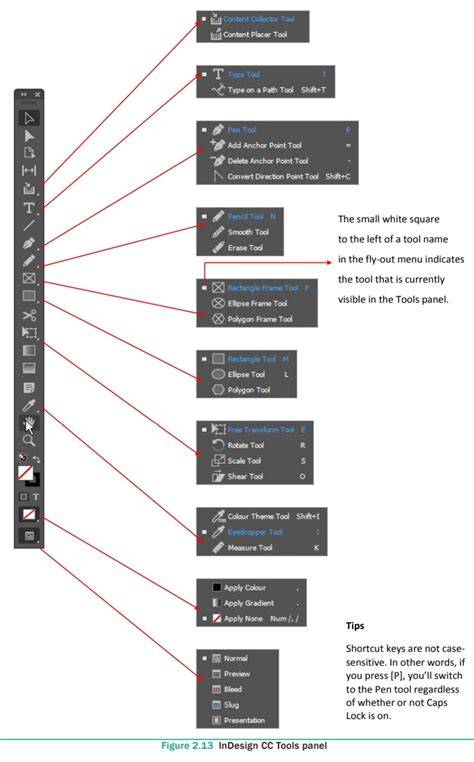
Adobe Illustrator CC 2 - Anchor Point and Direct Selection Tools: Adjust Paths with Precision
| Scenario | Expected Behavior |
|---|---|
| Shape not selected, Direct Selection tool used | Single anchor point can be selected and distorted |
| Shape selected with Selection tool, switch to Direct Selection | All anchors appear selected; distortion affects all points |
| Click away to deselect, then use Direct Selection on an anchor | Single anchor point can be moved independently |
Additional tips
If the Direct Selection tool behaves unexpectedly, resetting preferences can resolve corruption or anomalies in InDesign’s behavior. For Mac, close InDesign, navigate to Library/Preferences, and delete the relevant files; for Windows, relaunch with Alt-Ctrl-Shift to reset upon startup. After reset, try the standard deselect → Direct Selection → anchor point workflow again.