Printing two-sided documents in InDesign can be tricky when the back pages appear upside down. The key is to set up the document correctly for duplex printing and understand how the printer will feed and flips pages. The following guidance compiles practical steps and considerations to help you achieve correctly oriented back pages and consistent two-sided outputs.
Understanding the setup: facing pages, pamphlets, and duplex
When you initially create a new document for a double-sided pamphlet, you may encounter confusion between “facing pages” and a single-page layout. Facing Pages should be checked off for a two-sided one page pamphlet, but for some small brochures or tri-folds, you may actually want “no facing pages.” A pamphlet should, in my opinion, be set up as “no facing pages” (uncheck 'facing pages' when creating new pamphlet document). If facing pages is on, you’ll notice a difference in how the pages are presented in the interface in InDesign. A pamphlet properly set up at the start with "facing pages" unchecked will show up differently in the pages interface in InDesign. It’s showing you one piece of document with two sides, not two pages.
For a one-tri-fold pamphlet, you only need one page. The overall goal is to have a document that the printer can duplex correctly. There are several ways to make double sided (duplex) prints, including printing at home or using a service bureau. When submitting duplex requests to a service bureau, your file should be a multipage document like a PDF or InDesign file; you can’t just send a folder of individual pages. Proper setup helps ensure the back page alignment and orientation are correct.
Practical steps to achieve correctly oriented two-sided prints
- Prepare a multipage document (InDesign file or PDF) with the intended two-sided layout. Ensure margins and bleed are consistent with your printer’s requirements (e.g., 3 mm bleed in some cases).
- Decide whether you need “facing pages” on or off. If your project is a simple pamphlet or brochure with one physical sheet per spread, consider turning off facing pages to avoid misalignment when printing duplex.
- Export or print with the correct settings, including crop marks and bleed if the press shop requires them. Duplex settings should be aligned with the printer’s capabilities.
- When printing at home, select the appropriate duplex option in your printer dialog. The method of inserting the page back into the printer can affect orientation, so follow your printer’s manual for duplex feeding and flipping options (long edge vs. short edge).
- Consult the target printer’s instructions or service bureau guidelines if you are submitting to a commercial printer. Some printers duplex automatically, others require specific settings or hand-feeding steps.
If the back pages print upside down, the common causes are misinterpretation of the binding edge or incorrect choice of two-sided printing orientation (long edge vs. short edge) and how pages are laid out in InDesign. To fix this, re-check the document setup, ensure the correct duplex setting in the InDesign print dialog, and verify how the printer is feeding and flipping pages.
Duplex printing: printer-driven vs. document-driven approaches
There are two broad approaches to duplex printing:
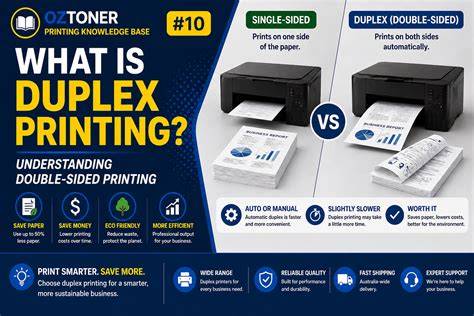
- Printer-driven duplex: The printer handles duplexing automatically based on the document settings and how pages are fed. Some public or professional printers auto-duplex when the correct options are selected in the driver or printer interface.
- Document-driven duplex: The document is prepared with precise layout, margins, and orientation so that when the printer duplexes, the front and back align as intended. This often requires careful page pairing and correct edge orientation.
In practice, a correctly prepared InDesign document with duplex enabled at the printer level will yield properly oriented back pages, provided the page pairing and flipping options match the printer’s capabilities.
Tips for ensuring alignment and avoiding upside-down back pages
- Center important elements to keep them away from the binding edge, ensuring they aren’t cut off or misaligned after duplexing.
- Keep cohesive color and image resolution (PPI/DPI) suitable for the printer’s output quality to avoid softness or misregistration on back pages.
- Provide necessary print instructions to the printer, especially if you’re sending it to a service bureau. Indicate duplex requirements, edge margins, and any proofing steps.
- If you’re printing locally, run a small duplex test with a simple two-page spread to verify orientation before committing to a full print run. If pages print upside down, adjust the page order or flipping option and re-test.
Common workflows: from InDesign to PDF to print
One common workflow is to export a multipage InDesign document as a PDF with crop marks and bleed, then send the PDF to the printer. This approach helps the press shop reproduce the layout accurately on both sides. When printing, ensure you select the appropriate two-sided printing option and verify the feed direction matches the printer’s expectations. If your home printer supports duplex, use the Long Edge binding option for typical two-sided documents to keep text right side up on both sides.
Table: quick checklist for double-sided InDesign printing
| Step | Action |
|---|---|
| 1 | Decide on facing pages (on or off) based on pamphlet type |
| 2 | Set margins and bleed appropriately (e.g., 3 mm) for your printer |
| 3 | Confirm page order and duplex option in InDesign print dialog |
| 4 | Export as PDF with crop marks and bleed, or print directly |
| 5 | Test with a small duplex run before full print |
| 6 | Provide explicit duplex instructions to printer and verify feed direction |
For further reliability, you can also consider providing a test proof to confirm right-side-up orientation on both sides before proceeding with a full run.
How to Print Double Sided in Adobe InDesign 2026 (Easily!!!)
In summary, correct double-sided printing in InDesign hinges on proper document setup (facing pages vs no facing pages), correct duplex settings in the print workflow, and alignment with the printer’s feeding and flipping process. By aligning these elements, you can avoid upside-down back pages and achieve clean, correctly oriented two-sided outputs.