Exporting layers in Photoshop is the bridge between static design and functional web architecture. Utilizing the ‘Quick Export’ and ‘Layers to Files’ features allows for the seamless extraction of UI components. Knowing how to efficiently batch export layers Photoshop style is an absolute game-changer for modern designers who routinely work with documents containing 50, 100, or 300+ layers.
Why batch exporting layers matters
Manually duplicating each layer to a new document and saving it individually is not just slow; it is borderline unacceptable in professional workflows. The good news is that you can streamline this with built-in tools, saving time and ensuring consistent asset naming and sizing.
Core methods for export
File Name Prefix: Add something meaningful like “Icon_Set_” or “UI_Elements_“. Trim Layers: Uncheck this if you want every image to maintain the full canvas size (essential for aligned assets like UI elements). Photoshop will now create a new document for each layer, copy the layer content, and save it automatically. Tip: Name your layers properly before running batch export layers photoshop with this method.
While Layers to Files is perfect for exporting everything, sometimes you only need specific layers exported. Need something even quicker? Go to File > Export > Quick Export Settings and choose your preferred format (most people choose PNG or WebP in 2025). This is the method I use 20+ times per day. Sometimes automation is not ideal. Click OK. Yes, it sounds slow, but once you record it as an Action (Window > Actions), you can batch-process hundreds of layers across multiple files using File > Automate > Batch.
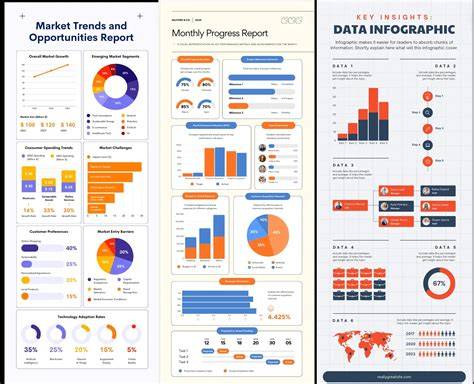
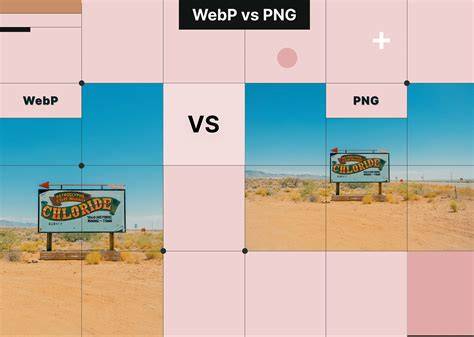
WEBP images are a new modern format for images. They are smaller and the same quality as JPEG images. If you still absolutely MUST use JPEGs follow this tip. For progressive modern web formats you should be using WEBPs. They are smaller, load faster and are quickly becoming the standard web image format. The answer is simple: Turn each group into a Smart Object temporarily (right-click > Convert to Smart Object), then run batch export layers photoshop using Layers to Files.
Practical workflows and fixes
Problem 2: Exported files have wrong colors. Fix: Always check Include ICC Profile. Problem 3: Some layers export blank. Fix: Make sure the layer actually has visible pixels. If you’re creating sprite animations or game assets, combine batch export layers in photoshop with proper naming (frame_0001, frame_0002, etc.) and then import the sequence into After Effects or your game engine.
Stop wasting hours clicking layer by layer. Slow loading speeds do more than frustrate human visitors and destroy your visibility. Clear the bottleneck with the Performance Speed Accelerator Package.
There are multiple approaches depending on your Photoshop version. In older versions, go to File > Scripts and select Layers to Files. In newer versions, you can use the same method or turn to Quick Export for rapid results. If you need to export only the visible layers, check “Visible Layers Only.” Choose the file type for the exported documents and enable options like PNG-24 for transparent backgrounds.
To start, select all the layers you want to save as separate files. Then run the appropriate command: File > Scripts > Export Layers to Files or File > Export > Layers to Files. Script Settings let you change the destination folder/path and define a filename prefix as a template for each file. If you enable Trim Layers, final images will be cropped to the actual content; disable Trim Layers to keep the original canvas size.
You can also export from Quick Export as PNG, and you can switch the extension in the Export tab to JPG when needed. For sprite sheets or animation sequences, export individual layers and later assemble them in your preferred after-effects or game engine workflow.
Naming, organization, and assets management
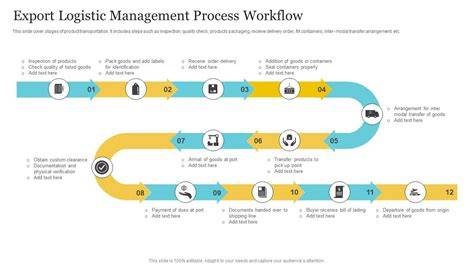
Naming layers clearly before exporting pays dividends: the resulting files will carry a prefix, a number, and the layer name, e.g., Icon_Set_01_layerName.png. If you don’t name layers, Photoshop uses default names like “Layer 1,” “Layer 2,” etc., which can lead to confusion in large projects.
For projects with sprite-like assets or frame-by-frame animations, set a consistent naming convention such as frame_0001, frame_0002, and so on, to facilitate import into After Effects or a game engine. If you frequently need to export multiple formats, you can save time by creating Actions that automate the batch export process and then run them with File > Automate > Batch.
HOW TO SAVE LAYERS AS SEPARATE IMAGES [IN PHOTOSHOP] // Export Layers Separately In Photoshop
Formats and recommendations for web use
PNG-24 is preferred when transparency is required, as it supports alpha channels. WEBP is recommended for modern web use due to smaller file sizes and similar or better quality compared to JPEGs. If JPEGs are unavoidable, use them thoughtfully and keep quality settings appropriate for web deployment. When transparency is not required, PNG-8 can also be an efficient choice for simple graphics.
In workflows that emphasize speed and batch processing, converting layers to Smart Objects before exporting can help preserve editability and simplify updates later in the pipeline. This approach complements the Layers to Files method and can be adapted to professional asset pipelines that include animation and game development.
Practical tips for smoother exports
- Name your layers clearly before exporting to maintain meaningful file names.
- Use a meaningful File Name Prefix to categorize assets (e.g., Icon_Set_, UI_Elements_).
- Decide whether to trim layers or retain full canvas size based on asset alignment needs.
- Consider using Actions to batch-export hundreds of layers across multiple PSD files.
- Always verify color profiles and visible pixels to avoid blank or color-shifted outputs.
How to set up a quick export flow
- Select the layers you want to export.
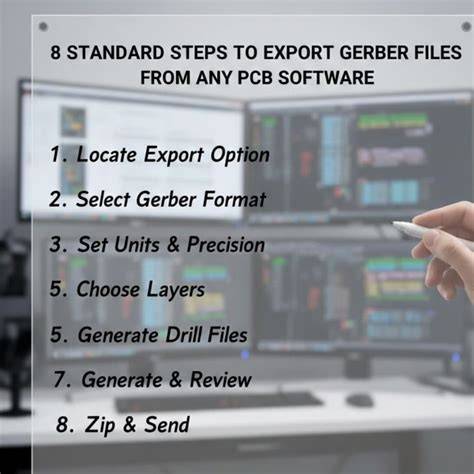
- Go to File > Scripts > Export Layers to Files (or use Quick Export as PNG for rapid results).
- In Script Settings, set the destination folder, choose a filename prefix, and pick the desired file type and options (Transparency, ICC Profile, Trim Layers).
- Run the script or record an Action and batch-process through Window > Actions and File > Automate > Batch.
In summary, exporting all layers as individual files in Photoshop can dramatically speed up asset delivery, ensure consistency across UI components, and align with modern web performance standards. Whether you choose Layers to Files, Quick Export, or scripted automation, you gain a scalable workflow that supports large-scale design systems and rapid prototyping.