Fade edges around non-geometric shapes in GIMP by leveraging selections, feathering, and layer masks, then blur or refine the mask with the Gaussian Blur tool. This approach lets you create soft, natural transitions for irregular cutouts, such as cloud-like forms, without relying on the built-in templates of the Blend tool.
Understanding the workflow
The core idea is to define the region you want to keep, create a layer mask from that selection, feather the edges to create a soft transition, and then apply Gaussian Blur specifically to the mask to control the fade strength. This ensures the blur affects only the transition area and not the entire image.
First, initialize a selection from the area you want to preserve or fade, then convert that selection into a layer mask. The mask determines which pixels remain fully visible and which ones fade toward transparency. After that, apply Gaussian Blur to the mask so the fade becomes smoother and more natural. Finally, anchor or disable the selection as needed and adjust the mask to achieve the desired edge softness.
Method #1: Initialize from the selection and blur the mask
- Draw a rough selection around the area you want to keep using a selection tool (e.g., Free Select, Lasso, or Brush tools with a selection mode).
- Initialize the layer mask from the selection: right-click the layer in the Layers panel, choose Add Layer Mask, and select “Initialize from selection.”
- Blur the mask with Gaussian Blur: ensure the target is the mask (the mask thumbnail is highlighted), then go to Filters > Blur > Gaussian Blur and adjust the radius to taste. The blur applies to the transition area, softening the edge.
- Fine-tune by reselecting and feathering as needed, or paint on the mask with black/white to deepen or restore the fade. If you need to re-run a blur, simply reapply Gaussian Blur to the mask.
Note: This method relies on targeting the layer mask for the Gaussian Blur; applying blur to the image layer itself will blur the entire image, not the edge transition.
Method #2: Initialize from the selection dialog and adjust the mask
- With a selection active, open the Layers dialog and click the Add Layer Mask button.
- Choose “Selection” (or “From Selection” depending on your GIMP version) to create the mask from the current selection.
- The mask preview in the Layers panel should show a blurred or feathered shape if you apply feathering while the mask is active, producing a visible fade in the main display.
- Ensure the selection is still valid; if not, reselect and reinitialize the mask from the selection, then adjust as needed. The key is to have the mask as the active target when applying edits.
When you’ve initialized correctly, the fade appears as a blurred shape in the mask preview and the image shows fading edges on the subject.
Method #3: Target the layer or the mask, then apply the blur to achieve selective fading
- In the Layers list, click on the target you want to fade: either the image layer or the layer mask thumbnail. The status indicator at the bottom of the image window shows which target is active (Layer_name or Layer_name mask).
- With the mask as the active target, draw or refine the mask as needed. The next operations will apply to the mask, not the image itself.
- Apply Gaussian Blur to the mask to control the softness of the fade. The blur will affect only the masked region, allowing you to create edge fades around irregular shapes.
As you practice, you’ll notice that fading all edges of an irregular shape is a matter of controlling the mask’s blur and feathering rather than modifying the entire image.
Practical tips and variations
- Use the Feather option (Select > Feather) before creating the layer mask to get an initial soft edge, then switch to a mask and apply Gaussian Blur for additional smoothing.
- For a cloud-like shape and alpha-transparent surroundings, ensure the image has an alpha channel and that you initialize the mask from a selection that follows the cloud boundary.
- If you don’t want to blur the entire image, always confirm the mask is the active target before applying blur. Gaussian Blur on the image layer will blur the whole picture, not the edge fade.
- Experiment with different blur radii to balance realism and softness; larger radii yield smoother, more gradual fades, while smaller radii retain more details along the edge.
- Combine a gradient mask with Gaussian Blur for radial or directional fades, enabling creative control over the transition strength across the edge.
Complementary approaches
Other tools can complement the fade edges technique, such as using a soft brush on the mask to manually adjust opacity near the boundary or applying a gradient fill to the mask to simulate more complex fading patterns. For faster results or simpler workflows, consider AI-assisted tools that can automate edge fading, though manual control via masks generally yields more precise results for irregular shapes.
Practical example: fading edges around an irregular cutout
Start with an image that has transparent surroundings (alpha channel). Draw a rough selection around the subject, then Initialize the layer mask from the selection. Feather the selection to introduce a soft boundary, switch to the mask, and apply Gaussian Blur to the mask. Finally, tweak the mask by painting with black or white to deepen or restore transparency along specific parts of the edge. This creates a natural fade around a cloud-like silhouette rather than a hard cutout.
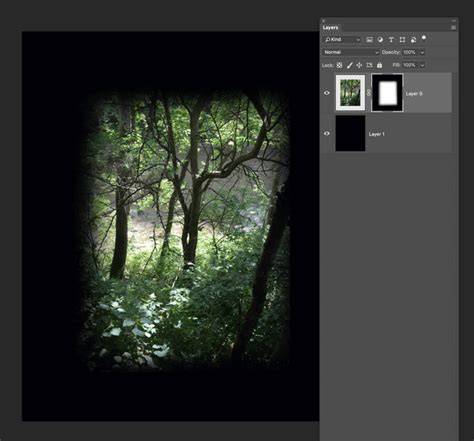
To illustrate the process, you can also use a circular or custom-shaped gradient mask to achieve a tailored fade along particular edges.
How to Fade Images to Transparent in GIMP (Whole Image or Gradient Fade)
The end result provides smooth, natural transitions around irregular shapes, suitable for logos, cutouts, or overlays where a hard edge would look artificial.