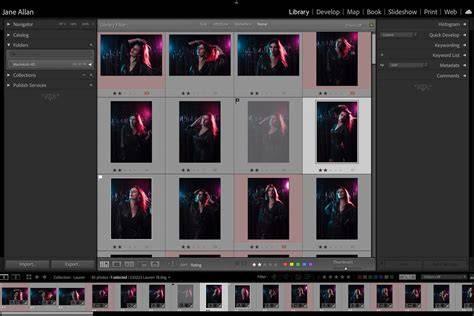
Adobe Lightroom launched more than a decade ago with the goal of simplifying the workflow of any digital photographer. In many cases, users will need to work with huge amounts of photos, so streamlining the workflow is essential to keep up with the delivery dates. This is where keyboard shortcuts come in handy. If we have two very similar photos, adjustments made in one will probably also work in the other. Editing in Lightroom is non-destructive; that is, they do not directly affect the original file but a kind of "copy" of it. Please note: Command and Ctrl are the same.
Essential shortcuts for fast navigation and global adjustments
1. Automatically helps you balance exposure. When you click command + U, all sliders for Tone (Exposure, Contrast, Highlights, Shadows, Whites, and Blacks) will be automatically adjusted.
2. If you do not like the actions or changes that were done, you can always Undo it. Instead of going to the Edit tab and clicking on Undo, you can just use the shortcut Ctrl + Z.
3. The G shortcut is one of the most important in Lightroom. This one is used for bringing up the Grid View in the Library Panel. Doing so will make editing and working on your images more convenient - and fun.
4. If you find the need to go to Photoshop - probably to look for a photo you’re planning to use for the editing task - you do not have to save your image and go out of Lightroom before opening Photoshop. All you need to do while still in Lightroom is press the Ctrl + E shortcut.
5. If you want an easier way of opening your image (to edit) on the Develop module, all you have to do is press D. In a matter of seconds, you’ll be able to comfortably work on your image.
6. Press Command + Shift + U if you want Lightroom to help you auto adjust the white balance of your image.
7. If you want your image to appear larger than the normal size, simply press Shift and Tab and all the toolbars and side panels will disappear. Once you do this, you’ll get your image that’s almost as big as your desktop full-screen. Take note that this is a different command from pressing the F key. The F key is only intended for those who want to zoom their image in and out.
8. If you want to crop your image, just press R and you can start editing your image. Aside from cropping, you can also rotate your image when needed.
9. Removing spots, fixing skin blemishes, and other similar actions can be easily done by pressing Q.
10. There may be instances when you want your photos to appear in grayscale. This can be easily done on Lightroom Classic and it doesn’t need a complicated process. All you need to do is press the V key and your image/s will automatically switch to grayscale.
These are just 10 of the most useful Lightroom Classic shortcuts. There are hundreds more when you explore Lightroom further.
- Navigate efficiently: G for Grid View and D to switch to Develop.
- Non-destructive editing: changes are applied to copies, not original files.
- Global exposure and white balance: U for auto exposure, Shift+U for auto white balance.