When you move, rename, or delete image files or folders that Lightroom Classic relies on, the link between the catalog and the photos can break. Similarly, if photos are stored on an external drive that goes offline, the Lightroom catalog loses track of those files. If the drive is offline, turn it on. The message appears in the Develop module and is accompanied by a “Photo is missing” indicator in the Histogram panel.
Why Lightroom reports a missing file
The missing file message happens because Lightroom has lost track of the original image. You can see the image on your screen because the thumbnail preview still exists in the Catalog, but the original file is gone. Without the original, high-resolution image, you cannot edit the image. (You can read more about rebuilding Lightroom previews.)
Lightroom will lose track of an image if it’s moved on your computer. In other words, an image or batch of images was dragged out.
What to do when you see a missing file in Develop
- At the top of the right side panels, the Histogram graph isn’t in its normal place because there’s no original. Note that in the bottom left corner of the panel, it says, “Photo is missing.”
- To fix it, click on “Photo is missing.”
- A dialog will appear in the center of the screen telling you where Lightroom last saw the original.
- Click the Locate button, so you can tell Lightroom where you moved the photo.
- In the Search field, type the name of the missing file.
- Click on the original image in its new location.
- Click the “Select” button to tell Lightroom where the original is. The “File cannot be found” message in the Develop module should now be gone.
If an entire folder is missing, it will be grayed out in the Folders panel and display a question mark icon. You can relink all the photos at once by right-clicking (Windows) or Control-clicking (macOS) on the folder and choosing Find Missing Folder from the context menu.
Notes on external drives and offline files: If photos are stored on an external drive that goes offline, simply reconnect the drive and wait for Lightroom to re-establish links. If files live in cloud-synced or online-only locations, Lightroom Classic may treat them as offline; ensure local copies exist before relinking.
Practical tips for preventing missing files
- Keep a consistent folder structure and avoid moving files outside Lightroom unless you relink within the application.
- When using external drives, ensure they are mounted before launching Lightroom.
- Avoid reorganization of files while Lightroom is on; use Lightroom to move or rename images.
- Regularly back up catalogs and media to maintain integrity after changes.
Adobe Lightroom is a powerful editor with color adjustments, contrast enhancements, sharpening, and unique effects that help create compelling visuals. Whether you’re a professional photographer or someone who loves great imagery, managing your files effectively keeps your workflow smooth and your edits reliable.
Some users manage cloud-synced images or a mobile workflow where downloads land in a special folder inside the catalog directory. For these cases, check Lightroom’s preferences under Edit → Preferences → Lightroom Sync to understand where synced images are stored and how moving or deleting items might affect the catalog. If you find offline or online-only files, move or copy the originals to a local folder that Lightroom can access.
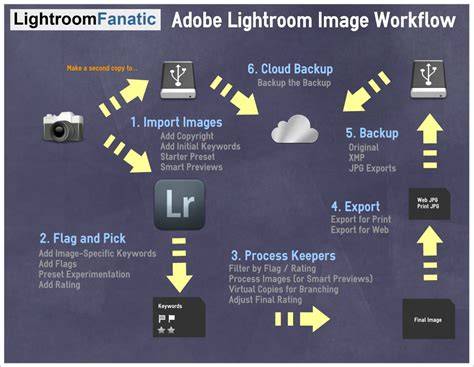
In resolving missing file issues, you might discover that only previews remain in the catalog while the originals are elsewhere. This distinction explains why you can still see a thumbnail but cannot edit the image until the original is found or restored.
How to find missing images and folders in Lightroom Classic
As you restore links, you’ll typically see the missing indicator disappear from the Develop panel, and the histogram will return to its proper position. This ensures you can proceed with edits as before, without losing your adjustments or metadata.