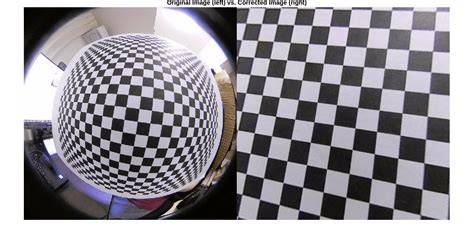
Fisheye lenses can create some pretty novel images, but buying one can break the bank. Check out this tutorial for mimicking the fisheye lens effect on the cheap using Photoshop. For the unfamiliar, a fisheye lens is a lens with an extremely wide angle of view. For comparison, fisheye lenses have an angle of view of 180 degrees, but the fixed 50mm lens, a staple of basic photography, has only a 46-degree angle of view. Because of the huge angle of view, fisheye lens have a significant amount of distortion-normally a bad thing, but also an artistic result for some shots, and one of the reasons people use them in styled photos and videos.
Why recreate the effect in Photoshop instead of just using a fisheye lens? A fisheye lens for a DSLR from a no-name company will run you more than $300, and easily $700 and up from a respectable company. Unless you have a huge passion for fisheye photography or a pressing business need to take wide-angle, that kind of expenditure is outside the scope of most photography hobbyists. Helen Bradley's tutorial on software fisheye effects requires just Photoshop, or the GIMP, and the patience to translate the steps to suit your photos. In most cases, you'll need multiple pictures of a single scene to replicate the wide angle of view you get with a fish eye lens. Using Photoshop, you stick the photos together, clean up the edges, and then use the distortion filters to bend the photo to your fisheye-loving will.
Image distortion in iconic album art and vintage photography has long fascinated designers. Some of the most memorable used original photographic techniques to produce eye-catching effects, such as long exposures or spot lighting, while others used specialist lenses to create psychedelic fish-eye distortion, as seen on The Rolling Stones' UK release of their 1966 compilation Big Hits (High Tide and Green Grass). The fish-eye lens used to shoot the cover dramatically increased the angle of view, the width and height of what was seen through the camera's viewfinder, ultimately meaning that more of the scene would fit into the frame. A side effect of this is the massive barrel distortion that spherizes the content and the large circular blackout around the edges of the image itself.
To create an image in this style you could use an expensive circular fish-eye lens, but an equally effective look can be achieved in Photoshop simply using the Spherize filter. Read on to find out how it's done with Photoshop Elements 8 (you can also use all versions of CS up to and including Photoshop CS6) - there's a sample image for you to use below. Click here to download image01. Click on the image to enlarge Open fisheye_before.jpg. To ensure that after applying the fish-eye effect the main area of interest is centred, select the Crop tool and, holding down the Shift key, select a perfect square. To position the area of crop, click into the selection and use the arrow keys to move it into position.
Duplicate the 'Background' layer (Layer>DuplicateLayer). Make sure that you have the duplicated layer selected and then go to Filter>Distort>Spherize. Use the slider to the right of the mesh preview to set Amount to 100%. Make sure the Mode drop-down menu is set to Normal and click OK. After applying the fish-eye effect you'll need to enlarge the canvas so you can add a realistic soft edge around the curvature of the distortion. Go to Image>ResizeCanvas>CanvasSize. Select Percentage and increase both values from 100% to 140%. Set the Canvas Extension Colour to black and click OK.
Next steps involve refining edges and adding a title band if desired. Click and hold your left mouse button on the Marquee tool in the Tools palette. Select the Elliptical Marquee tool. Switch off the duplicate layer in the Layers palette using the eye icon and click the Marquee tool into the top-left corner of the image. Hold down Shift and drag it down to the bottom right. Inverse the selection by going to Select>Inverse, then enlarge the selection (Select>Modify>Expand) and set Expand By to 10. Go to Layer>New>Layer, then Select>RefineEdge. Increase Feather to 20px and click OK. From the Edit menu, select Fill, choose Black as the fill colour and click OK to apply. Then, select the Text tool and type in the name of the band or subject, adjusting font and size as desired.
The methodology extends beyond single-image edits. Dream it. Use the Adaptive Wide Angle filter to correct lens distortions due to using wide angle lenses. The filter detects the camera and lens model and uses the lens characteristics to straighten the images. You can add multiple constraints to indicate straight lines in different parts of the picture. If you want to edit the filter settings later, convert the layer to a smart object. Specify the focal length of the lens. Specify a value to determine how the final image is cropped. Corrects 360-degree panoramas. Enable this option to use the values as defined in the lens profile. To constrain vertically or horizontally, press Shift while dragging the line. After the wide-angle correction is complete, the picture may have several blank areas.
In addition to Photoshop-only workflows, modern editors offer alternative tools. CapCut desktop video editor offers a simple way to apply various effects, including the fisheye effect, to both images and videos. Its intuitive interface lets you add dramatic fisheye distortion to your footage with ease, giving your content a unique, photo-like quality. CapCut provides a variety of fisheye effects to add dynamic curvature and depth to your images and videos, creating a unique visual style. You can also remove or replace the background, apply AI skin smoothing, and export still frames for sharing.
Here are practical tips for achieving a polished fisheye look in Photoshop. Start with a clear focal point, balance distortion to avoid an unnatural result, center the subject, and consider combining with other effects like vignetting or color adjustments. Experiment with different angles to create striking curvature and dynamic compositions. The combination of creative edits and careful masking can yield controlled, professional results that mimic a true fisheye lens without the cost.
- Open and select the image, then apply a warp-based distortion or the Spherize filter to simulate the fisheye look.
- Adjust the distortion intensity to taste, ensuring the center remains visually dominant.
- If needed, crop and refine the edges with a soft black veil to simulate edge darkening.
- Optionally add text or other design elements to complete the stylized composition.
In summary, the fisheye effect in Photoshop provides a dramatic, wide-angle look that emphasizes the center while curving the edges. It is a powerful tool for creative experimentation, landscape depth, and social-media-ready visuals. For video projects, CapCut offers accessible, fast distortion options that mirror the Photoshop aesthetic, enabling quick workflow integration across stills and clips.