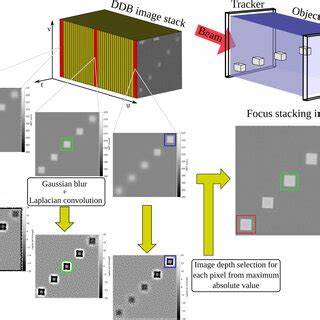
Focus stacking is a powerful technique for extending depth of field by combining multiple images, each focused at a different distance. This article explains how to perform focus stacking in Photoshop, from shooting considerations to final blending and post-processing, with practical steps drawn from real-world workflows.
Why use focus stacking
Due to the focal length of a lens and its proximity to a subject, front-to-back sharpness isn't always achievable in a single shot. Focus stacking blends the depth of field from several images to create a final image that is sharp from foreground to background. This method is especially valuable in macro, product, landscape, and field photography where small subjects or scenes require extensive depth of field.
Preparing to shoot
Use a sturdy tripod to keep the camera steady and ensure consistent framing across shots. For landscapes or macro scenes, shoot with a series of images, each with a different focus point, starting from the nearest element and moving toward infinity. The number of images depends on the scene, the aperture, and the desired depth of field. If your camera supports Focus Shift Shooting, you can automate the process by selecting the number of intervals, the width of those intervals, and Start. If not, you can shoot manually by turning the focus ring slightly between shots. In some cases you may need to capture extra frames beyond the final focus to cover the entire range and then trim later.
When shooting outdoors, keep shutter speed and ISO consistent across the sequence to prevent exposure shifts. If wind or motion is a factor, a quiet environment or a brief time window is preferred to minimize movement that could complicate merging. If your camera’s Silent Photography or electronic shutter is incompatible with speedlights, plan accordingly to accommodate flash recycling times.
Capturing the sequence
Begin with the closest focus point and gradually shift toward infinity, taking additional shots as needed. On landscape sequences, you might end up with ~2-8 photos depending on aperture and desired depth of field. For macro or detailed subjects, you may require more frames to ensure every element is captured in focus in at least one image. A typical focus-shift sequence can consist of 8 or more images to cover the full range of depth.
If you’re using a camera with focus-shift capabilities, you can set up intervals and interval width, then Start. The camera will take a series of exposures while changing focus depth at each shot. Discard any extra pictures that extend beyond infinity before merging.
Initial processing in Lightroom
Import the focus-stacked sequence to Lightroom Classic for cataloging and initial adjustments. You can synchronize edits across the series so that color temperature, exposure, highlights, and other global adjustments stay consistent, ensuring a smooth blend in Photoshop later. When preparing to blend, it’s common to select all frames in Lightroom and open them in Photoshop as layers for stacking.
Bringing images into Photoshop
In Photoshop, load the images as layers so they stack on top of each other. If you are using Lightroom, you can export the series and then import into Photoshop as layers. The goal is to have every image represented as a separate layer in a single document. For RAW files, be mindful that they’re larger and may take longer to load, align, and blend.
To begin stacking, select all layers. If you did not auto-align during loading, you’ll need to align them manually. Auto-align helps compensate for focus breathing, where the apparent size of the subject shifts as focus changes. This step ensures pixel-perfect alignment so the blend operation can produce a clean composite.
Aligning layers and creating the blend
With all layers selected, use Edit > Auto-Align Layers. This step often improves results by aligning frames despite tiny shifts in perspective or scale due to focus breathing. After alignment, choose Edit > Auto-Blend Layers. In the Auto-Blend Layers dialog, select Stack Images and enable Seamless Tones and Colors. If you’re using Photoshop CC, you may also see Content Aware Fill Transparent Areas, which helps fill any gaps at the edges after blending. Click OK to start blending.
Photoshop automatically creates layer masks for each layer, revealing the in-focus regions from the corresponding image. The masks are white where the image is visible and black where it’s hidden. This automatic masking is the core of focus stacking, allowing the sharpest regions from each frame to blend into a single sharp image.
Post-blend adjustments
After blending, you may prefer to flatten the image to reduce file size and simplify editing. In top-level menus, select Layer > Flatten Image. Then save the result. You might find slight halos or edge artifacts around the blend, especially near the perimeters. To address this, crop the image or fine-tune masks with a soft brush to blend edges more naturally.
In some cases it’s necessary to crop edges where the blend failed to align perfectly. If you are working with early Photoshop versions, you can create a merged copy of the layers and work on that; newer versions generally streamline this process. Depending on lens characteristics, you may also observe focus breathing and minor misalignments at the edges, which crop or minor retouching can mitigate.
Alternative tools and comparisons
Photoshop isn’t the only tool for focus stacking. Helicon Focus and Zerene Stacker offer dedicated stacking controls and may provide different results or workflows better suited to specific subjects. However, Photoshop remains a popular and capable solution, especially when your workflow involves Lightroom for cataloging and initial edits.
In some cases, you might prefer manual focus stacking, particularly if your camera or lens has limitations with automated focus shift. Manual focus stacking remains a dependable approach for macro work or unique scenes where precise control over focus steps is essential.
Practical notes and tips
- Plan ahead for compositing: know which parts of the scene should be in focus across frames and how you will blend them in post-processing.
- Use a tripod to ensure consistent framing and minimize perspective shifts.
- Keep exposure fixed throughout the sequence to avoid artifacts caused by brightness changes between frames.
- Be mindful of moving subjects: wind, water, or other motion can create artifacts or require manual blending adjustments.
- Check for focus breathing and align layers to compensate for scale changes between shots.
- When necessary, crop edges to remove artifacts introduced by the blending process.
Example workflow recap
1) Shoot a focus-bracketed sequence (manual or camera-based focus shift). 2) Import to Lightroom, apply consistent edits, and export as a stack to Photoshop. 3) In Photoshop, load layers, optionally Auto-Align, then Auto-Blend with Stack Images and Seamless Tones and Colors. 4) Inspect the layer masks and adjust manually if needed. 5) Flatten and crop as desired, then save the final image.