Whether you’re a budding designer or a seasoned pro, understanding how to effectively merge layers in your graphic design software is essential. Layer merging can enhance the quality and efficiency of your design process by allowing you to create complex compositions and manage file sizes. If you’re new to Procreate, a digital illustration app for iPad, you might be wondering what some of the best techniques are for merging layers with this tool. This post will walk you through three of the easiest ways to merge layers in Procreate.
Why merge layers using Procreate?
Merging layers in your Procreate designs is a practical way to manage and edit your designs. Here are four of the main reasons to try it:
- Create backgrounds. One of the fundamental uses of merging layers in Procreate is creating complex backgrounds. By merging various layers, you can combine different elements - such as colors, textures, and patterns - to create a cohesive background. This technique is particularly useful in digital art and illustration, where backgrounds play a critical role in setting the tone and atmosphere of the artwork. Merging layers ensures your background elements are seamlessly integrated, providing a solid foundation for the foreground elements to stand out.
- Reduce file size. Each layer of your design adds to the file size, which can lead to slower performance and difficulty in sharing or exporting your work. Merging layers reduces the file size, making it more manageable. For example, you might create images for a blog post that need to be compressed without compromising quality. In that case, you would create the graphics, consisting of different layers, and add the gradient or texture on top. Then, you would merge and export them to PNG files so that when you lay out the visuals, they’re easier to move around, and the artboards won’t have slow loading times.
- Organization. As your Procreate project grows in complexity, so does the number of layers. Managing dozens of layers can become overwhelming and confusing, making it difficult to navigate and make edits efficiently. Merging related layers simplifies your layer panel, making it more organized and easier to work with and helping maintain clarity in your project. This allows you to quickly find and adjust specific elements without sifting through a cluttered layer panel.
- Workflow optimization. Merging layers in Procreate streamlines your workflow. By consolidating layers, you minimize the time spent toggling between different elements, which can be particularly time-consuming in detailed projects. This optimization allows for a more focused approach to your design, where you can concentrate on refining and enhancing your artwork without getting bogged down by the technicalities of managing numerous layers. Moreover, a streamlined workflow leads to faster completion times, which is especially important for professionals working under tight deadlines.
The basics of merging layers in Procreate
Understanding the different types of layers and how to merge them is crucial, so let’s explore the basic types of layers in Procreate: Pixel layers, Vector layers, and Adjustment layers, and how they can be merged.
Pixel layers
Pixel layers are the most common type of layer in Procreate. These layers are made up of pixels - tiny squares of color that make up your image. When you paint, sketch, or draw in Procreate, you’re typically adding pixels to a pixel layer. These layers are raster-based, which means they lose quality if resized significantly. Merging pixel layers is straightforward - you can combine two or more pixel layers into a single layer, which is helpful for reducing the number of layers and blending elements seamlessly.
Vector layers
Unlike pixel layers, vector layers use mathematical equations to create shapes and lines, which means they can be resized without any loss of quality. This is particularly useful for logos, text, and any design element that needs to scale up or down. However, it’s important to note that Procreate’s primary focus is on raster graphics, and its vector capabilities are somewhat limited compared to dedicated vector software. When you merge vector layers with other layers in Procreate, they are converted into pixel layers, which means they lose their scalability.
Adjustment layers
You can use adjustment layers in Procreate to apply non-destructive edits to your artwork, such as color adjustments, brightness/contrast changes, and other visual effects. Adjustment layers affect all the layers below them without actually altering the original layers, allowing for a flexible editing process. When you merge an adjustment layer with other layers, the adjustments become permanent on those layers. This is a crucial step if you’re satisfied with the adjustments and want to consolidate them into your artwork.
Blend modes in Procreate change how a layer interacts with the layers beneath it. They can create a variety of effects, from subtle texture blending to dramatic color changes. Each blend mode applies a different algorithm to the layer, affecting how its pixels blend with underlying pixels. For instance, the ‘Multiply’ mode darkens colors, while ‘Screen’ mode lightens them. Experimenting with different blend modes can lead to unique and unexpected results, greatly enhancing the depth and complexity of your artwork. Opacity controls how transparent a layer is, enabling soft transitions, shadows, and overlay effects. Lowering opacity helps build up colors and textures gradually, giving you more control over intensity and blending. Layer order-the arrangement of layers in the layer stack-plays a critical role in how your artwork is composed. Topmost layers appear in front of others and can be reordered by dragging, which changes how layers interact. Layer limits on Procreate vary with device RAM and canvas dimensions, encouraging efficient layer management and prompting artists to merge layers thoughtfully to stay within constraints. It’s important to plan your layer usage, especially in complex projects, to ensure you don’t run out of layers before completing your artwork. Remember, merging layers is irreversible once you close the app or undo your recent actions. To prevent surprises, save your work before closing the app or viewing the gallery in case you need to revert back to an earlier stage of your artwork.
Three best methods for merging layers in Procreate
Here are the three best methods for merging layers in Procreate.
Method #1: Merge Down
To merge layers with this method, open the Layers panel in the top-right corner, tap on a layer to select it, then tap it again to access the Layer Options menu. Choose Merge Down to combine the selected layer with the one directly below it.
Method #2: Pinch
Pinch is a gesture-based control. To use it, open the Layer Options menu and, using two fingers, pinch together on the layers you want to merge. If you accidentally merge the wrong layers, you can use the Undo gesture (two-finger tap) immediately to revert the action.
Method #3: Flatten
This is a good technique if you have a lot of layers to combine. First, select all the layers you want to merge and tap on Group to combine them into a single group. Tap on the new group to access the Layer Options menu, then choose Flatten to merge them all together.
Go forth and merge
Merging layers in Procreate is a strategic approach to making your design process more efficient, organized, and creative. Whether you’re crafting intricate backgrounds, managing complex projects, or simply looking to optimize your workflow, understanding and using the layer merging technique is indispensable in digital design. Readiness to showcase your Procreate artwork includes tasks like Rename, Select, Copy, Fill and Clear. Layers added to your project have sequentially numbered titles by default. In the Layers panel, tap a layer to bring up Layer Options, then tap Rename. The amount selected is based on the alpha channel, or opacity level, of the layer content. The higher the opacity, the more that is selected. From here, you can take all sorts of actions on the selected area. We don’t recommend using Select in the layer options if you simply want to move or copy all of the layer content. Once you copy image data to the clipboard, you can paste it into another layer or a different Procreate canvas. This will fill your entire layer with the currently selected color. If you have Alpha Lock on, you can use Fill Layer to color only the existing artwork on that layer. This will clear the contents of the entire layer. Any further drawing or painting will only affect the existing artwork on that layer. In the below example, on the left a shading stroke is applied to the top of the elephant layer with Alpha Lock disabled. In Layers, tap your active layer to bring up Layer Options, then tap Mask. The greyscale values of a Layer Mask hide and reveal the content of the layer beneath. Use brighter values to reveal more of the layer, and darker values to hide more. Use different grey values to modify the opacity of the content beneath in a non-destructive way. A Clipping Mask functions like an Alpha Locked layer, but isn't attached to a single specific layer. A Clipping Mask acts as a separate and distinct layer of its own. You can link Clipping Masks to any other layer. Because of this, you can move a Clipping Mask from one layer to another. Or stack multiple Clipping Masks above a single base layer. Clipping Masks are a great way to modify your content non-destructively. If you don't like the result, remove it. It can ‘snap’ your strokes to a guide or perspective grid. Settings, it can reflect your strokes across the canvas in various ways. With this setting, you can ColorDrop fills onto any Layer. Merge Down combines the active layer with the layer directly below it. You can merge multiple groups with a simple Pinch gesture. Pinch together the top and bottom layers you want to merge. Merging layers will apply any blending mode to the pixels below. If you reach your layer limit, look through your layers for any you can merge together. This action can be undone immediately with a two-finger tap. If you use Combine Down on a layer that sits directly above a Layer Group.
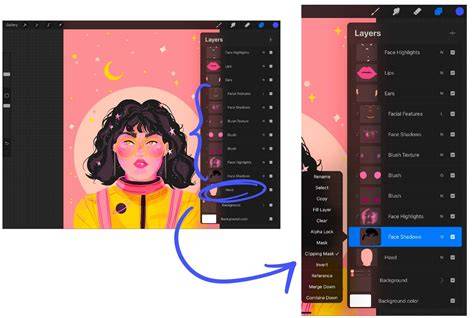
How to use LAYERS in Procreate
Table: Quick reference for merging results
| Method | When to use | Result |
|---|---|---|
| Merge Down | Needing to combine a layer with the one below | One layer replaces two |
| Pinch | Gesture-based consolidation of adjacent layers | Selected layers become a single layer |
| Flatten | Many layers grouped and merged | All chosen layers merged into one group |