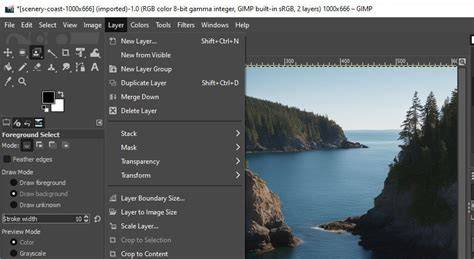
GIMP is a versatile image editor that uses a layered approach similar to other design tools. While merging layers can simplify a composition, there are times when you need to reverse that action to regain individual control over each element. This article explains how to unmerge layers in GIMP and explores related concepts such as undo, flattening, and layer management to ensure you can recover and edit your work efficiently.
Understanding what merging does in GIMP
Merging layers combines two or more layers into a single layer, preserving the visible result of the merged content. When layers with transparency are involved, the merge uses the current active blend mode to composite the pixels. Flattening, in contrast, reduces all layers to a single background layer, which is often done automatically when exporting to flat formats like JPEG or PNG. Knowing these distinctions helps in choosing the right action for your workflow.
Immediate reversibility: using Undo
If the XCF file is still open in GIMP, you can immediately undo the last merge with Edit > Undo or Ctrl+Z. This is the simplest way to revert a recent merge within the same editing session. The ability to undo is restricted to the session; once you close the file or exceed the undo history, the previous state may not be recoverable.
Ways to unmerge or separate layers
Reversing a merge directly in the Layers dialog is not a standard operation because merging creates a single rasterized layer. However, you can recover editable content through several practical approaches:
- Undo the merge (if still available in the session): Use Edit > Undo or Ctrl+Z to revert the merge and restore the separate layers.
- Open a backup or step-by-step snapshot if you have a saved version or a history snapshot prior to merging. This preserves the original layers intact.
- Rebuild from a composite by duplicating the merged layer and then masking or painting to re-create original elements on separate layers, if you lack the undo history. This method preserves flexibility for future edits but requires manual re-separation of elements.
When you merge layers, the operation is final for that session if undoability is exhausted. To avoid loss of editability, consider frequently saving incremental versions (e.g., Save As with a new filename) before performing merges.
Practical workflow tips for working with layers
To minimize the need to unmerge later, adopt these practices:
- Work with duplicates of important layers so that the original content remains untouched until you are ready to finalize.
- Use layer groups to organize elements and apply non-destructive adjustments with layer masks and adjustment layers where possible.
- Avoid merging critical elements until you are sure of the final composition; if you need a combined preview, duplicate the layers and merge the duplicates for a temporary view.
Understanding the relationship between merge, flatten, and export
Flattening occurs when all visible layers are combined into a single background layer, often automatically during export to flat formats like JPEG or PNG. This can be intended for sharing or final delivery, but it eliminates the possibility to edit individual components later. Therefore, plan your export steps and keep a layered project file (XCF) for ongoing edits.
When to merge versus unmerge in practice
Merging is beneficial when you want to consolidate a composition to reduce complexity, apply a single transformation, or simplify file handling. Unmerging, in turn, is most relevant when you need to re-tweak individual elements after reviewing the merged result, or when you require different blending or masking decisions within the combined content. Use undo or preserve separate layers whenever possible to maintain flexibility in your workflow.
Additional considerations and troubleshooting
If you encounter issues when trying to unmerge due to missing undo history, remember:
- Check for automatic backups or previously saved versions of the project.
- Consider reconstructing layers using content-aware tools, masks, or manual re-selection if parts of the merged content need separate edits.
- Regularly save incremental versions to capture useful milestones before major edits like merges.
Summary of key points
In GIMP, unmerging is typically achieved through an immediate undo if the session still allows it. Since a merged layer cannot be "unmerged" in the same way as in some other editors, recovering editable separation relies on the undo history, backups, or reconstructive techniques. Planning with backups and non-destructive editing keeps your project flexible and editable.