IbisPaint offers a wide variety of Blending Modes (Combination Mode, Drawing Mode). Drawing on separate layers is a unique feature and advantage of digital illustration. Blending Modes allow you to choose how the colors of the upper and lower layers are combined. Digital colors are managed and displayed numerically. Blending Modes are perfect for expressing light and shadow. Blending Modes are a handy tool, but they do take some practice to fully grasp and utilize effectively.
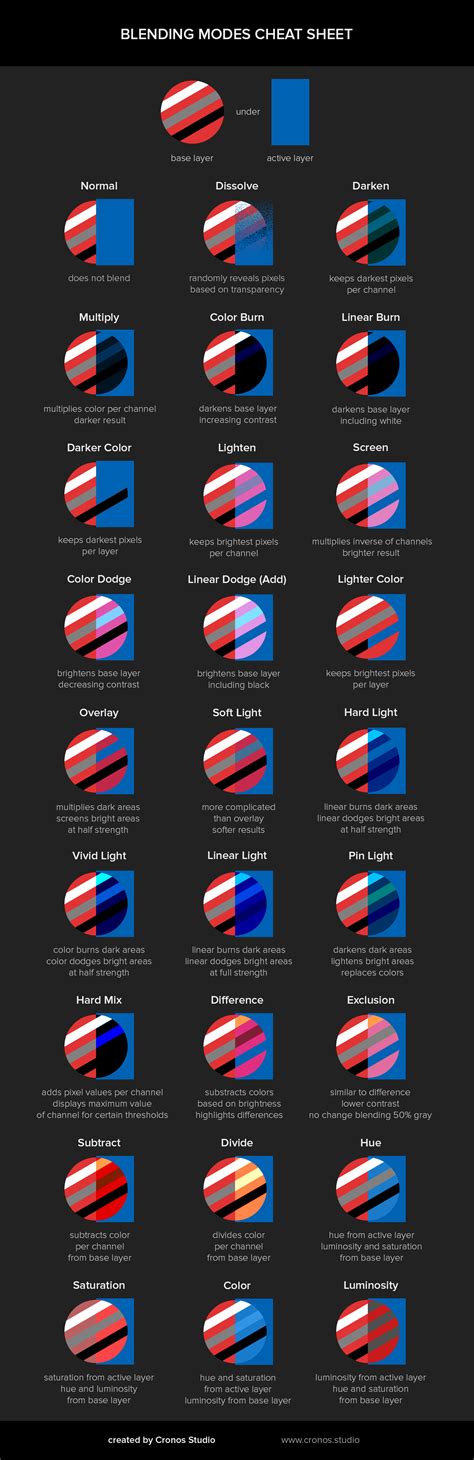
Simply reading about them might not be enough to truly understand how they work. To change the Blending Mode, open the Layer Window by pressing the ① Layer Button and tap on ② Blending Mode list to choose a Blending Mode. On the image above, the left picture is the lower layer, and the right picture is the upper layer. To be precise, semi-transparent areas will appear as if cellophane has been placed over them.
Overview of Blending Modes
It compares the values of each of the RGB colors and displays the color with the lower (darker) value for each. Multiply … Colors become darker. This mode multiplies the color of the lower layer with the color of the upper layer. It is effective when painting areas that should be darker, such as shadows on skin or hair. This Blending Mode literally multiplies the RGB values of the lower and upper layers for each color.
In ibisPaint, color brightness is represented by values ranging from 0.0 to 1.0. If you color the upper layer with a brightness of 0.5, it will be blended with the lower layer, resulting in a brightness that is half of the lower layer's brightness (i.e., multiplied by 0.5, which is why this is called "Multiply"). If you color the upper layer with a brightness of 0.33, it will be blended with the lower layer, resulting in a brightness that is one-third of the lower layer's brightness.
To extract only the R channel of RGB, place a layer filled with red (R=255, G=0, B=0) above the target layer and set it to Multiply. To darken a photo or illustration while strengthening its impression, duplicate the photo or illustration, change the blending mode to Color Burn, and overlay it on top. Linear Burn darkens the entire image evenly, both dark and light areas. Details in the dark areas may become difficult to see as they turn black.
It compares the total RGB values of the lower and upper layers and displays the color with the lower (darker) value as is. For example, when combining light blue (R=114, G=210, B=255) and red (R=255, G=0, B=0), the total value of light blue is 579 and the total value of red is 255. It compares the values of each of the RGB colors and displays the color with the higher (lighter) value for each. Screen … This mode brightens the image while maintaining the original ratio of light and dark.
Color Dodge … Brightens the bright areas of the image. It is effective when you want to brighten the image while increasing contrast. Brightening the entire image can cause bright areas to whiteout, so this mode is a way to brighten the image while increasing contrast without having the bright areas whitened out. To brighten a photo or illustration while strengthening its impression, duplicate the photo or illustration, change the blending mode to Color Dodge, and overlay it on top. This will increase the contrast and brighten the image while making it more vivid. Linear Dodge … Unlike Color Dodge, this mode brightens the entire image evenly, both dark and light areas. Details in the bright areas may become difficult to see as they turn white. To brighten only a specific color overall, simply paint with the desired color.
In the Multiply section, we explained how to separate RGB channels. If you combine the separated RGB channels using Linear Dodge, they will return to their original state. Add … This mode results in the brightest colors. It is effective for expressing highlights or light sources. When the opacity is 100%, there is no difference between Linear Dodge and Add. However, in areas where the opacity is lowered, Add becomes much brighter. Therefore, it is effective for drawing glowing parts.
Overlay … Darkens dark areas and brightens light areas. The pure black and white areas of the lower layer will not change, regardless of the color overlaid on top. Overlaying the same image with Overlay will result in increased vibrancy. Even if the lower layer is colored, overlaying another layer can alter the hue. Soft Light … This mode slightly darkens dark areas and slightly brightens light areas. It has a similar effect to Overlay but with a softer touch. Hard Light … This mode makes dark areas very dark and light areas very light, while also increasing saturation. It has a similar effect to Overlay but with a more intense result. Use this mode when the effect is too strong for Overlay or Soft Light.
Vivid Light … This mode makes dark areas darker, light areas lighter, and further increases contrast. Linear Light … This mode makes dark areas even darker, light areas even lighter, and further increases contrast. Pin Light … If the color of the upper layer is bright, it compares the brightness of the lower and upper layers and results in the lighter of the two colors. Hard Mix … This is the most extreme Blending Mode. This mode forces each RGB channel to either 0 or 255, so only eight colors will appear: black, red, green, yellow, blue, magenta, cyan, and white.
Invert … Inverts the color of the painted area. This mode subtracts each RGB value of the lower layer color from 255, resulting in a negative-film-like effect. For example, combining light blue and gray results in dark blue. If the color of the upper layer is black, there will be no change. It can also be used when comparing two images. Exclusion … Areas where the lower and upper layers have the same color become darker, while areas with greater color differences become brighter. It is essentially a subtraction for each RGB channel. The lower layer color is divided by the upper layer color, making colors brighter. You can also use it to make the paper white when importing a picture with the line art.
Layer composition tips: Layer 3 (Division) and Layer 2 (Multiply) workflows illustrate channel separation and line import. Layer 1 (Normal) is a working layer for coloring. Blending Modes can change hue and saturation of the lower layer according to the upper layer. You can turn a picture into black and white by using a layer filled with pure white or pure black and setting its Blending Mode to Saturation. This mode changes the lightness when converting to grayscale, affecting how the lower layer responds to the upper layer.
Practical usage and workflow
There are many Blending Modes, but the most commonly used ones are Normal, Multiply, Add, Overlay, and Screen. Multiply is often used for adding shadows. If you want to apply a blending mode to a specific layer only, use clipping. Add is often used for adding light sources and highlights. Overlay can be used to change the color tone of an image, such as transforming a daytime sky to night or changing hair color.
In the example, a layer filled with orange is added between the background and the character, and the blending mode is set to Overlay. You can now export images with embedded author information and creation history using Wacom Yuify. Yuify records information about the creation of artworks in images in the form of a micromark. Tap ③Register with Yuify to start uploading the image and creation history information to Yuify. Registration requires signing in to ibisPaint and linking with a Wacom ID.
Color palette management is another cornerstone: you can create and manage multiple color palettes, reorder colors, and export/import color palettes. The Color window provides access to the Current Color, Previous Color, color controls, and a Palette screen for saving frequently used colors. Color History stores recently used colors for quick access. The Color Range feature in the Selection Area tool lets you create a selection area from a gamut of colors, enabling precise recoloring of parts of an image.
Additional features and workflow enhancements
ibisPaint offers features like Gradient, Floating Color Window, and a graph-based brush response to pressure for thickness and opacity. The Gradation control line, center knob, and Gradation Control Line enable dynamic gradient editing. The Floating Layer Window keeps the Layer window visible, and a vector layer function allows post-drawing edits to lines with various handle modes (Smooth, Normal, Angular). The app supports animation, background removal, AI-powered filters, and a broad library of materials for manga and illustration.
The Eyedropper tools include Canvas and Current Layer references to control how colors are sampled under different blending conditions. Quick Eyedropper enables color sampling with a long press, and reference settings can be adjusted for precise color selection. Other enhancements include keyboard shortcuts, drag-and-drop image import, layer locking, and a broad ecosystem of filters and tools designed to mimic desktop-grade capabilities on mobile devices.
In ibisPaint, you can create and manage color palettes, export palettes, and use the Color Window to explore hues, saturations, and brightness. A Floating Color Window keeps the color controls accessible while you work, and you can adjust brush pressure response with the Pressure Sensitivity Graph in the Dynamic tab.
All About Blending Modes & How To Use Them In Digital Art
How to use Color Window and Color Palette
First, select the Brush tool and tap the Color Button to open the Color Window. The window shows Current Color, Previous Color, Color Circle with HSB, Hex Code, and multiple sliders. You can switch between HSB and RGB, and manually enter a color code. The Color Palette stores frequently used colors, and Color History records recently used colors for quick reuse. You can drag a current color to save it into the palette and reuse colors as needed.
There are two primary methods to select a color from the canvas: Eyedropper and Quick Eyedropper. Eyedropper can reference Canvas (all layers) or Current Layer. Quick Eyedropper enables sampling with a long press on the color area. If you want to avoid blending mode interference, switch Reference to Current Layer before sampling.
Palette and material search
You can search for materials using keywords, significantly reducing the time needed to find items from ibisPaint's collection. A materials list with "sky" in the title is provided, and the Brush window includes a Search Button to find brushes by name. A wide array of filters and effects, including the Watercolor Filter and AI-based adjustments, enhances color and texture work.
Table: Quick reference for common blending modes
| Blending Mode | Effect | Common Uses |
|---|---|---|
| Multiply | Darkens colors | Shadows, shading |
| Screen | Brightens while preserving light/shadow ratio | Bright overlays, light glows |
| Overlay | Recolors and enhances vibrancy | Sky color shifts, hair color changes |
| Color Dodge | Brightens highlights with contrast | Glows and specular highlights |
| Soft Light | Softer overlay blending | Subtle tonal adjustments |
| Hard Light | Strong contrast with saturation | Dramatic lighting |
| Add / Linear Dodge | Adds brightness | Bright light sources |
| Invert | Color inversion | Negative-like effects or comparisons |
| Hard Mix | Eight-color palette constraint | Posterized effects |
ibisPaint continues to evolve with updates that expand keyboard shortcuts, brush patterns, vector tools, and animation capabilities. The Color Window, Gradation tools, and Floating Color Window are examples of features designed to streamline color management and blending workflows for artists of all levels.