When migrating from Windows to Linux Mint, many users search for an IrfanView-like experience that fits naturally into the Linux ecosystem. This article compiles practical observations and options drawn from real-world experiences with Linux viewers, compatibility considerations, and workflows that approximate IrfanView’s core strengths on Linux.
Why IrfanView remains a benchmark and what to look for in Linux
IrfanView is widely regarded as a fast, lightweight, and versatile image viewer and editor with a broad plugin ecosystem. On Linux, equivalent capabilities hinge on speed, format support, basic editing, batch processing, thumbnail navigation, and smooth integration with the desktop environment. The challenge is to find a Linux-native solution or a well-supported compatibility pathway that preserves these essentials without sacrificing stability or usability.
Native Linux viewers that align with IrfanView’s functionality
Among Linux-native options, some viewers emphasize speed and simplicity while offering a subset of IrfanView’s features. Xviewer, the default in some Mint setups, provides essential viewing capabilities but may lack the depth of batch processing, plugin-driven extensions, and rich editing that IrfanView users expect. KolourPaint can cover basic editing needs, but it is primarily a drawing/editor tool rather than a comprehensive viewer with IrfanView-like workflows. For users who want more robust functionality, XnView MP is frequently cited as the closest match to IrfanView on Linux, with strong format support and familiar workflows.
In practice, the choice often hinges on what you value most: speed and minimalism, or broader feature parity with Windows tools. Some Mint users report that XnView MP offers the most satisfactory balance of viewing, conversion, and lightweight editing among Linux-native options, even if minor features like sound alerts differ from IrfanView.
Running IrfanView on Linux: paths and caveats
One approach is to run IrfanView through Wine. This can provide a near-identical experience to the Windows version, but Wine behavior can vary with system updates, and there are occasional reliability concerns. A common workflow involves installing Wine, then setting up IrfanView to open images directly from file managers via custom desktop entries. However, some users report issues with automatic scaling on high-DPI displays when using certain installation methods, such as Snap packaging. In those cases, switching to a direct Wine installation or using a Linux-native viewer often yields better stability.
When integrating IrfanView via Wine, you can import old Windows settings and plugins and replicate familiar workflows by configuring the app to open a directory of pictures, convert formats, crop, rotate, and create slideshows. To improve portability, you can place an IrfanView.desktop launcher in your home folder to streamline “Open With” behavior from your file manager. Keep in mind that some tasks (e.g., advanced plugins or very Windows-specific features) may require additional tweaks or may not be fully supported under Wine.
Practical workflows: choosing the best fit for Mint
For most Linux Mint users looking for IrfanView-like simplicity and performance, consider the following practical pathways:
- Native option: Use XnView MP as a primary viewer and converter when you want near-IrfanView capabilities with broad format support and reliable performance.
- Lightweight native alternative: Pair Xviewer for quick viewing with KolourPaint for lightweight editing when minimalism is preferred, and supplement with GIMP for more advanced editing as needed.
- Open-source flexibility: If you value a fully open-source stack, explore programs like nomacs for fast viewing, combined with GIMP or Krita for editing. This approach emphasizes stability and extensibility through plugins and community support.
- Wine-based path: If exact IrfanView features are essential, install Wine and IrfanView, then tailor desktop entries to enable direct “Open With” workflows and maintain plugin access. Be prepared for occasional maintenance after system updates.
Key considerations for a Linux Mint setup
When evaluating viewers, consider:
- Format support: JPEG, PNG, GIF, TIFF, RAW, WEBP, and other common formats needed for daily use.
- Batch operations: Quick format conversions, resizing, renaming, and thumbnail management.
- Editing capabilities: Basic adjustments (crop, rotate, brightness/contrast) and note how they complement GIMP or Krita for deeper edits.
- Performance: Speed of thumbnail rendering, image loading, and responsiveness in large folders or collections.
- Integration: How well the viewer integrates with the file manager, desktop environment, and the ability to set it as default apps for image types.
Tips for a smooth transition
- Start with a Linux-native viewer that matches most of IrfanView’s use cases, such as XnView MP or a combination of fast viewers and editors.
- If you must use IrfanView, prepare for a Wine-based setup, including desktop launcher creation for direct image opening from the file manager and tolerance for occasional updates requiring tweaks.
- Keep a robust image-editing companion like GIMP for tasks that go beyond quick adjustments, while relying on fast viewers for day-to-day browsing and batch tasks.
Table: quick comparison of popular Linux viewers for Mint
| Viewer | Strengths | Weaknesses |
|---|---|---|
| Xviewer | Lightweight, fast; good for quick viewing | Limited advanced editing and batch features |
| XnView MP | Broad format support; strong conversion/batch tools | Not entirely open-source; some users prefer fully open-source |
| KolourPaint | Simple editing; integrates with KDE/Plasma-like workflows | Not a full image viewer; editing-focused |
| GIMP (for editing) + viewer | Powerful editing (GIMP) with fast viewing | Two separate apps; not a single integrated workflow |
| IrfanView via Wine | Near Windows-era feature parity | Reliability can vary; setup complexity |
Visual aids to understand your options
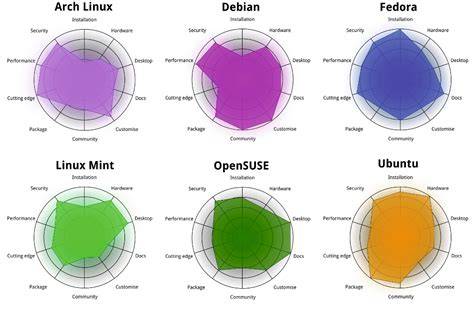
7 Underrated Features Of Linux Mint ...
Concluding guidance for Mint users
There isn’t a single Linux-native application that perfectly replicates every IrfanView feature, but a combination of XnView MP or a fast viewer, with native editing tools like GIMP or KolourPaint, provides a practical and efficient workflow. If the goal is strict parity with IrfanView’s Windows experience, Wine remains a viable path, albeit with caveats about updates and reliability. The best approach is to tailor your toolkit to your most frequent tasks-fast viewing, batch conversion, and occasional editing-and leverage Linux-native tools for stability and long-term support.