Learn how to export photos and videos and share albums from the Lightroom for mobile (iOS) app. If you are exporting multiple photos, the selected export settings will apply to all of them. If you select duplicate images, only one instance is exported.
Understanding export formats and HDR considerations
You can export edited photos as Original, JPG, AVIF, JXL, TIF, and DNG, with HDR Output for AVIF and JXL. Gain Map provides a solution for a consistent and adaptive display of HDR images. Conceptually, this method combines both SDR and HDR renditions within a single image and interpolates between the two dynamically at display time. A Gain Map represents the quotient between the two renditions. The image file stores a Base rendition (SDR or HDR), the Gain Map, and some associated metadata. At display time, the Base image is combined with the scaled version of the Gain map, where the scale factor depends on the image metadata and the HDR capacity of the display. Gain Maps can be downsampled and compressed to save space.
In the Lightroom view or Device view, long-press any photo to select and bring up the multi-selection view, and select all the photos that you want to export. Small (2048 px) limits the length of the exported photos to 2048 pixels. Custom applies the specified pixel value to the long edge of the photo and uses the original aspect ratio of the photo to calculate the other edge. Turn on this option to include watermark text or graphics in your exported photos. To place the watermark on or near any corner of your photo, tap on the dot anchor of the particular corner before placing the watermark. HDR Output Toggle the switch in JXL and AVIF to include HDR data.
After you've edited a photo, you can export a copy of the modified photo to iOS photos. In the Grid view (viewing photos in an album), long-press a photo to bring up multi-select, and select one or more photos. Small (2048 px) repeats for JPG exports as well. Before you select an option to export or share the photo, tap the Settings toggle icon beside Share or Save copy to device to view export settings. Lightroom allows you to retry saving your photos if the export process fails. No Internet connection: Ensure that your device is connected to the Internet. Not enough storage to perform export: Free up some storage space in iOS photos.
Watermarks and branding during export
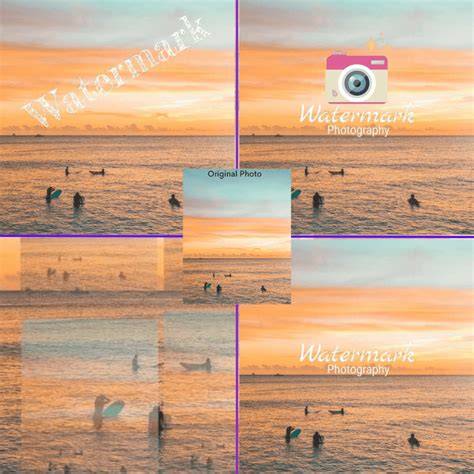
Create and share a short video that shows the edits you’ve made to your photo to achieve your final look in just a few taps. In the Grid view, long-press a photo to bring up the multi-selection view. In the Customize Watermark screen, select Text tab. In the field above the preview, enter the text you want to use as a watermark. Then, use the given options to format the font, adjust text size, rotate, change color between black or white, use drop shadow, change opacity, and set horizontal and vertical offsets to position your watermark. After customizing your watermark, select Left to return to the Export as screen. Lightroom for mobile (iOS) now supports graphical watermark which you can add while exporting or sharing your photos.
Open the photo you want to export in Loupe view. In the Grid view, long press any photo to bring up the multi-selection view and select all the photos that you want to export. In the Customize Watermark screen, tap the Graphic tab. In the field above the preview, tap the folders icon to upload an image that you want to use as a watermark. Then, use the rotate icon below the preview to rotate the watermark. You can also adjust the watermark size, opacity, and set horizontal and vertical offsets to position your watermark. After customizing your watermark, select Left to return to the Export as screen.
If you're in Grid view (viewing all photos in an album), long-press a photo to bring up multi-select, and select one or more photos. The watermark settings sync across the mobile platforms of Lightroom.
Export workflows and settings for different platforms
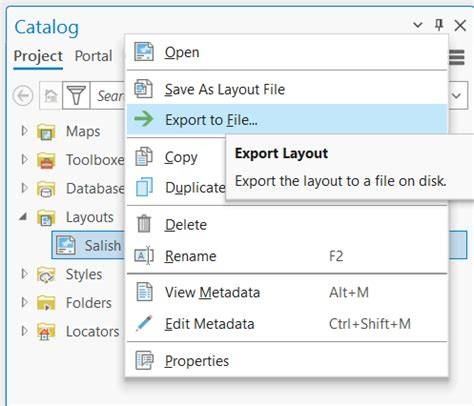
Exporting images can sometimes get confusing. Step 1: highlight/select any photo from your filmstrip and right-click on the image. From the menu that pops up, choose Export>Export. The second option is to click on File from the main menu select and then select Export from the drop-down menu. Step 2-9 outline various options to tailor the export, including File Format, Image Sizing, Output sharpening, and post-processing choices. Note that you can export to TIFF, JPG, PSD, or the original file type, and you may choose color spaces appropriate for your output (ProPhoto RGB, Adobe RGB, or sRGB).
In Lightroom Classic, you can batch export multiple photos using multiple presets, control Destination and File Naming options per preset, and use features like “Choose Parent Folder” to organize outputs. The Batch Export window appears enabling you to control the Destination and File Naming options on a per-preset basis. If needed, enable the “Put in Subfolder” option to create different subfolders for each export preset and enter a name for the folder.
You can export edited photos as Original or various formats and share or save copies to device locations. The top of the Export dialog box indicates how many photos will be exported. You can also export to a folder on your computer or to an external drive, and Lightroom will prompt you to select a location to export the photos to. Color spaces should be chosen based on the intended output, such as sRGB for web and Adobe RGB or ProPhoto RGB for print workflows.
Sharing albums and collaborative features
Group album is an easy way to share images with friends and family. With a group album, you can share an existing album or multiple photos not part of any album through an invite. You can create a web link for your group album, share it, and then keep editing images. You can edit photos in collaboration with multiple people. You can now share and invite others to view or contribute to an album. You can also select photos which aren't a part of any album, share them through an invite, and request others to contribute to the album.
In the Share settings, the Link Access field is set to Invite only by default. You can copy the link and share it with others. The owner can allow contributors to add photos and edits. Multiple people can make edits to a photo and you can view the various edits in the Auto tab of the Versions panel. The Invite section lets you view access requests from people. Title displays the album name; Author shows the name of the person who generated the link. Theme lets you choose the arrangement of photos in your share, and various options control access, location data visibility, and whether viewers can comment or like photos.
To modify share settings of the group album, select in the left panel. In the Shared to Web panel, expand the Photos folder to view a list of the shared albums. If the owner has provided contribution access, you can add photos. The Add Photo(s) dialog box lets you include keywords, star and flag ratings, and GPS coordinates. Lightroom lets you publish to services like Adobe Portfolio, Blurb, and WHCC, making it easy to showcase your edits as an online project.
Practical tips for exporting with quality and efficiency
- Your export settings will open up on the right-hand side of the software in Lightroom; choose the appropriate File Settings and Image Sizing for your target platform.
- For high-quality prints, aim for 300 ppi and select TIFF with a suitable color space; for web, choose JPEG or AVIF with appropriate compression.
- Use Output Sharpening according to the final destination (screen or print).
- If you plan to edit further in Photoshop, set Lightroom to open the image after export from the After Export options.
- To reuse settings, you can export with Previous or use Shift+E (Export) / Command+E (macOS) equivalents to quickly apply prior export presets.
STOP Copy Pasting AI Code | Claude Watermarks Explained
Headlining export presets and optimizations
In Grid view, the number of selected photos and the Export button indicate the scope of your operation. You can export multiple photos at once, and Lightroom provides presets to quickly export to common formats or to your common destinations. The Export dialog allows you to choose whether to preserve metadata or limit it to essential copyright and contact info for client sharing. When exporting layered PSDs, note that Lightroom may flatten the file as part of the process. For HDR displays, HDR color spaces are supported where available, and you can work with HDR-capable formats like AVIF and JXL with HDR data toggles.
Lightroom Mobile is becoming increasingly popular among photographers. Despite slightly slower editing compared to the desktop version, Lightroom Mobile has nearly all the capabilities of Lightroom CC while allowing you to edit from a phone on the go. The watermark settings sync across mobile platforms, ensuring consistency across devices during export.

Finally, remember that the goal of exporting is to maintain quality while delivering your edits in the desired format and resolution. Whether you are optimizing for print, web, or archival storage, the right combination of file format, color space, size, and metadata ensures your images look their best across destinations.