Creating realistic and compelling lighting effects is a powerful way to enhance your images in Photoshop. Whether you're emphasizing a particular subject, adding mood, or creating a dramatic atmosphere, mastering the lamp effect and other lighting techniques can significantly elevate your photo editing skills. This guide explores various methods, including built-in Photoshop filters, adjustment layers, blending modes, and third-party plugins, to help you achieve stunning lighting effects.
Understanding Photoshop's Built-in Lighting Filters
There are numerous methods to creating lighting effects in Photoshop, many of which utilize the software's native filters and tools. One of the most straightforward approaches involves using the Lighting Effects filter found under the Render menu. In Photoshop CS6 and CC, this filter has been enriched with a more sophisticated interface, allowing for precise control over various light types, such as Spot, Point, and Infinite.
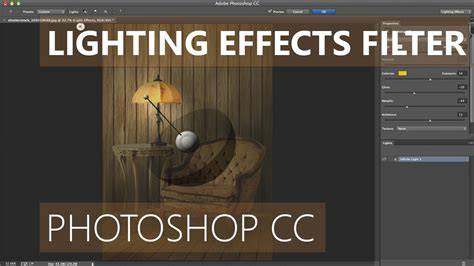
The Lighting Effects filter works on Smart Objects, enabling non-destructive editing. The Properties panel allows customization of light direction, placement, and intensity, providing a versatile tool for adding realistic lighting scenarios. However, due to its complexity, this filter may require some practice to master fully. For most users, alternative techniques might be more accessible and flexible for creating the lamp effect.
Alternative Techniques for Creating Lamp and Light Effects
Using the Graduated Filter in Adobe Camera Raw
The Graduated Filter tool in Adobe Camera Raw (ACR) is an excellent method for simulate lighting transitions, similar to a graduated neutral density filter used in landscape photography. For example, in a photo of a snail, applying the Graduated Filter in three areas can warm the water, lighten a water eddy, or darken a background behind the subject, guiding the viewer's eye precisely where you want it.
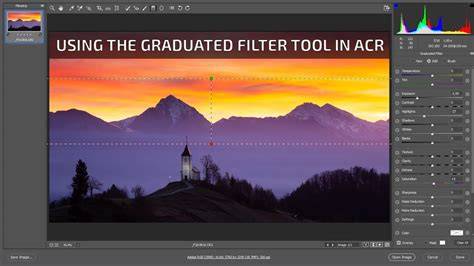
This technique involves selecting the Graduated Filter, dragging over specific areas, and adjusting sliders for Exposure, Highlights, and other parameters. Such control makes it easy to create natural lighting effects, highlight details, or add warmth and mood. When used effectively, it can produce a convincing lamp effect or spotlight, especially as part of a composite or environment enhancement.
Adding Lens Flare for Dynamic Light Accents
The Lens Flare filter, also located in the Render submenu, can introduce sparkles or glow effects, especially on shiny surfaces or light sources within the scene. Use it sparingly, adopting a less is more approach to avoid an unnatural or washed-out appearance.
Applying lens flare involves duplicating the image layer, converting it to a Smart Object, and adding the filter. Masking out excess areas or adjusting the layer's opacity ensures the effect blends seamlessly. For a more realistic lamp effect, a subtle flare can simulate the glow of a light bulb or sunbeam.
Using Blending Modes and Color Dodge for Light Simulation
One of the most versatile methods for creating a lamp or light effect is using the Color Dodge blending mode on new layers. First, create a new blank layer above your image. Select a dark color matching the area where the light will originate, such as deep red or warm yellow. Apply Gaussian Blur to smooth out hotspots, then set the layer's blend mode to Color Dodge. Adjust the Fill percentage to control intensity.
This technique allows for simulating rear lights in car photos or creating glow effects around light sources. Duplicating, repositioning, or adjusting the size of these layers can craft complex lighting scenarios, like multiple lamps or colored gels. Combining this with masks enhances precision, enabling specific areas to be illuminated or darkened.
Adding Highlights with Overlay or Soft Light Modes
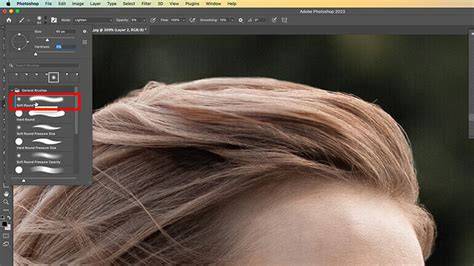
To bring out fine details or create subtle highlights, add a new layer set to Overlay or Soft Light blend mode. Using a white soft brush, paint small highlights on dark areas, mimicking light reflections or glints. Applying a Gaussian Blur further diffuses the highlights, resulting in a natural glow that accentuates textures or subjects.
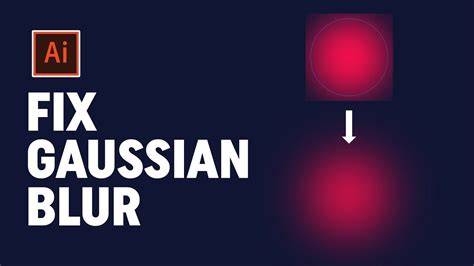
This method is quick, effective, and adaptable to various images, from still life to portraits, and is ideal for the lamp effect in scenes requiring emphasis on certain elements.
Relighting and Color Manipulation with Plugins
Using Third-Party Plugins like Boris FX Optics
Plugins such as Optics by Boris FX extend Photoshop’s lighting capabilities significantly. After launching the plugin and importing your image, you can access a variety of presets and effects designed specifically for lighting, including Light Rays, Dark Rays, and color gels.
Moving sliders and indicators in real time provides intuitive control over the direction, length, and color of rays, helping you craft realistic or artistic lamp effects. Experimentation is encouraged, as undoing or reverting changes is straightforward. Applying these effects can transform a simple scene into something dramatically illuminated or moody.
Creating Customized Lighting Presets
To ensure consistency across multiple images, save your favorite lighting configurations as presets within Photoshop or the plugin. For example, adjusting the lighting parameters to match a vintage or modern aesthetic and saving the settings allows for quick application on future projects, ensuring uniformity in style.
Adding Highlights to Enhance Detail
Another effective technique involves painting small white daubs on a new layer with blend modes like Soft Light. Use Gaussian Blur to soften these highlights, which can be especially effective for making dark areas pop or adding sparkle to shiny objects, lamps, or reflective surfaces.
By using these methods, you can produce a convincing lamp effect that emphasizes key portions of your scene, creates atmosphere, or guides viewers’ attention as intended.
Adjusting Scene Lighting for Better Balance
Sometimes, your original image may have overly harsh shadows or blown-out highlights. Correcting this involves duplicating the background layer, converting it to a Smart Object, and applying Shadows/Highlights adjustments. Fine-tuning these controls can help balance the image before adding lighting effects, resulting in a more integrated look.
Subsequently, you can reintroduce lighting effects such as spotlights or glows for a polished, professional appearance.
Conclusion: Integrating Light Effects into Your Workflow
Whether you prefer native Photoshop filters, adjustment layers, blending modes, or third-party plugins, understanding these tools provides a solid foundation for creating the lamp effect and other lighting enhancements. Combining techniques-like painting highlights, adding lens flares, or using specialized software-allows for extraordinary control and creativity in your photo editing process.
<- Video tutorial demonstrating lighting effects and tips ->