Are you struggling to determine where Lightroom stores your photos? Looking for your Lightroom catalogs? Need to identify the location of your presets? And by the end, you’ll know exactly where to find your files.
You’ll be taken to your catalog folder. The Preferences window will open. And you’ll immediately be taken to your preset storage location. This is useful for situations when you’ve created your own preset and want to share it with others.
You can copy the photos, which creates a copy of each file in the selected location but leaves the originals alone. Or you can add the photos, which leaves the originals in place and makes no copy of the files; instead, Lightroom just records where you’ve stored your images.
When you back up your Lightroom catalog, the actual catalog is backed up, but not your photos. The Lightroom Classic catalog is a database that tracks the location of your photos and information about them. When you edit photos, rate them, add keywords to them, organize them into collections, or do anything else to them in Lightroom Classic, all those changes are stored in the catalog.
Changes have been made to how image previews are stored in version 13.3. In Lightroom Classic, when syncing with services like Microsoft OneDrive or Apple iCloud Drive, be mindful of unintentionally using up online storage. It’s recommended not to store the catalog in locations used by these services.
When you install a newer version of Lightroom Classic (especially for a major version update), the app will ask you to upgrade the catalog to work with the latest version. This is normal to accommodate any database-related changes made for the updated version of Lightroom Classic and is important to access new features and related performance improvements. Yes, Lightroom Classic will create a copy of your old catalog. See Open a file in Explorer or Finder to learn about where your images are saved.
You can easily upgrade your old catalog in the new version of Lightroom Classic. If you are having trouble in upgrading a catalog, open the old catalog in your previous version of Lightroom Classic and export it as a new catalog. You can then import the exported catalog into the new version of Lightroom Classic.
Choose File > Open Catalog and select the catalog that you want as the master (or primary) catalog. Choose File > Import From Another Catalog and navigate to the catalog that contains the photos you want to add from. The easiest way to use your Lightroom Classic catalog on more than one computer (such as a desktop and laptop) is to keep the catalog and photos together on an external drive.
Lightroom Classic stores some additional information in a new file, with an extension of .lrcat-data, along with the catalog file. This file is located in the same folder as your catalog file. If the ‘.lrcat-data’ file is missing or misplaced, images in Lightroom Classic will lose added AI edits permanently if they have AI edits. If you have the corresponding lrcat-data file, quit Lightoom Classic. If you don’t have the corresponding lrcat-data file, choose to Continue.
You can move your catalog to a different location on your computer's hard drive, to an external disk, or to another computer altogether. To move a catalog between a Windows computer and a Mac, copy your catalog, .lrcat-data, preview, and image files from the original computer onto an external drive. After you move your catalog, you may need to help Lightroom Classic find it. See Lightroom Classic can't find my catalog.
Looking for a video tutorial? We've got you covered. No, the catalogs in Lightroom Classic aren't backward compatible. Starting with the October 2024 release of Lightroom Classic (Version 14.0) you can rename the catalog by selecting File > Rename Catalog and type the new name of the currently open catalog. When renaming the catalog from the application, the user need not rename its corresponding .lrcat-data, previews, and smart previews files.
To export a folder as a catalog, in the Folders panel of the Library module, right-click (Windows)/Control-click (macOS) the folder you want to export. Backing up your catalog does not back up the photos it references. No, but you can sync smart previews of your photos from Lightroom Classic to the Lightroom ecosystem. Lightroom Classic can't find my catalog.
In the Select Catalog dialog box, your renamed catalog is probably the first catalog in the list. My photos are missing in the catalog. When you move images in Finder (macOS) or Explorer (Windows), your catalog could lose track of them. To avoid missing photos, always move them from within Lightroom Classic than in the operating system.
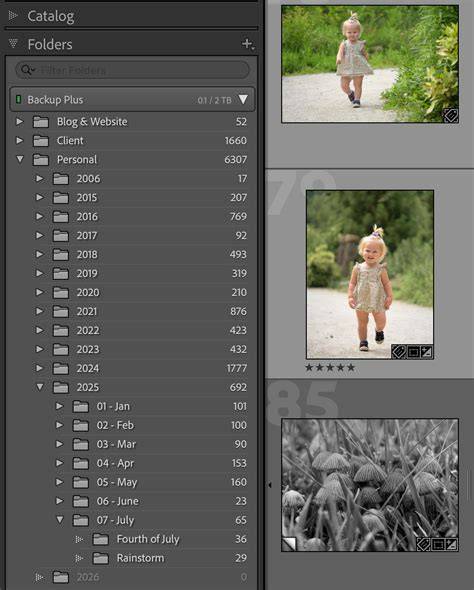
When you opened Lightroom the very first time, Lightroom created a catalog to store the information about your photos. Whether you’re tidying up, moving to a new hard drive, or even just checking your backups, you’ll need to know where to find it. To find the catalog: If you’re not sure of your current catalog’s name or location, open Lightroom and go to Edit menu (Windows) / Lightroom menu (Mac) > Catalog Settings. The name and location of your open catalog are displayed on the General tab of the Catalog Settings dialog. Press the Show button to open an Explorer (Windows) / Finder (Mac) window at that location.
Next to the catalog file (*.lrcat), there may be additional files/folders associated with the catalog that share the same name. Smart Previews.lrdata folder/file (Develop module previews) There may also be a Lightroom Settings folder, which may contain some of your presets (if you selected to store presets with the catalog) and a Backups folder containing your catalog backups. To rename the catalog: Quit Lightroom. Use Windows Explorer (Windows) / Finder (Mac) to rename the catalog file, just as you would rename any other file. Rename the other folders/files to match.
For example: Lightroom Catalog.lrcat > New Name.lrcat, Lightroom Catalog.lrcat-data > New Name.lrcat-data, Lightroom Catalog Previews.lrdata > New Name Previews.lrdata, Lightroom Catalog Smart Previews.lrdata > New Name Smart Previews.lrdata. If you don’t rename the previews correctly, don’t panic, as Lightroom simply recreates them when you next browse those photos. As long as you have the original photos, there’s no harm done other than the time involved.
When you next come to reopen Lightroom, hold down Ctrl (Windows) / Opt (Mac) to navigate to the renamed catalog, or just double-click on the catalog file (*.lrcat). You may need to change the default catalog (in Preferences > General tab) so it opens the correct catalog automatically in future. To move the catalog: Quit Lightroom. Use Windows Explorer (Windows) / Finder (Mac) to move the catalog file, just as you would move any other file. Move the other files at the same time, keeping them next to the catalog file, but don’t move the Mobile Downloads.lrdata file if it exists.
When you next come to reopen Lightroom, hold down Ctrl (Windows) / Opt (Mac) to navigate to the catalog, or just double-click on the catalog file (*.lrcat). You may need to change the default catalog (in Preferences > General tab) so it opens the correct catalog automatically in future. The next time the backup runs, double check that you’re still happy with the backup location, or update it if needed. If you’re moving the catalog as part of moving to a new computer, be sure to download the FREE eBook Moving Lightroom to a New Computer.
While there are many important settings in Lightroom, two important settings to review are the locations where you store your Lightroom catalog as well as the catalog backup. I advocate having the catalog on your computer’s internal hard drive for performance speed. Typically, the reading and writing to an internal drive is faster than to an external drive. In general, you will see Lightroom’s performance be better on an internal drive. Plus, storing the catalog on an internal drive reduces the risk of corrupting your catalog if there is a break in the connection between the computer and the external drive at any point while the catalog is updating.
There are a couple of exceptions for having your main catalog on an external hard drive. If you regularly work with two or more computers, then having your catalog and images located together on an external drive makes sense. Note, that a catalog cannot be located on a network drive, only on an internal or external hard drive. The advantage to this setup is that your entire photo library (catalog and photos) is in one, consolidated place. That means one-stop shopping for backing-up everything important. The choice is entirely up to you so do what works best for your workflow.
No matter where you have your main Lightroom catalog located, the second critical setting to review is where you store that catalog backup. By default, Lightroom stores the catalog in your pictures folder on your computer. Before making any changes to your catalog, it is helpful to optimize the catalog by going to File > Optimize Catalog. Give Lightroom a few minutes to optimize. Select the frequency of when to back up your catalog. Now that we know where our Lightroom catalogs are stored and designated a backup routine. Let’s tackle the critically important topic of where you store that catalog backup.
By default, Lightroom stores your main catalog and the backup of that catalog in your computer’s picture folder. In other words, Lightroom stores our main catalog and the backup catalog in the same folder on the same drive. So if something happens to your computer, you lose them both. Therefore, having a backup of your catalog located in a different place is essential. If you store your main catalog on your computer’s internal hard drive, then I recommend storing your catalog backup or a copy of it on an external hard drive. In addition, I recommend having that first backup performed through Lightroom. The reason is that during the backup, you can make selections to have Lightroom 1.) test the integrity before backing up and 2.) optimize the catalog after backing up. The former checks for catalog corruption and makes any corrections required reducing your risk of data loss. The latter cleans up and reorganizes your catalog database file allowing Lightroom to run more efficiently.
After Lightroom performs the initial backup, then use automated backup solutions such as either mirroring your external hard drive (e.g., RAID 5), using an automated service like PC Backup and Restore or Mac’s Time Machine, or even a cloud service like BackBlaze or even Amazon Drive.
These considerations help you keep your Lightroom workflow smooth across devices and time. The important thing is to know where the catalog lives, how to upgrade and migrate it, and how to safeguard your data with a robust backup strategy.
Lightroom CATALOGS Explained - Easy Tutorial
Meta description