Filters in Photoshop are an essential tool for designers, photographers, and digital artists, allowing them to modify and enhance images in a variety of ways. Understanding the many types of filters available is vital for making the appropriate adjustments to your work. Filters are grouped into categories, such as sharpening, blurring, noise reduction, and artistic styles, which can be selected from the Filter menu.
Categories and Core Concepts
Filters in Photoshop play a significant role in altering and enhancing images. They are algorithms that modify the appearance of an image, allowing us to apply various effects such as noise reduction, sharpening, and stylized distortions. In Photoshop, there are many different types of filters available, each designed to achieve specific results. For example, filters like Gaussian Blur can be used to create a soft-focus effect, while others like the Halftone Pattern filter can give graphics an interesting, print-like texture.
We can access Photoshop filters through the filter menu at the top of the interface. They are organized into categories such as Blur, Distort, and Stylize, making it easier for us to navigate and locate the appropriate filter. In addition to applying filters directly to layers or selections, we can also utilize adjustment layers if we want to keep our filters non-destructive. This way, we maintain the original image while applying filters and adjustments separately.
By understanding and utilizing filters in Photoshop, we can greatly enhance and transform our images, making them more visually appealing and engaging. Blur filters in Photoshop are used to soften or blur specific areas of an image, creating a sense of depth or adding a dreamy effect. Some common blur filters include Gaussian Blur, Motion Blur, Radial Blur, Surface Blur, Shape Blur, and Smart Blur.
Distort, Render, and Artistic Effects
Distort filters allow us to apply various distortions and transformations to our images. Some examples include Ripple, Spherize, and various types of distortions. Render filters help us generate natural-looking elements and textures in our images, such as clouds, fire, and lens flares. We can use these filters to enhance the atmosphere, environment, and overall appearance of our images. Noise filters are used to add or remove noise (graininess) in images. The Add Noise filter is commonly used to introduce texture, while the Reduce Noise and Despeckle filters assist in minimizing noise for a cleaner, smoother look. Artistic filters offer a range of creative effects, such as paint strokes, sketching, and more. By applying these filters, we can transform our images into various artistic styles and achieve impressively dynamic results.
Pixelate filters modify our images by manipulating the individual pixels. These filters are often used to create a more abstract or retro look by reducing the level of detail in the image, as well as for stylized censoring purposes. Layer masks in Photoshop allow us to non-destructively hide parts of a layer without deleting any pixel information. Layers panel in Photoshop displays all the layers of an image, making it easy to manage and organize. To work with an active layer, simply select it from the panel. Smart Objects are special layers containing image data from raster or vector images, like Photoshop or Illustrator files. When we apply a Photoshop filter to a Smart Object, it becomes a Smart Filter. This means we can adjust, rearrange, or remove the filters at any time without permanently affecting the Smart Object.
Filter Gallery, Neural Filters, and Presets
One of the best ways to explore advanced filters in Photoshop is by using the Filter Gallery. This feature allows us to preview and experiment with a wide range of filters simultaneously. By adjusting parameters within the Filter Gallery, we can fine-tune our chosen filters to create unique and stunning visual effects. In addition to filters, mastering Blend Modes significantly enhances our creative possibilities. Blend modes determine how the pixels of one layer interact with the pixels of the layer beneath. To further refine the results, we can experiment with the opacity and transformation options available within the Layers panel. By adjusting the opacity of a layer, we control how transparent it appears.
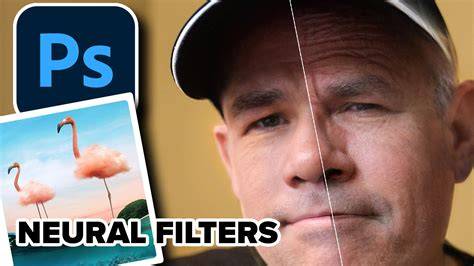
Neural Filters, powered by AI and machine learning, offer fast, realistic edits directly in Photoshop. Located under the Filters tab in Photoshop, Neural Filters are a fun and easy way to create compelling adjustments and speed up your image editing workflows. They use algorithms to generate new pixels in your photos, and you can open them by selecting Filter > Neural Filters. The panel consolidates featured and beta neural filters in one place, with options to preview and apply edits non-destructively by duplicating the layer before applying a Neural Filter. Brushes like Skin Smoothing help polish portraits, while other Neural Filters enable landscape adjustments, color transfer, and harmonization across layers.
Practical Workflows and Best Practices
Converting the current layer to a Smart Object allows you to apply those filters as an editable Smart Filter, which is the recommended option. You can save the output to the current layer or as a new unmasked or masked layer. You can download filters from the cloud and use them to start editing. Photoshop presets and Adjustment Presets speed up work by applying changes and effects in a few clicks. You can preview presets before applying them and customize them to suit your project. Go to Camera Raw Filter and view the Presets icon to access them, with options to export and share your own presets.
Presets can be applied to adjustment layers rather than directly to image layers, ensuring non-destructive editing. You can bring presets created by creatives from across the globe to your work, and you can turn your favorite editing sequences into presets for reuse. Exporting and sharing presets enables collaboration and consistency across projects. Some presets are designed for specific programs, so Photoshop presets may not work in Lightroom and vice versa. Access to presets is distributed across various menus, including the Presets and Camera Raw Filter panels.
To install new filter plugins in Photoshop, download the plugin file and copy it to the Plug-ins folder inside the Photoshop installation directory. Restart Photoshop to make the plugin available under the Filter menu. If the Filter Gallery is grayed out, convert your image to a compatible color mode, such as RGB or CMYK, via Image > Mode. Remember that high-performance requirements-such as GPU acceleration and OpenCL support-may affect filter usability on older hardware, and some features may be unavailable in certain Photoshop versions.
Creative Applications and Examples
Filters can be used to enhance photographs by sharpening details, reducing noise, or applying stylistic effects like oil paint to give a painted look. They can help create different moods, such as adding a lens flare for drama or applying a warming filter for a cozy ambiance. In artwork workflows, filters can support the design of backgrounds and textures by combining clouds, fire, or brush-stroke patterns with custom brushes. For retro aesthetics, filters like halftone patterns create a print-inspired texture, while pixelation can produce mosaic-like compositions.
When editing portraits, targets include preserving natural appearance while enhancing features with filters like High Pass, Unsharp Mask, and Surface Blur. For non-destructive compositing, match color and tone between layers with Harmonization, Color Transfer, and landscape-mixing techniques to blend elements from multiple images into a cohesive scene.
Always work with duplicates or Smart Objects when experimenting with neural or complex filters to protect the original source image. Use Preview to see how edits will look before committing, and choose the best output approach-whether applying to a single layer, converting to a Smart Object, or using a dedicated adjustment layer for flexibility.
- Open an image and decide whether to apply filters directly, via adjustment layers, or as Smart Filters.
- Explore the Filter Gallery to preview multiple effects and refine their parameters.
- For portraits, experiment with skin retouching filters and edge-preserving blurs for natural results.
- Leverage Neural Filters for rapid adjustments, always duplicating the layer first for safety.
- Use Presets to accelerate workflows, and customize or export your own presets for reuse.
Таблица: Ключевые фильтры и их назначение
| Категория | Примеры фильтров | Назначение |
|---|---|---|
| Blur | Gaussian Blur, Motion Blur, Radial Blur | Размытие для глубины, атмосферы или движения |
| Sharpen | Smart Sharpen, Unsharp Mask | Улучшение резкости и детализации |
| Distort | Ripple, Spherize | Искажение форм и создания необычных эффектов |
| Render | Clouds, Lens Flare | Генерация природных текстур и световых эффектов |
| Artistic | Oil Paint, Halftone Pattern | Эстетические стили и художественные текстуры |
Beyond individual filters, Photoshop encourages non-destructive workflows. Smart Objects enable non-destructive filtering, and Blend Modes provide a wide range of ways to combine layers. The Filter Gallery and Neural Filters expand the toolbox for both traditional retouching and creative experimentation, allowing artists to push the boundaries of what a single image can convey.