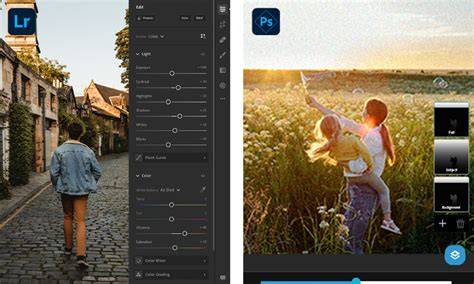
This article focuses on the Photoshop Express and Lightroom mobile apps. Photoshop Express is a photo editing app designed for iPhone and Android phones. It has a user-friendly interface and allows you to add graphics and text. Photoshop Express is used for quick edits on smartphone photos. The mobile version is based on Lightroom CC and is available on a web browser and desktop. Lightroom mobile gives you access to the same tools you have in other Lightroom CC versions if you have a Premium membership. The Lightroom mobile app is used for image management and post-processing. Primary use - Lightroom is used for photo management, raw file processing, and batch editing. PS Express is mainly used to create social media content.
Editing Capabilities - Lightroom has amazing photo editing tools and supports a complete editing workflow. Adobe Photoshop Express has more tools for editing images for social media. Photoshop Express doesn't sync automatically with other Creative Cloud apps. Learning Curve - Photoshop Express is designed to be fun and easy. RAW - both Lightroom and Photoshop Express support raw files. Also, Lightroom's in-app camera can shoot in raw format DNG. It's a bit difficult to discuss the features of Adobe Photoshop Express in a general manner because they change according to the platform. Using the integrated templates, you can create a digital collage with multiple photos to make your social media come to life.
You can use the in-app camera with the rear and frontal camera if your phone has them. The background remover allows you to cut out subjects with a single tap or by using the selection tools to do it manually. The app includes all the tools for basic image editing. It's possible to edit raw and PSD files. Using different templates and fonts, you can add text to your photos and videos. Within the crop tool, you'll find a series of presets for all the most common social media sizes. In the latest version of Photoshop Express, you'll find Generative AI features. One of the most popular is the Generative Expand one. You can change the orientation or the aspect ratio of your photos and Photoshop will use AI to fill in the empty space. Another AI feature you'll love is the Generative - Insert Objects option. Simply create a selection on your photo by passing your finger over it. You can use this feature to replace an existing object or to add a new one in a previously empty area.
Lightroom has an in-app camera shoots JPEG or raw files (DNG). Lightroom allows basic and advanced editing just like the desktop version-batch editing is possible and simple. On its latest version, Lightroom mobile got an early access to Quick Actions. The new Remove tool allows you to enable the Detect Object feature to simply circle the object you want to delete. Both Photoshop and Lightroom are useful editing apps for mobile devices. Lightroom is better for more complex editing with precise masking and local adjustments. Photoshop Express is designed for editing images without previous knowledge or a steep learning curve. There isn't a definitive answer to this question. Photographers may use different mobile editing apps to solve different needs. Some editing tools from Photoshop are available on the Lightroom app. The Lightroom app is free to install and use but has limited features.
How the Apps Fit into a Photographer’s Workflow
No, Adobe Photoshop Lightroom Classic is the full name of the desktop-based editing software that's always existed. Adobe Photoshop Elements is a photo editing program primarily for desktop use. However, there is only an English-only beta app. Photoshop Express is a mobile app. You can use a limited version for free or upgrade to a Premium subscription for full access. Whether Adobe Photoshop Express is good enough depends on what you want to do. Adobe Photoshop Express has a good range of photo editing tools. Lightroom CC is more beginner-friendly than Photoshop Lightroom (AKA Lightroom Classic). The mobile app uses Lightroom CC, and it's good for beginners.
Introduction When it comes to photo editing, two names dominate the field: Adobe Lightroom and Adobe Photoshop. Both are powerful tools developed by Adobe, but they serve different purposes and cater to different types of users. Whether you're a beginner just starting out with photography or a professional looking to fine-tune your images, choosing the right software is essential to creating stunning visuals efficiently. In this article, we’ll explore the strengths and limitations of Lightroom and Photoshop, help you decide which is best for your needs, and even recommend a creative tool that can enhance your workflow.
Overview of Adobe Lightroom
Adobe Lightroom is a photo management and editing program designed specifically for photographers. It offers a streamlined workflow for importing, organizing, editing, and exporting photos. Lightroom is known for its non-destructive editing, meaning all edits are stored separately from the original file, preserving the original image. Lightroom includes powerful features such as RAW image editing support, batch processing, preset-based editing, adjustment sliders for exposure, contrast, highlights, shadows, and more, and easy photo organization with collections, keywords, and metadata tagging. Lightroom is available in both desktop (Lightroom Classic) and cloud-based versions, allowing users to edit from anywhere.
Overview of Adobe Photoshop
Photoshop is Adobe’s flagship product and arguably the most well-known image editing software in the world. It offers pixel-level control over images, which means users can manipulate every single detail of a photo. A typical workflow might start in Lightroom, where basic exposure and color corrections are made, and photos are organized. If deeper retouching or creative manipulation is needed, the image can then be opened directly in Photoshop from Lightroom. This integrated workflow allows users to save time, maintain a centralized photo library, perform advanced edits only when necessary, and return the finished image to Lightroom automatically. This synergy makes the Adobe ecosystem particularly powerful, giving users the best of both worlds.
Mobile Editing: Which Path for You?
Quick edits or pro-level control? If you’re looking to edit photos on the go or just want to do some quick touch-ups without diving into anything too complicated, Photoshop Express and Lightroom are probably the first names you’ll hear. They’re both made by Adobe and offer stripped-down tools that don’t require Photoshop’s full power (or learning curve). Photoshop Express is a super simple, lightweight app designed for quick fixes whenever you need them. You can use it on your phone or computer-iOS, Android, or Windows-and it’s great if you just want to tidy up a photo fast without dealing with complicated stuff. Lightroom is a more advanced editor designed for photographers who want finer image control. This app really comes into its own when you want to get every little detail absolutely right. While both apps serve photo editors, they target different user levels.
- Photoshop Express is super beginner-friendly. Lightroom, on the other hand, offers a lot more depth. Think of it this way: Photoshop Express is like dipping your toes in the water. Lightroom? That’s more like jumping straight in.
- Photoshop Express is perfect for fast results. Lightroom goes beyond surface adjustments. Want to convert your images into artistic monochromes?
- If you shoot in RAW for more flexibility in post-production, you’ll want something more robust.
- Lightroom includes cloud storage with Adobe Creative Cloud plans.
- Premium plan: About $9.99/month.
Looking for something in between? Luminar NEO offers a balance of advanced features and user-friendly design. Both apps offer different features when it comes to editing on your phone. Professional Editing. Want to really explore a photo and create something unique? Lightroom (or even Photoshop proper) gives you the space to do that. Lightroom has a larger user community and more tutorials available online. Photoshop Express requires fewer resources because it is a plug-and-play app. There’s no one-size-fits-all winner here. If you just want to quickly make your photos look good for social media with as little hassle as possible, Photoshop Express is fast, simple, and gets the job done. You might even find yourself using both. For quick mobile adjustments? Go Express. For detailed photo sessions? Stick with Lightroom. Pick the tool that actually fits how you like to work-not the other way around. Think about how you edit, what you need, and what feels right.
Adobe's Photoshop and Lightroom Classic are exemplary photo editing apps that set the industry standard. However, there are some significant differences between them that you should be aware of before deciding which to use for your image work. It's not often that we compare two products that not only work exceptionally well together but are also available as part of a package. So, here, we focus more on which one you should use for what purpose. Of course, you might find good reasons to use both. In a nutshell, Photoshop is a pixel-level, layer-based image manipulation program, while Lightroom Classic is a nondestructive photo workflow, adjustment, and management software. Adobe offers both Lightroom Classic, the standard choice of professional photographers, and Lightroom, a more consumer-friendly version with easy cloud syncing. Price: It's Cheaper to Get Both. Adobe has been raising its prices regularly over the past few years; the previous best way to get both Lightroom Classic and Photoshop (the Creative Cloud Photography 20GB plan) is now unavailable to new subscribers. As with nearly all of Adobe's software, Photoshop and Lightroom Classic are available only via a subscription that lets you install them on two computers at a time. The Creative Cloud Photography plan costs $19.99 per month (with an annual commitment) and provides access to both flavors of Lightroom, Photoshop, and 1TB of cloud storage. If you only want the workflow application, the Lightroom plan costs $11.99 per month (with an annual commitment); paying a full year up front reduces the monthly cost to $9.99. This includes both versions of Lightroom and 1TB of cloud storage. If you’re not interested in Lightroom Classic at all, you can opt for Photoshop by itself, along with 100GB of storage, for $22.99 per month (with an annual commitment). Frankly, I’m not sure why you would take that last option since you can get both apps and 10 times as much storage for less. Finally, if you opt for the full Creative Cloud plan, which includes Illustrator, InDesign, Premiere Pro, and more, you pay $69.99 per month (with an annual commitment). That includes 4,000 monthly AI Credits for things like image generation; the Standard version of Creative Cloud unlocks just 25 monthly AI credits and costs $54.99 per month (with an annual commitment). You can purchase Photoshop or the full suite without an annual commitment, but doing so increases the cost to $34.49 and $104.99 per month (respectively).
Winner: Lightroom Classic Availability: Broad Desktop and Mobile Support Both apps are compatible with macOS 13 and later, as well as Windows 11. They work on both ARM and Intel machines in either OS. Your PC must have a minimum of 8GB of RAM, although Adobe recommends 16GB or more. Adobe now offers web and mobile versions of Photoshop and Lightroom as well. You need the Chrome or Edge browser to access the former. The Lightroom mobile app is available for both Android and iOS (this is closer in identity to Lightroom than Lightroom Classic). The Photoshop mobile app is also now available for both platforms. I discuss the mobile apps in a later section. Winner: Tie
Importing and Organization: This Is Lightroom's Forte If you’re a photographer who needs to import and organize your work on a regular basis, you don't need to go any further in this article: Choose Lightroom Classic because it’s designed to handle workflow. What is workflow? Photoshop isn't meant to handle importing and managing your photo collection. You can use its ancillary Bridge application for this purpose, but having a single application like Lightroom Classic makes for a more streamlined process. Winner: Lightroom Classic
Working With Raw Image Files: Similar Underlying Processing Both Photoshop and Lightroom Classic can open raw camera files, which have file extensions such as ARW (for Sony), CR3 (for Canon cameras), and NEF (for Nikon). These files are larger than JPGs because they contain more data straight from your camera’s sensor, allowing for more powerful adjustment of lighting and color after the fact. If you shoot in JPG, your camera interprets the sensor data and delivers its best guess as to how the image should look. If you edit a raw image file, you can adjust specific luminosity ranges, such as highlights or shadows, using data from the original sensor capture that doesn't carry over to the initial JPEG rendering. This way, you can, for example, pull out the color of a bird that appears only as a black silhouette in the initial JPG version. In Photoshop, you can’t just open a raw camera image directly. When you start opening a raw image file, the separate Adobe Camera Raw (ACR) application opens and loads your image. This gives you a sort of pre-editor, with adjustments for color, lighting, and sharpness. In fact, you can find nearly all of Lightroom's tools in ACR and then open the result in Photoshop for further editing. Lightroom Classic, on the other hand, allows you to import raw files and begin working on them without the need for an intermediary utility. Lightroom Classic and ACR both offer Adobe’s Raw Profiles, which determine how the software converts the original sensor data into an editable image. You can use a profile based on your camera or choose Adobe Color, Landscape, Monochrome, Portrait, or Vivid. Each tilts the result toward specific color and sharpness levels. Winner: Lightroom Classic
Nondestructive vs. Destructive Editing: A Matter of Preservation A key difference between a photo workflow application like Lightroom Classic and a traditional image editing application like Photoshop is that the former retains all your originals and stores editing changes for every photo in a database. In Lightroom Classic parlance, this database is referred to as a catalog. This setup means that the original photo remains intact and accessible at any later time. When you edit an image in Photoshop, you end up with a new image. You can go back to the original only if you save a copy. You can work around this Photoshop behavior with tools like adjustment layers, sidecar files for raw images, and snapshots, but Lightroom implements nondestructive workflows automatically. Winner: Lightroom Classic
Image Adjustment vs. Editing: To Tweak or Transform? Note the distinction between image adjustment and editing. The former means applying changes to the color, lighting, and sharpness of an entire image without adding material that doesn’t come from your camera. Editing concerns the manipulation of an image, including making changes to specific areas and adding content such as text, shapes, or other images on top of the original. Lightroom Classic’s forte is adjustment, while Photoshop’s is editing. Either can do basic things like smoothing blemishes or reducing red eyes caused by a flash. Lightroom Classic is ideal for tasks such as brightening an underexposed image or enhancing colors. You can also use it to adjust sharpness and even apply lens corrections. The software does include some local adjustment tools, however. You can use a brush, gradient, or shape to change selected areas, for instance. True creative editing is the domain of Photoshop. For example, if you want to cut someone out of a photo or place them in another image with a different background, you need Photoshop's Select and Mask tools. Some of Photoshop’s most dazzling tools leverage Adobe's two AI technologies: Firefly (also available as a standalone web app) and Sensei. The former is a generative AI tool that creates new content, such as extending an image beyond its original borders or replacing an object in the image. Meanwhile, Sensei uses machine learning to analyze and modify images. An example of Sensei in Photoshop is its Neural Filters, which can change the apparent age of a person in a portrait, colorize a black-and-white shot, or make a photo look like a van Gogh painting. Photoshop is technically a superset of Lightroom since it (and its ACR utility) can make any adjustments that Lightroom can. In addition, it offers selection tools and numerous other options, including filters, a Liquify tool, shapes, text, and vectors. However, Lightroom Classic continues to gain tools that were previously exclusive to Photoshop, such as Generative Remove and Generative Extend. Winner: Photoshop
Layers: One of Photoshop's Specialties One of Photoshop’s major innovations and differentiators is its support for layers. You can think of these as digital plates of glass above the original image that superimpose an effect or even another image. Moreover, Photoshop offers numerous blending options for layers, including darken, dissolve, lighten, multiply, saturation, and subtract-29 in total. Serious Photoshop practitioners are skilled at using dozens of layers and even layer groups to create unique results. Photographers can use Photoshop's adjustment layers to apply lighting and color adjustments that can be toggled separately from any other adjustments at will. Another type of layer, the mask layer, allows you to block out parts of an image. Lightroom, by contrast, hides layers from you. This is one of the main reasons for the program’s existence: photographers who simply want to process their photos (as they did in the past when using a darkroom) don’t want the added complexity of thinking about and managing layers. Winner: Photoshop
Text, Shapes, and Drawing: Get Creative Photoshop’s text capabilities are extensive, with options such as glow, stroking, and even glyph editing (which allows for changing specific parts of characters). If text is your main work, however, you should skip Photoshop in favor of Adobe Illustrator, which supports the text-friendly vector file format. You can resize vector images without losing sharpness, which is extremely important for professionals. Lightroom Classic's primary text capability centers on adding watermarks to photos. Photoshop supports shapes (as design elements) quite well. Lightroom Classic doesn't offer anything similar. Again, however, Illustrator might be the way to go if you often work with shapes. Winner: Photoshop
AI and Generative Features: A Modern Edge Occasionally, Adobe adds cutting-edge features only to Photoshop. Examples include the Firefly-powered Generate Background, Generative Expand, Generative Fill, and Generate Image tools, as well as the aforementioned Neural Filters. Adobe also updates Lightroom Classic extensively. In addition to raw file support for new camera models, Lightroom now offers automatic masking, background blur, and the previously mentioned Generative Expand and Generative Remove AI tools. Winner: Photoshop
Tethering: A Must-Have for Studio Pros Tethered shooting is when your camera, typically connected via a USB cable or wirelessly via Wi-Fi, sends photos to software on your computer as soon as you take them. Lightroom Classic is your go-to for tethered shooting. Neither Photoshop nor non-classic Lightroom has that capability. Winner: Lightroom Classic
Printing: From Screen to Page Both photo applications offer robust printing capabilities, featuring support for color profiles, output sharpening, and soft proofing. Lightroom Classic offers more layout options, including contact sheets, and makes watermarking a simple part of the print setup. Photoshop supports a wider range of file formats, including PDF and TIFF, which are preferred by professional print services. Winner: Tie
Mobile Editing: Work on Your Photos Anywhere If you need to edit photos on the go, Adobe offers mobile apps for Photoshop and Lightroom. The company started offering Photoshop for iPad in 2022 and launched Photoshop for Mobile in 2025. These versions are surprisingly capable. They don't have full feature parity with the desktop versions, but they integrate well with them-you can save your work as cloud documents and open them on either platform. The Lightroom mobile apps enable you to edit and shoot photos from your phone, providing excellent control over the latter. They even enable you to shoot in the raw camera file format. Both versions offer nearly all the adjustments from the desktop version. Note that syncing photos with the Lightroom app is a lot more straightforward if you're using Lightroom (non-Classic) on the desktop. Winner: Tie
Verdict: There’s No Wrong Choice Here Both Lightroom Classic and Photoshop have specific strengths and overlap in some areas. Choosing between them isn't about which product you should buy-both come with Adobe’s Photography Plan subscription-but rather which you should use. The answer may well be both. Lightroom Classic is your go-to for transferring images from your camera card, organizing them, and adjusting their color, lighting, and geometry. Photoshop is ideal for in-depth image manipulation, which involves adding shape and text overlays, applying artistic filters, and masking people and objects.