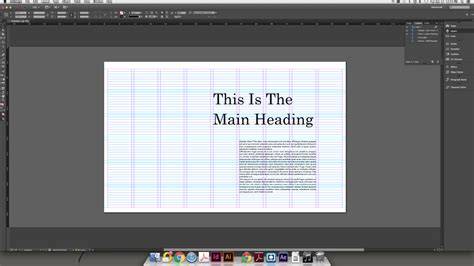
In more recent versions of Adobe’s Creative Suite, the Contact Sheet function has disappeared from Photoshop. Instead, Bridge can be used to process multiple images into a contact sheet PDF. But as a more flexible alternative, here’s a quick and easy way to create a contact sheet using InDesign alone. This technique is really simple to use and will enable you to create a contact sheet document that you can alter whenever you like, if necessary. This function can also be used within your designs when placing multiple images into a grid format.
Step 1: Gather and prepare your images
01 Before you start, you’ll need to collate your images (this example uses 12) into one folder. Then open a new InDesign document and go to File>Place. Highlight the images and click ‘Open’.
Step 2: Create a grid for your images
02 Now place the gallery of 12 images into your document within a grid format. Hold Ctrl/Cmd+Shift (your cursor should change into a grid to highlight), and click and drag on the page to create a grid.
Step 3: Maintain and adjust the grid while keeping alignment
03 Release Ctrl/Cmd+Shift, but keep the mouse held down (note that the grid lines all stay on the screen). Now you can adjust the number of images on each page. To do this, simply press the arrow keys to add or delete columns and rows - use the Up and Down arrows to adjust the rows, and Left and Right to adjust the columns.
Step 4: Fine-tune spacing and add captions
04 With the mouse still held down, you can adjust the spacing between images within the grid by holding Ctrl/Cmd+the arrow keys. Create enough space to add a caption between the top and bottom edges of the images.
Step 5: Place images into dedicated frames and generate captions
05 Release the mouse button and the images will be placed into the InDesign document, with each image placed in its own box. To add a label underneath each image to search for and identify it, select all of the images on the page and go to Object>Captions>Generate Static Caption.
The described workflow makes it straightforward to assemble a multi-image layout that behaves like a traditional contact sheet while staying fully editable within InDesign. You can adjust the grid to accommodate more or fewer images per page, resize frames, and customize captions without leaving your document.
Additional tips for a polished contact sheet
- Experiment with different margins and gutter sizes to optimize the balance between images and whitespace.
- Use paragraph styles for captions to ensure typographic consistency across the sheet.
- Embed metadata or filename information as captions to help identify each image in a review workflow.
- Consider exporting a proof as a PDF for sharing, and keep an editable InDesign file for future updates.
These techniques are not only useful for creating traditional contact sheets but also serve as a practical method to place a grid of images into any design project where a catalog-like presentation is needed.