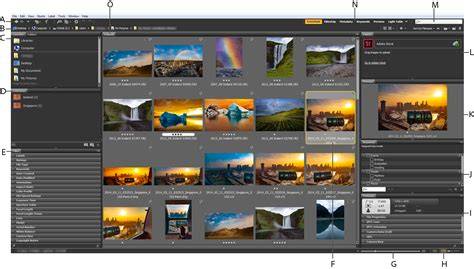
In this second tutorial in Getting Started with Photoshop, you'll learn how to install Adobe Bridge. Bridge is a file browser that lets you find, organize and open images into Photoshop. Your computer's operating system also has a built-in file browser, whether it's File Explorer in Windows or Finder on a Mac. The reason is that Bridge is much more powerful and easier to use, with lots of great features that your operating system's file browser doesn't have. But before we can use Bridge, we first need to install it. That's because Bridge is its own separate application.
First, we need to open the Creative Cloud app, the same app we used in the previous tutorial when we learned how to keep Photoshop up to date. The Creative Cloud app opens with a list of all the Adobe software currently installed on your computer. And below that is a list of other apps that are available. When it's done, Bridge will move up the list in the Creative Cloud app so it appears with your other installed software. And there we have it!
To proceed, ensure Creative Cloud is signed in and connected to the internet so the app can populate the list of available apps. Then locate Bridge in the Apps tab, and click Install. Bridge will download and install as a separate application, independent from Photoshop. Once installation finishes, Bridge will appear alongside your other Adobe applications in Creative Cloud and on your computer’s Applications (Mac) or Programs (Windows) directory.
After installation, you can launch Bridge directly from Creative Cloud or from your computer’s start menu or applications folder. Bridge provides a centralized workspace for managing image assets, synchronizing metadata, ratings, labels, and keywords, and it integrates smoothly with Photoshop for quick image opening and editing. Unlike the basic OS file browser, Bridge offers batch processing, powerful filtering, and robust organization options that streamline your workflow.
With Bridge installed and ready, you can begin using it to locate images, preview thumbnails, apply metadata, and open files directly into Photoshop. When you select an image in Bridge and choose Open in Photoshop, Bridge hands off the file to Photoshop while preserving your organization work, metadata, and any adjustments you’ve applied in Bridge. This tight integration helps maintain an efficient, non-destructive editing pipeline that saves time on large projects.
In summary, this tutorial guides you through the essential steps to install Adobe Bridge using the Creative Cloud app, recognizing Bridge as a separate application from Photoshop, and understanding Bridge's role as a powerful file browser that enhances the editing workflow.