What can you do with Photoshop Express? In truth, this app is an extremely watered-down version of Adobe Photoshop, which is quite limited in its functionality. Adobe Photoshop Express furnishes you with several useful tools for tidying up pictures or giving them a creative new look. You can use Adobe Photoshop Express to correct various aspects of a photo, including clarity, contrast, shadows, temperature, and more.
Alternatively, hit the Looks button and you can apply one of a number of preset filters to the image, in much the same way as you would with Instagram or Retrica, for example. Other tools within Photoshop Express include red-eye removal, borders and frames, and a blemish remover. There's an auto-adjustment tool too, if you can't be bothered to tinker around with the image yourself.
Once you're done editing you can save your image to your device or to Adobe Revel, or share it via social media or messaging. The in Photoshop Express are great for quick fixes or applying instant effects, but not for more complex adjustments or image processing. Photoshop Express is really just designed for quick photo editing on the move. If viewed in this way, it's actually a great success because the user interface is so intuitive.
Most of the editing requires you to move a slider to increase or decrease the intensity of a particular effect or setting. There's an undo feature if you make a mistake, and even a before/after button that you can hold down to see the original image (i.e. before you made the changes).
Good for the basics. All in all, Photoshop Express is a decent portable, on-the-fly image editor.
Key capabilities and practical use
- Basic corrections: adjust clarity, contrast, shadows, highlights, and temperature to improve overall photo quality.
- Looks and filters: apply preset filters quickly, achieving stylish effects without manual tuning.
- Detail tools: red-eye removal, blemish remover, and borders/frames for finishing touches.
- Auto-adjustment: one-tap enhancement for fast edits when you’re on the go.
- Sharing and storage: save locally or to Adobe Revel, or share via social networks and messaging apps.
- Undo and before/after: review changes and revert if needed, or compare with the original image.
Workflow tips for mobile editing
- Start with exposure-like adjustments (clarity, contrast) to define the base look.
- Use Looks for a quick creative direction, then fine-tune with individual sliders.
- Apply blemish removal sparingly to avoid over-smoothing.
- Check the before/after to ensure edits look natural on different displays.
- Save in the desired resolution and share directly from the app to streamline publishing.
Although Photoshop Express is not intended for professional-grade edits, its lightweight design and ease of use make it ideal for fast, on-the-go enhancements. It fits well for casual photographers who want to tidy up shots quickly without learning a complex toolset.
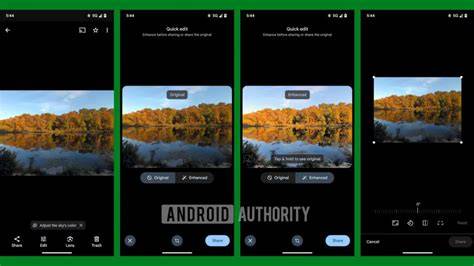
How to Use Photoshop Express on Android ?
In summary, Photoshop Express provides essential photo-editing features in a compact, portable package. It excels at quick fixes, instant effects, and straightforward sharing, while remaining limited for advanced image processing tasks.