Photoshop actions for portraits can transform your images and portrait photography to another level fast. You can make a portrait effect in Photoshop, but you’ll need to learn the different portrait tools available in Photoshop. You can also use Photoshop actions to create a variety of different photo effects, from the Painterly effect to light and airy to dark and moody.
You can make light and airy portrait effects in Photoshop if you have experience in Photoshop, or you can use light and airy portrait photoshop actions made by professionals that will give you all types of options, looks and styles to help you save lots of time editing your photos for portraits. Forget about monotonous work on your portraits after using these professional and free Photoshop actions for portraits. Edit a pack of portrait photos from the studio or the street automatically and apply minimal changes using these Photoshop actions for portraits.
Popular types of portrait actions and presets
There are 80 classic actions capable of performing basic portrait editing: Whiten Teeth, Dodge & Burn, Brighten Eyes, Glossy Lips, Honey Skin, Frequency Separation, Clean Contrast, Warm Effects, and countless others. Perform deep portrait retouching using any of 90 free actions for Photoshop available in this collection. Save your time on performing monotonous frequency separation with this free plugin. All that’s left to do is to browse the layers, apply adjustments to the harshness of the texture, and brush over the portrait.
Work with this cool actions collection that can fix lighting issues and improve the way the model's skin looks. Enhance your portraits with a light matte film effect to highlight the tenderness and a romantic mood prevailing in their atmosphere. Use this double exposure action to create something unique and striking out of your studio or street portraits and engage your Instagram viewers. Nothing is easier now than creating realistic drawings out of your portraits. Make your street portraits look catchy with more than half a hundred cinematic actions.
Any Photoshop action for portraits will apply various levels of muffled brightness, saturation, a certain contrast, and a peculiar tint. Recreate the grungy, torn look of old VHS tapes with this Glitch Effects kit. If you have photographed a newborn, 60+ actions assembled here will make the portrait bright, tender, matte, remove tiny pimples or redness from the skin, and achieve atmospheric cleanness and softness of colors.
From brush-based retouching to texture control, these actions can streamline work flows and help you deliver consistent results across shoots. The bundled presets and actions cover skin retouching, color grading, lighting corrections, and creative effects, making it possible to tailor looks for studio and external environments alike. For professionals and enthusiasts, the ability to apply multiple layers of adjustments quickly means more time for creative decisions and client communication.
Practical workflow tips for using portrait presets
Start with a base neutral profile to preserve natural skin tones, then stack selective adjustments for brightness, contrast, and color balance. Use frequency separation sparingly to refine texture without introducing halo artifacts, and zoom in to ensure fine details stay natural. Leverage masking to apply effects only where needed, such as the eyes, lips, and cheeks, to retain realism while enhancing mood. For street portraits, consider light and cinematic contrast tweaks to emphasize facial features and storytelling elements without sacrificing authenticity.
Table of representative actions and effects
| Category | Examples of Actions | Typical Outcome |
|---|---|---|
| Basic retouch | Whiten Teeth, Dodge & Burn, Brighten Eyes | Subtle enhancement of facial features and brightness |
| Skin texture | Honey Skin, Frequency Separation | Smoothed skin with preserved texture |
| Color grading | Warm Effects, Cool Tones, Matte Film | Unified mood and skin tones |
| Creative effects | Double Exposure, Glitch, Pop Art | Distinctive artistic interpretations |
| Newborn portraits | 60+ newborn-focused actions | Gentle, soft, blemish-reduced skin |
All that’s left to do is to browse the layers, apply adjustments to the harshness of the texture, and brush over the portrait. Use this double exposure action to create something unique and striking out of your studio or street portraits and engage your Instagram viewers. Nothing is easier now than creating realistic drawings out of your portraits.
Choosing the right preset strategy
Light and airy looks work well for wedding and lifestyle portraits where a soft, ethereal mood is desired, while cinematic and moody presets suit high-contrast editorial photography. For newborns, prioritize gentle skin smoothing and color accuracy to preserve tenderness. When in doubt, start with a neutral base and build up with selective color and exposure adjustments to avoid over-processing.
Edit your portraits like a PRO in Lightroom
Remember to periodically compare edited portraits with the original to ensure you are not losing essential facial characteristics or introducing unnatural changes. A balanced approach-combining professional actions with careful masking and layer opacity control-will yield the most reliable and repeatable results across sessions.
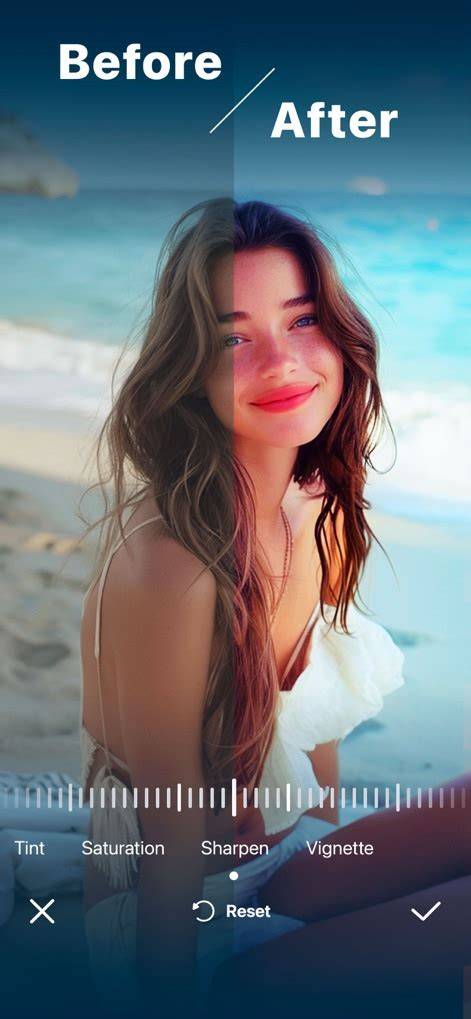
In practice, a well-chosen set of actions can reduce editing time dramatically while maintaining or improving the visual quality of your portraits. The key is to understand the purpose of each preset, apply them judiciously, and refine with local adjustments where needed for the most convincing results.