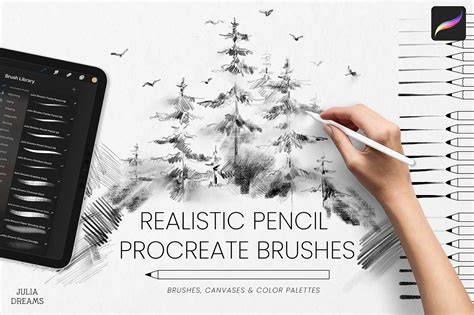
Procreate brushes are the heartbeat of digital artistry on iPad, iPhone, and beyond. With an ever-growing library designed for iPadOS and compatible devices, artists can access thousands of textures, styles, and effects with a single tap. The emphasis on fast installation, high-quality craftsmanship, and a rich ecosystem of tutorials makes Procreate brushes a cornerstone for creatives seeking professional results.
Abundant brush libraries and one‑tap installs
Pro Brush is the #1 brush library for Procreate, Procreate Pocket, and Procreate Dreams, offering 3,000+ brushes and a ONE-TAP install experience. New brush sets drop regularly, with 5+ new designs, textures, fonts, and palettes appearing each month. You can download Pro Brush for free to gain instant access to 99+ free brushes, with ongoing weekly additions.
Designed for quick workflows, the system emphasizes no file management and no imports, letting artists focus on creation rather than setup. A single tap can install brushes, textures, or fonts directly into the Procreate brush library, streamlining the process from discovery to artwork.
Brush varieties and creative rigging
Choose from 60+ styles, including watercolor, ink, neon, comic, acrylic, calligraphy, airbrush, sketch, graffiti, and more. Textures can be used as a base layer, overlaid for depth, or drawn on directly to shape the final piece. The library includes 3D models and video tutorials embedded in the app, helping users see exactly what each brush can do.
Alongside brushes, typography adds a stunning layer to Procreate artworks. The font collection covers modern, vintage, script, and display styles-each crafted letter by letter to complement digital canvases. The integration of textures with typography opens up a broad spectrum of design possibilities, from bold display text to delicate calligraphy on textured surfaces.
Color, texture, and 3D capabilities
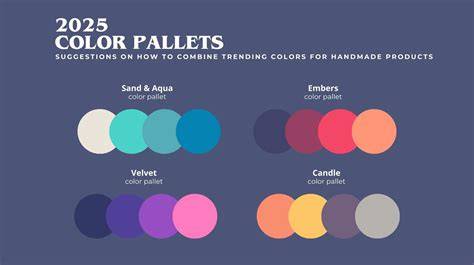
Stop wasting time color-matching. Hand-curated Procreate color palettes are built by illustrators who understand mood, atmosphere, and harmony, enabling cohesive color narratives across compositions. Textures serve as flexible elements: as a base, as overlays for depth, or as drawing surfaces for creative experimentation. Procreate supports drawing on 3D reference models, extending traditional painting into three dimensions for richer textures and lighting.
Procreate brushes are crafted by professional artists and illustrators, ensuring high-quality results and thoughtful tuning for different styles. The library includes material brushes featuring metallics and roughness for 3D painting, and a variety of realistic watercolor, acrylic, and other paint textures to suit diverse projects.
Workflow, storage, and collaboration
Brush libraries are stored in the Files app (On My iPad → Procreate → Brushes or iCloud Drive → Procreate Brushes) and can be imported as individual .brush files. Changes in Procreate are reflected in the Files app and vice versa, creating a seamless cross‑app workflow. You can move, copy, duplicate, rename, and share brushes and brush sets with flexible options like pinning frequently used brushes for quick access.
To back up brushes or brush sets, it’s wise to store them on external storage or within cloud services. The “Imported” set appears when you import a single brush, and you can locate recent brushes easily from the brush library. If a brush is accidentally deleted, you can recover items from the Recently Deleted folder in the Files app.
Brush Studio: customization without limits
The Brush Studio provides total control over every aspect of a brush, including shape, grain, behavior, color, responsiveness, opacity, taper, and more. With hundreds of settings, you can craft limitless combinations to match your exact workflow. Procreate remembers your custom settings, so your preferred configurations stay with you across sessions.
Creating new brushes or brush sets is intuitive: tap to create a new brush or a new brush set, enter the Brush Studio to customize, and save. You can import brushes from outside the app by locating a .brush, .brushset, or .brushlibrary file in Files, creating an Imported set for a single brush import, and organizing brushes into sets and libraries within Procreate.
Managing libraries and ecosystem
There are two primary ways to access brush libraries: via the brush panel and via the Files app. You can drag and drop brushes between sets and libraries, and you can move multiple items at once by stacking selections. When updating to new Procreate versions (e.g., 5.4 and above), brush files move to new systems, and you can decide between local storage or iCloud Drive for syncing.
Understanding naming restrictions is important as certain characters cannot be used in brush and set names due to file system constraints. You can customize icons by using emojis in brush set names if no dedicated icon is set, and you can share individual brushes or entire sets with other artists or projects.
Popular collections and learning resources
Procreate’s 18 core brush sets cover a wide range of styles: clean and simple, comic/manga inks, technical line work, rendering brushes for artistic drawing, ink-centric sumi-e, acrylic/oil/stucco textures, and 3D-compatible material brushes. Many sets include textures, color-changing brushes, smoky effects, and chaotic shapes to expand your creative toolset.
Video tutorials are embedded within the app for many brush sets, helping users understand exact capabilities and best practices. A large library of brushes is complemented by other resources, such as typography, textures, and palettes, to elevate digital artwork beyond basic brushwork. Additionally, third-party platforms offer thousands more brushes and color palettes to explore new techniques and trend-driven looks.
Compatibility and ecosystem breadth
Procreate and its brush ecosystem are designed for iPad and iPhone, with support expanding toward Vision Pro devices where applicable. System requirements include iOS 13.0 or later for broader compatibility, with newer brush features optimized for iPadOS and Apple Pencil interaction. The app and its brush ecosystem emphasize AI-assisted aesthetics and expressive control, empowering both beginners and professionals to realize their vision with efficiency.
In collaboration with professional artists, thousands of top-tier brushes can simplify creation and accelerate productivity. The combination of high-quality brushes, curated color palettes, and rich typography makes Procreate a comprehensive creative suite for illustration, concept art, and design projects alike.
Practical tips for getting the most out of Procreate brushes
- Start with a curated palette and a focal brush to establish your mood and workflow.
- Explore brush settings in Brush Studio to tailor textures to your painting style.
- Utilize 3D models and textures to add depth and realism to your compositions.
- Keep a well-organized brush library to speed up access during high-pressure projects.
- Leverage video tutorials embedded in brush sets for quick learning and inspiration.