V-Ray license issues can halt rendering pipelines, whether you work solo or manage a multi-node farm. The core problem often centers on how the V-Ray license server communicates with Chaos Cloud, USB dongles, or Chaos account-based licensing. This article compiles actionable steps drawn from common scenarios to help you quickly diagnose and fix the error, minimize downtime, and maintain a robust licensing setup across diverse infrastructures.
Understanding the licensing landscape: dongles, license servers, and Chaos licensing
V-Ray license management varies by version and deployment method. The V-Ray license server (vrlservice.exe on Windows, vrlservice on Linux/macOS) controls how V-Ray accesses its licenses. Depending on your environment-dongles, network license servers, or Chaos account-based licensing-the startup path and failure modes differ. If you are migrating from V-Ray 6 to V-Ray 7, be aware that Chaos fundamentally changed how licensing works. Path A: Set up a Chaos License Server on your network. This server connects to Chaos cloud once, then caches licenses locally. Path B: Configure V-Ray 7 with direct Chaos account credentials. Each render node authenticates to Chaos cloud independently.
Common failure points and immediate checks
The primary failure often occurs at V-Ray startup, when the vrlservice attempts to initialize and cannot acquire a license. If the service cannot start, you’ll see licensing errors immediately. Begin with these checks:
- Physically inspect your USB dongle and WIBU-KEY driver. Ensure the dongle is seated firmly, avoid daisy-chaining dongles or unpowered hubs, and install the latest WIBU-KEY driver from wibu.com. After installation, verify in Device Manager that the device appears as WIBU-KEY or CodeMeter.
- If your environment uses a deprecated License Medic tool, migrate to Chaos License Server for dongle validation and license reading.
- Determine your licensing path (dongle-based, Chaos License Server, or Chaos cloud online licensing) and confirm that each render node is configured accordingly.
- For Chaos cloud-based licensing, confirm the Chaos account credentials are correctly configured on each render node, and ensure internet access for initial authentication.
Networked licensing: Chaos License Server vs. Chaos Cloud
Two broad deployment models exist for licensed render farms:
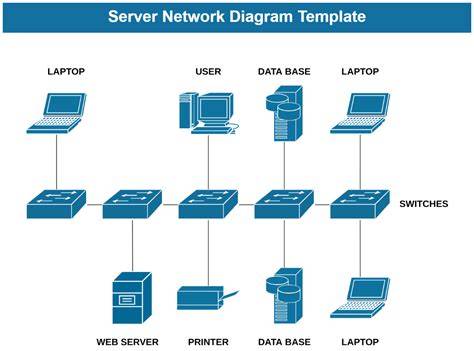
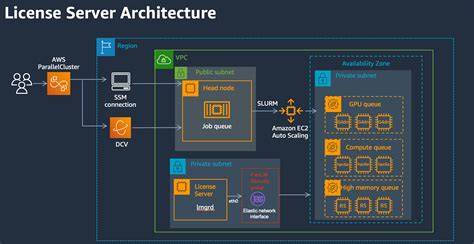
- Chaos License Server (network-based): Install a dedicated license server that caches licenses from Chaos cloud. Render nodes connect to this server (default port 30304). This approach is resilient in air-gapped environments and supports multi-subnet or multi-site farms through TCP/IP connections and proper firewall rules.
- Chaos Cloud with direct online licensing: Each render node authenticates directly to Chaos cloud using Chaos account credentials. This method simplifies deployment but requires consistent internet access on each node.
In both cases, proper firewall rules are essential. Ensure that render nodes can reach the license server on port 30304 (TCP). If your farm spans multiple subnets or uses a corporate firewall, add Chaos cloud IP ranges to allowlists. For VPN setups, verify VPN subnets can reach the license server. If the server becomes unreachable, set up health monitoring and alerting for fast remediation.
Step-by-step: troubleshooting and remediation
Follow this practical sequence to diagnose and fix "License server not responding" or related errors:
- Verify license server status: ensure vrlservice is running on the server and that the server is reachable from at least one render node. Use ping and check port 30304 with telnet or equivalent.
- Confirm port accessibility: configure firewall to allow TCP traffic on port 30304 (or your custom port). If using a VPN, ensure VPN subnets can reach the license server.
- Check license server configuration: ensure the server is configured as primary with at least one hot standby. Validate that the Chaos credentials or license cache are properly loaded.
- For dongle-based licensing: reinstall WIBU-KEY driver on both the server and render nodes. Verify the dongle is recognized on the server and that the driver services are running with sufficient privileges.
- On each render node, open V-Ray Settings > System > License and verify the correct licensing path (Chaos License Server vs. Chaos cloud online licensing). If using a local License Server, ensure the node’s license settings point to the server’s IP and port 30304.
- If the farm has no internet on the render nodes, keep Chaos License Server as the licensing path. The License Server will connect to Chaos cloud once to validate and then cache licenses for offline rendering.
- Restart vrlservice on all nodes after any change to the license configuration or network settings.
- Stagger render node restarts to avoid port exhaustion when many vrlservice processes are active. This reduces ephemeral port conflicts and improves stability.
Troubleshooting scenarios and practical configurations
Scenario A: You have a Studio subscription with V-Ray that should be included, but licensing fails on startup. The fix often involves syncing licensing with Trimble or Chaos accounts and ensuring an active license cache. If you’re using a corporate environment, coordinate with IT to enable license port access and verify that there is no firewall rule blocking essential Chaos cloud traffic.
Scenario B: You operate a render farm with USB dongles and a centralized server. If dongles are intermittently not detected, reinstall WIBU-KEY drivers, verify dongle placement, and consider migrating to Chaos License Server for more stable licensing in multi-node environments. Long-term, this reduces the risk of dongle failures across nodes.
Scenario C: You plan to scale with Chaos Cloud for cloud bursting. Use a hybrid approach: keep a primary local Chaos License Server for on-prem nodes and enable Chaos Cloud for additional capacity. This approach minimizes internet dependency on the core render farm while allowing dynamic scaling.
Recommended deployment patterns
- Redundant Chaos License Server: Deploy a primary and at least one hot standby server. Monitor health continuously and alert if the primary becomes unreachable.
- Per-node licensing awareness: On large farms, configure each render node to try the primary License Server first and fall back to secondary servers if unavailable.
- Security and access control: Use firewall rules that restrict license server access to known render nodes, minimizing exposure to external threats.
- Documentation and SOPs: Maintain clear guidelines for license server setup, port defaults, and steps to recover from license-related outages.
Practical notes for specific environments
Docker and virtualized environments require special considerations. In containers, pass through host USB devices if dongle-based licensing is used, though this can introduce latency and instability. In VMs, USB redirection can be used but is not ideal for production at scale. Chaos License Server-based licensing works most smoothly in VM and containerized environments because it relies on standard TCP/IP and does not require USB passthrough.
Frequently asked Q&As
- Q: I see "License Server not responding" but the server is running. A: Check network connectivity, verify IP/port configuration, and confirm firewall allowances for port 30304. If using VPN, ensure connectivity to the license server subnet.
- Q: Our farm has no internet access. A: Use Chaos License Server to connect to Chaos cloud only briefly for license validation; after that, render nodes communicate locally to the License Server with no internet required.
- Q: V-Ray 7 removed dongle support. A: You must use either Chaos License Server or Chaos account-based online licensing.
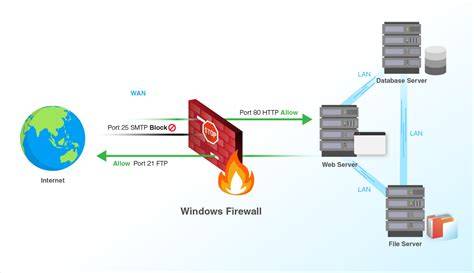
Таблица: типы лицензирования и действия по устранению неполадок
| Сценарий | Решение | Ключевые порты/адреса |
|---|---|---|
| Dongle-based лицензия | Переустановить WIBU-KEY драйвер, проверить вставку dongle | USB; WIBU-KEY |
| Сетевой сервер лицензий Chaos | Настроить primary/secondary License Server; открыть 30304 | TCP 30304 |
| Direct Chaos cloud licensing | Проверить учетную запись Chaos; убедиться в интернет-доступе на узлах | HTTPS/443 |
| Плохо настроенная сеть/много подсетей | Проверить ACLs и алиасы; убедиться, что узлы могут достичь сервера лицензий | IP-пути, VPN/Subnets |
Идетификация и поддержка
Для крупных ферм полезна мгновенная система мониторинга статуса лицензий и автоматического оповещения о недоступности лицензии. В случаях, когда у заказчика возникают сложности, техническая поддержка Chaos или поставщиков услуг, таких как SuperRenders Farm, может быстро помочь, но основа решения - корректная настройка лицензирования и надёжная инфраструктура.