When you edit an image in Adobe Photoshop, you’ll likely perform a series of steps to get the right look. You may want to resize the photo, increase its contrast, adjust the saturation, use certain photo effects, and so on. But what if you have multiple images that require the same editing process and you want to be as efficient as possible?
Photoshop actions are a series of pre-recorded commands that the software can repeatedly apply to any number of images. Think of a Photoshop action like a recipe for a tasty cake. You have all the instructions and ingredients, but instead of doing everything yourself, you give Photoshop the recipe (the action), and the program does everything for you.
How to install and run actions
Method 1: You install Photoshop actions by double-clicking files that have a .ATN extension. Please be aware that you won’t receive any notice from Adobe when you install a Photoshop action.
Method 2: In case double-clicking the .ATN file doesn’t work, you can open the Actions panel to install Photoshop actions. Start by going to the top menu and clicking on “Window.” Then click on “Actions.” This panel has a menu of its own that you can open by clicking on this icon. Every Photoshop action is different, but most require you to have an active project and an image loaded first. Next, go to the top menu to “Window” and choose “Actions.” The Actions panel will show up, and you’ll see all your available actions. When you want to run an action, simply click on an entry from the “Actions” panel, and hit the play button. Please be aware that you have to select an action and not a folder.
To record an action, you first have to open up the Actions panel. Here you might have some actions already loaded, but luckily we have folders to keep things tidy. Name your folder whatever you like - I’ll write “Chris Tutorial” in this case. You’ll get a pop-up window that will ask you to name the action. When we press “record,” Adobe Photoshop will start memorizing our steps and actions. One thing you should know is that the recording isn’t time-dependent. You can spend as much time as you want on your editing process. When Photoshop plays the action in the future, it will run smoothly without any stops or breaks. Next, go to the bottom of the Layers panel and add an Adjustment layer. You can fine-tune the black and white effect from the Properties panel - it’ll lower the Yellows to a negative value. Finally, I’ll add another Adjustment layer: Brightness and Contrast. We could continue to add actions to our recording, but this is enough for this example.
Keep in mind that Adobe Photoshop is an extremely powerful program, so don’t shy away from recording loads of steps. When you want to stop the recording, click on this icon on the left. And you’re done!
Managing actions and libraries
When you’re browsing the web for Adobe Photoshop actions, you’ll likely find a lot of them. To keep the best ones and stay organized, it’s important to delete actions that aren’t to your taste. Let’s say you’re really proud of an action you created in Photoshop and you want to share it with the world. How do you share an action? From the top right side, click on the menu icon as seen in the screenshot above. Make sure you chose the right action by checking the file name. This should match the name from the Actions panel. Try it out and see what Photoshop actions you can come up with.
There are two modes of the Actions Palette: Button Mode and Edit Mode. We toggle between these two states of the palette from the afore mentioned Actions Menu. Button mode will place a button with the action name inside the palette… simply click on this to play the action, and follow any directions as they appear. Edit Mode displays a collapsible tree of all the commands within the action. Select this mode if you want to see what is happening, what filters and settings are being applied, etc. while the action is running. This is a great learning tool!
Practical examples and benefits
Photoshop Actions allow us to record a sequence of actions and then run that sequence whenever we want with just one click from the Actions panel. Even better, we can assign a keyboard shortcut, making the process even faster. Why Photoshop Actions Are Useful: merging several steps into one saves time; you can create complex workflows concatenating actions; you don’t need to remember the details and steps for achieving a particular result. Record an action and the process will always be available with a click. You can bulk edit images using the powerful File > Automate > Batch.
Some common uses include exporting multiple images in a specific format, applying a consistent color treatment, or adding effects like black-and-white adjustments or brightness/contrast tweaks across a batch. Actions can include steps that let you perform tasks that cannot be recorded (for example, using a painting tool). There’s a wide ecosystem of actions available for download, or you can create your own to suit your exact needs.
Creating and sharing actions
To create actions, open the Actions panel, create a new folder, name it, then create a new action and press record. Perform the desired edits, then stop recording. The action is now available in the panel and can be played on any compatible image. Actions are saved as .atn files and are cross-platform compatible. After downloading or creating an action, you’ll need to load it via Window > Actions > Load Actions. Once loaded, it will remain in the Actions panel for future use.
As you expand your library, you’ll likely encounter a mix of built-in and third-party actions. Some creators offer bundles that automate styles like watercolor, oil painting, dramatic cinema looks, HDR enhancements, and more. The key is to pick actions that fit your workflow and save substantial time on repetitive tasks.
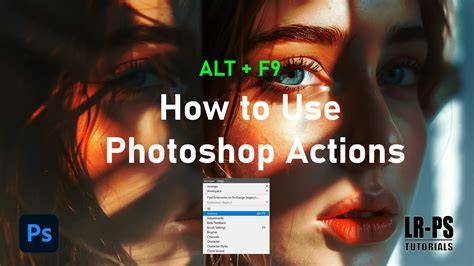
In short, a Photoshop Action is a sequence of tasks saved to be replayed on one or more images with one click or a keyboard shortcut. They dramatically streamline repetitive edits and empower you to apply consistent looks across large batches.
How to Use Photoshop Actions
If you’re new to editing using Photoshop to edit photos, or just haven't ever tried out their Actions feature, you're going to LOVE this. Actions can save you HOURS of photo editing. The hardest part might be picking out the action that’s right for your project. Pick out the action that works for your project and click the download button, which should prompt the file to be saved on your computer. Downloaded Photoshop Actions will save to the location you choose. Photoshop Action are saved as an .atn file type. In both locations, Actions are saved by file name. Once you have a Photoshop Action downloaded, you’ll need to load it for use. After you do this once, it will remain in the Actions panel for future use as well.
| Stage | What happens | Key tip |
|---|---|---|
| Record | Photoshop memorizes steps as you edit | Use clear, repeatable steps |
| Play | Action runs on current image or batch | Ensure correct selection |
| Batch | Apply action to many files via File > Automate > Batch | Define source and destination |
To close, I’ll give you a quick example of what actions can do, using an action I created. I hope you have enjoyed this little intro to actions! This tutorial was written by my friend, Al Ward from Actionfx. Every time you do something in Photoshop you’re taking an action, like when you apply sharpening, adjust levels, brightness or colour for example. One example of this I use all the time is making these small images with a drop shadow to accompany our videos. And for such a small thing there’s a surprising amount of work involving several Photoshop tools. By using Photoshop actions all this work is cut down to a single click (or keystroke) and - job done. The actions palette is basically like an old fashioned tape recorder. You do the work on one image and record it as an action which you can use again and again as many times as you like.
Photoshop is an incredible tool that comes with hundreds of functions. We adapt Photoshop to our needs and normally end up using just a few of the available functions. But, how many times a day do we use each tool? How many times a day do we repeat the same sequence of commands? Wouldn’t it be great to improve and automate the way we use our tools? Photoshop has a powerful built-in automation feature called Actions. Photoshop Actions allow us to record a sequence of actions and then run that sequence whenever we want with just one click from the Actions panel. Even better, we can assign a keyboard shortcut, making the process even faster.
Actions are programed sequences to help you do more complicated tasks with ease when using Photoshop. If you’re new to editing using Photoshop to edit photos, or just haven’t ever tried out their Actions feature, you’re going to LOVE this! They save a lot of time on repeated tasks or editing styles. Downloading Photoshop actions is easy, and the hardest part might be picking out the action that’s right for your project. Actions are saved as .atn files and loadable from the Actions panel for future use.