If your Apple Pencil isn’t responding to pressure the way it should in Procreate-no taper, no variation in line width-this post can help. Let’s walk through the most common reasons pressure sensitivity stops working in Procreate, and how to fix it, step by step.
Start Here: Is It the Pencil?
Let’s first make sure your Apple Pencil is functioning properly.
- Confirm You’re Using an Apple Pencil
Some third-party styluses don’t support pressure sensitivity at all. If you’re not using an official Apple Pencil, that could be the issue. - Check Which Apple Pencil You Have
The Apple Pencil with USB-C does not support pressure sensitivity. It only supports tilt-not pressure. Annoying I know! If purchasing a new Apple Pencil, make sure to compare tech specs. - Check the Pencil Tip
Make sure the tip is tightly screwed in. If it feels worn down or unresponsive, try replacing it. A fresh tip often restores pressure accuracy. - Reconnect the Pencil
Fully charge your Pencil. Low battery can cause poor response. Unpair and re-pair the Pencil in Settings > Bluetooth. Restart your iPad after reconnecting, just to be safe.
🛠️ Still Not Working? Try These Procreate-Specific Fixes
1. Reset the Brush
Sometimes pressure stops working because a setting was accidentally changed. To reset a brush:
- Tap the brush to open Brush Studio
- Scroll down to About this Brush
- Tap Reset Brush
This will restore the brush’s original settings-including pressure behavior.
💡 Tip: Use a Procreate default brush like Tinderbox (in the Inking set) to test pressure. It’s designed to show pressure variations clearly.
2. Check the Pressure Curve
Procreate has a global pressure curve setting that affects every brush. To access the App Pressure Sensitivity curve setting, go to Actions (wrench icon) > Prefs > Pressure & Smoothing. If the curve is too flat, it can prevent brushes from reacting to pressure properly. The default curve is a straight diagonal line (see photo). If your curve is unintentionally different, you can undo by tapping Reset all.
3. Restart and Update
It sounds simple, but it works:
- Restart your iPad
- Check for Procreate and iPadOS updates in the App Store and Settings
- Reopen Procreate and test again
📱 Test Pressure in Other Apps
Before assuming it’s a Procreate-only problem, open the Notes app or another drawing app. Does pressure sensitivity work there?
- If it does, your Apple Pencil is working fine-and the issue is specific to Procreate.
- If it doesn’t, it’s likely a Pencil hardware or compatibility issue (see above).
🧠 Bonus: Still Feels Off? Sometimes pressure technically “works,” but your lines still feel rigid or lifeless.
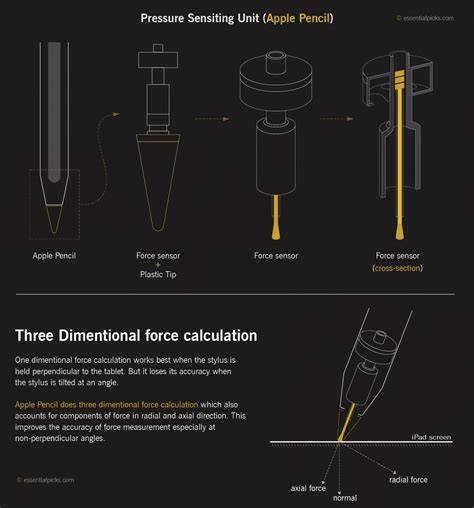
Procreate Apple Pencil Pressure settings - everything you need to know!
| Check | What to Do |
|---|---|
| Pen works in Notes but not Procreate | Focus on brush reset, brush presets, and Procreate-specific settings |
| Pen not working at all | Charge, re-pair, tip check, compatibility of pencil type |
| Pressure curve flat | Adjust in Actions > Prefs > Pressure & Smoothing; reset if needed |
In summary, verify the pencil model and tip, ensure proper pairing and charging, test with a default brush, adjust the global pressure curve, and restart/update the apps and device. If pressure works in other apps, the issue is inside Procreate; if not, it’s likely hardware or compatibility related.