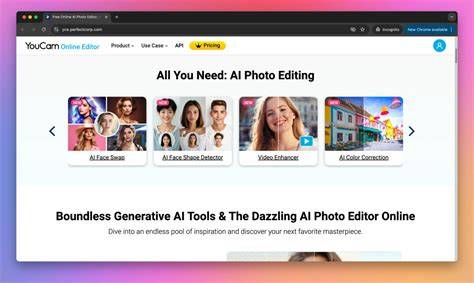
YouCam Perfect is an all-in-one online and mobile photo editing suite designed for everyday creators, small businesses, and social teams. It combines powerful AI tools with an intuitive browser-based interface, enabling users to enhance photos, remove objects, animate images, try on outfits, and generate videos without requiring heavy software installations. No download is needed; you can access advanced AI models directly from your web browser on Windows, Mac, or Linux, and similar capabilities carry over to mobile devices.
Core AI Editing Capabilities
AI Photo Enhancer: Fix blurry photos & upscale to 4K. Instantly sharpen blurry, grainy, or out-of-focus shots by reconstructing fine details rather than merely smoothing pixels. This enables old mobile photos or low-resolution downloads to resemble professional 4K imagery. The tool supports batch processing, allowing up to 50 photos to be enhanced at once. It works best on motion-blurred or low-resolution images, though it cannot recover subjects that were never in focus to begin with.
AI Object Remover: Erase People & Objects Instantly. Clean up shots by brushing over unwanted elements-photobombers, power lines, or watermarks-and let the smart background reconstruction fill in the gaps, making edits appear seamless. A recent enhancement extends object removal to videos as well, enabling removal of objects or people from footage with consistent results.
AI Hairstyle Generator: Try On 140+ Haircuts & Colors. Preview hairstyles virtually before heading to the salon, with on-face rendering that respects face shape and lighting for hyper-realistic results. A front-facing, unobstructed photo yields the most reliable stylistic previews.
AI Clothes Changer: Virtual Outfit Try-On. Experiment with different outfits-ranging from professional suits to casual streetwear or wedding dresses-while the AI matches fabric texture, shadows, and body contours for a realistic fit. A straight-on, uncluttered full-body photo provides the best base for trying a new wardrobe.
Video Tools: Bringing Stills to Life
AI Video Generator: Turn Photos into Cinematic Videos. Animate static images with cinematic pans or engaging effects like “AI Hug” or “AI Dance,” producing high-definition motion that looks natural and is ideal for social media content. For best results, start with a clear, well-lit photo facing forward to help the AI interpret depth and pose accurately.
AI Video Enhancer: Upscale to 4K & Sharpen Quality. This tool restores lost detail, reduces grain, and sharpens blurry faces, making aging clips and low-light footage look as if shot on a high-end 4K camera. Longer clips take longer to process, so trimming to shorter segments before enhancement can speed up previews.
Backgrounds, Composition, and Social-Ready Outputs
Uncrop Feature: Expand the background without sacrificing quality, transforming tight shots into perfectly square or story-friendly compositions. This is especially handy for Instagram Stories and feed-posts where framing matters as much as content quality.
AI Background Replacement and Lighting: Automatically detect and adjust exposures, shadows, and color to create natural, studio-like results, making it easier to compose scenes with confidence.
AI Group Photo: Merge two photos into a single natural-looking group image. This is useful for creating perfect memories with friends or pets, or for assembling a cohesive collage from separate shots.
Creative and Practical Enhancements
AI Photo Repair and Colorize: Restore faded, scratched, or damaged memories, and add vibrant natural colors to black-and-white photos, helping portraits and landscapes pop with modern clarity.
Auto Object Removal in Videos: Remove distractions directly within video workflows for cleaner cinematic results.
Beauty and Retouch Tools: Skin smoothing, teeth whitening, blemish removal, and subtle reshaping are available to enhance portraits while preserving natural features. The pipeline emphasizes realistic results over over-embellishment, so edits remain true to life.
Text-to-Image & Image-to-Image: Generate visuals from prompts or transform existing photos with one tap, leveraging cutting-edge AI models to unlock diverse editing effects and creative directions.
Image-to-Video: Create motion from static images with trendy effects like AI Hug, AI Dance, or other dynamic transitions, enabling quick generation of engaging clips for social media.
Collage Maker with 100+ Templates: Build stylish layouts quickly with hundreds of templates or design freestyle collages. Personalize with text, stickers, and doodles to reflect your unique style.
Accessibility, Privacy, and Pricing
YouCam is designed for broad accessibility: no heavy software downloads, cloud-based processing, and a browser-based workflow that keeps processing power in the cloud. Privacy is prioritized, with assurances that uploaded photos are processed securely and not used to train AI models without consent, with files automatically deleted after a short period. The service offers a free tier to get started, including 5 free credits to try core tools like enhancement and object removal, with additional features available via credits or membership plans. Some advanced features operate on a credits system or require a premium plan.
Use Cases: Real-World Scenarios
Amanda L. used the AI photo editor to fix an old, blurry photo from the 1970s, achieving a clear portrait suitable for display without making her nan look artificial. Priya N. saved vacation shots by removing a large tour group from the background in seconds, yielding a natural-looking scene. Tom R. found the Uncrop feature essential for fitting photos into square or story formats while preserving quality for IG stories or posts.
Across portraits, old memories, travel photos, and social media content, YouCam’s AI-powered toolkit aims to streamline editing workflows, enabling quick, professional results without requiring Photoshop expertise.
Practical Tips for Getting the Best Results
- Use a clean, well-lit source photo for hairstyle and clothes try-ons to maximize realism and pose accuracy.
- When upscaling or restoring old photos, start with the highest-quality input possible to improve detail reconstruction.
- For video enhancement, trim longer clips before processing to get faster previews and manageable output times.
- Leverage batch processing for high-volume edits when you need consistency across many images.
- Combine tools in a logical sequence: enhance or repair a photo, apply object removal if needed, then animate or convert to video for social sharing.
Frequently Asked Questions (selected)
- What is the best AI photo editor for beginners in 2026? The YouCam Online Editor is highly recommended for its automated, one-click tools and no-download workflow, with a free start option.
- Can I remove unwanted objects from photos with AI? Yes, use the AI Object Remover and brush over the distraction; the background will be intelligently reconstructed.
- Do I need a powerful computer to run YouCam’s AI tools? No. It’s browser-based and cloud-processed, so a wide range of devices can handle edits without heavy local computation.