It’s my favourite and most indispensable piece of gear. My Logitech MX Master mouse. Now granted, I probably spend a lot more time editing than out shooting than most but still, if I had to judge the most worthwhile investment by the amount of time I’ve used any piece of gear, this would be it by far.
This mouse is so good it’s kept me from switching to a tablet setup, despite numerous tries. I have a Wacom tablet and stylus that sits sadly on my desk gathering dust. I’ve had it for years. Occasionally I try to give it another go, usually after I hear someone raving about how much better they are for everything and I think I must be missing something, only for me to switch back to the mouse since it takes me 3 times as long to get anything done.
The main thing I find myself working so much faster on with the mouse is any kind of selection in photoshop, be it with the pen or lasso tools. The mouse feels so much more quick and more precise than the tablet to me, which I’m sure I would improve at over time, but it’s not that easy making the time investment to get to a level I’m already at with the mouse. Cloning & healing also feel very natural and precise, to the point I almost never feel it’s holding me back.
I have occasionally brought out the tablet when very fine brushing is needed, especially when I need to adjust the flow & opacity often, which can be a hassle with the mouse. One thing I also appreciate is how ergonomic it is. I’ve rarely had any sort of ill effects from using it, even after marathon editing sessions. Scrolling is also so good. It sounds silly but the scroll wheel has a clutch that can be switched on and off which turns the wheel into an infinite scrolling wheel when turned off which is so smooth.
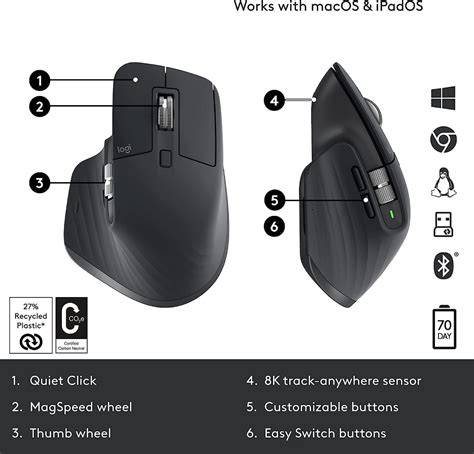
The mouse comes with different programmable buttons and scroll wheels that you can use in conjunction with the included Logitech Options software to create shortcuts and hotkeys. The MX Master mouse runs on Bluetooth, keeping your desk cord-free, and with the massive Darkfield optical sensor, you don’t have to sweat using a mousepad. It’s the little things! Mac or Windows? It doesn’t matter. The mouse is compatible with both, AND a full charge lasts what feels like a lifetime - up to 70 days depending on how strenuously you use it.
It’s not cheap for a mouse, I bought mine back in 2016 for 130 euro-monies but the return on investment has been immense. As you can see mine is nearing retirement age, after years of use it has quite a bit of “patina” let’s say… The one issue I had with it was the thumb button which kept sticking, it’s a known issue which can be fixed by opening up the mouse and loosening a couple of screws. The screws are found under the pads on the bottom, which is why one of them is peeling off since I could never really get it stuck back on properly. I’ve just bought the newly released version, the MX Master 3S which I’m sure will serve me well for years to come. You can grab it from B&H for $99 and it now comes in all black and a pale gray.
If you're a photographer, designer, or videographer who uses Photoshop, you know how important it is to have the right tools for the job. One of those tools is a good mouse. Yes, wireless mice can be excellent for Photoshop editing as they offer greater freedom of movement and a clutter-free workspace. Customizable buttons allow you to assign Photoshop tools or keyboard shortcuts directly to your mouse, streamlining your workflow. A vertical mouse can be beneficial for Photoshop users who spend long hours editing, as it promotes a more natural hand position and may reduce wrist strain. Mice with adjustable DPI (dots per inch) are particularly useful for graphic design work in Photoshop.
As a retoucher with 10 years under my belt at Fixthephoto, I can say that a photo editing mouse is a whole different thing compared to regular ones. They're built for precision and comfort during long working sessions. Quick Comparison Here’s a rundown of some of the top photo editing mice you can find in the market.
Top Mice for Photo Editing: Highlights and Practical Notes
Many users claim this is the best mouse for photo editing because it is very precise and allows tweaking almost each and every setting. It is possible to change the DPI, so I can zoom in on tiny details or make big changes without wasting time. This mouse fits my hand perfectly, so I can work several hours in a row without feeling any discomfort. The buttons are customizable, which is another advantage. I can set up shortcuts for my favorite tools to complete tasks faster. Plus, the scroll wheel is very smooth and the pointer never skips a beat, even on very detailed pictures.
Being engaged in photo editing, I know how important it is to have reliable tools to finish tasks promptly. That’s why, I can’t imagine my routine without Logitech G604. It is equipped with a high-precision sensor and adjustable DPI settings. So, it provides the desired accuracy for meticulous adjustments in any photo editing software. This is crucial if you are going to work for a long time and don’t want to tire your hand. The most pleasing thing about this mouse is that it has 15 buttons you can program. I've set up shortcuts for all my favorite tools and commands, so I can edit multiple photos very quickly. The battery doesn’t require frequent charging, which is another plus I’d like to mention.
Designed with the aim to become one of the best mice for graphic design and photo editing, this gadget appeals to users with its sleek form and responsive multi-touch surface. Besides, it has intuitive controls, including smooth swiping and scrolling, so navigating large images and complex layers is easy. Although the Magic Mouse’s minimalist design is an undeniable advantage, it lacks customizable buttons, which can hinder productivity. Users, who prefer quick actions, will surely feel disappointed because they need to rely on keyboard shortcuts. Thus, their workflow may be more time-consuming.
It is a full-fledged inexpensive mouse for photo editing with symmetrical additional buttons. Moreover, the creators moved side buttons to the top and got rid of the main problem of ambidextrous manipulators: the ability to use only the buttons under the thumb. I also note a comfortable grip and good build quality. Buttons sometimes start to work poorly but this is fixed by simple cleaning. This mouse has a sensor with a sensitivity of 2500 DPI, which is sufficient for most users.
Corsair created a very interesting and unusual product. This mouse is primarily aimed at gamers. But thanks to the well-thought-out shape and fine-tuned software, it can be considered as the best mouse for Photoshop and other graphic editors. The mouse wire is very soft, pliable, and has a fabric braid. It easily unbends and quickly “remembers” the given form. A similar core is placed in every Razer mouse. In my opinion, they make the top-braided cores. Besides, the core has anti-kink protection at the outlet. It is directed slightly upwards, which allows the core to be located above the carpet, rather than clinging to it.
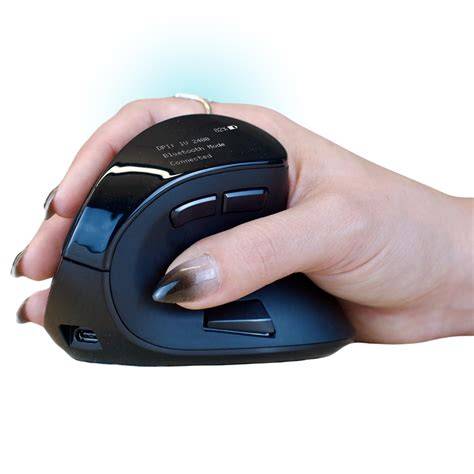
This vertical mouse is very sensitive to movements and rather comfortable for the hands. If you need to use the manipulator often and for a long time, then this budget wireless mouse is a perfect fit. Its shape and design are specially created to prevent the development of the so-called Carpal Tunnel Syndrome. This model is a regular wireless mouse under $40. It has an optical sensor, a gold-plated USB nano receiver (you can hide it inside the case when you don’t use it), a simple driverless connection to a PC, Mac or Linux. DPI can be easily switched between 800, 1,200 and 1,800. I also want to highlight the presence of sleep mode that is activated if this mouse isn’t used for more than 8 minutes.
Logitech G900 has a razor-sharp sensor, coupled with its adaptable DPI. Such a combo gives me the surgical precision needed for meticulous tasks, like photo editing. The ergonomic form is another advantage, and the versatile ambidextrous shape is a godsend for long work. I really like how you can program the buttons to speed up different operations. I've set them for quick shortcuts because I want to expedite my workflow as much as possible without sacrificing the quality of edits. It's also cool that this Photoshop mouse is wireless. The battery lasts very long, even when I'm editing for hours.
The Microsoft MAIN-35956 mouse has proven to be a dependable option. The device brags about exceptional precision thanks to the high-resolution sensor. This is very important if you need to make minute corrections. Besides, the ergonomic design ensures absolute comfort no matter how long you are editing images. Another feature I like about this mouse is its smooth scroll wheel. So, navigating large images and complex layers is simple. There are not so many features to consider when choosing a mouse to pair with your computer.
How to Choose the Best Mouse for Editing
The main thing to decide is what you will use it for and what functionality you really need. A top-notch mouse for photo editing should offer exceptional precision, customization options, and ergonomic comfort. Look for a high DPI count for pixel-perfect control, programmable buttons to streamline workflows, and a design that prevents hand fatigue during extended editing sessions. Wireless connectivity can expand flexibility.
Wired or wireless mouse - which is better for photo editing? The choice often comes down to personal preference and workflow. Wired mice typically provide a more consistent connection and eliminate battery changes, making them suitable for long editing sessions. Wireless mice offer greater mobility and a clutter-free workspace, but you need to monitor battery life.
How does DPI impact photo editing? DPI, or dots per inch, is crucial for photo editing. A higher DPI setting on your mouse ensures finer control. So, it becomes easier to perform detailed tasks like retouching or selecting small areas. However, adaptability is key. If you can adjust DPI, you’ll be able to switch between high precision for delicate work and lower sensitivity for broader movements.
Why should I opt for a mouse with customizable buttons? Customizable mouse buttons can greatly boost photo editing productivity. By assigning frequently used shortcuts or commands to specific buttons, you can streamline your workflow and minimize time-consuming actions. Thus, you can focus more on the creative aspects of your work and less on navigating menus or keyboard shortcuts.
Is ergonomics crucial for a photo editing mouse? Absolutely. Ergonomics is an essential characteristic of a photo editing mouse. A well-designed mouse that comfortably fits your hand and provides adequate support can significantly reduce hand and wrist strain, preventing discomfort during extended editing sessions.
Can I use a gaming mouse for photo editing? Surely. Gaming mice can be excellent tools for photo editing. Their high DPI, customizable buttons, and often ergonomic designs align perfectly with image manipulation requirements.
What companies make the best mice for photo editing? Logitech, Apple, Microsoft, and Corsair are consistently recognized for their high-quality mice. Robin Owens is FixThePhoto’s first person for all things tech and hardware our team of managers and retouchers use. After earning her Journalism degree from the University of Kansas, Robin began her career writing tech reviews and guides for local publications, eventually joining FixThePhoto in 2018. Vadym has been with FixThePhoto since 2017, where he works closely with the team to try out different trends, apps, and tools, providing honest reviews and practical insights.
Investing in the best mouse for photo and video editing can speed up your workflow by a surprising amount. When it comes to editing, precision and control are crucial, and every click, drag, and scroll really adds up. So given that time is money, it's well worth buying the best mouse that you can afford. In this guide, we’ll explore the top options available today, focusing on key features such as performance, comfort and customization. Note that these days, even entry-level mice are often wireless and offer very reliable pointer tracking. Our expert reviewers spend hours testing and comparing products and services so you can choose the best for you.
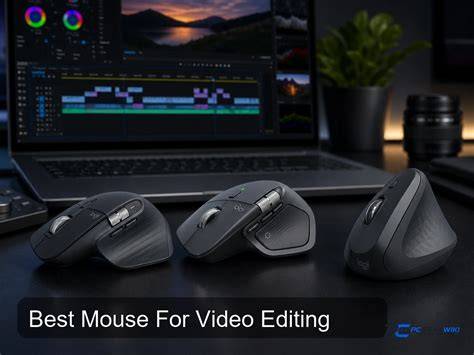
Representative Product Snapshots
The best mouse for photo and video editing overall: Logitech MX Master 3S - high precision, easy switching to different devices, USB-C quick charging, gesture button. Reasons to buy: high precision, quiet operation, very ergonomic. Reasons to avoid: right-handed use only, pricey.
The MX Master 3S is presented as a standout wireless option, designed to ease Adobe Creative Cloud workflows with shortcut-capable buttons, including a thumb scroll for brush sizes or timeline scrubbing.
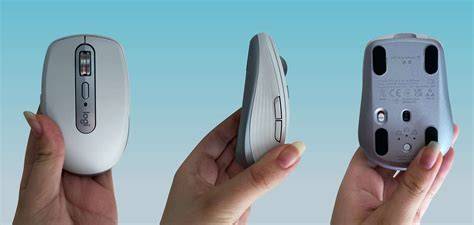
The Logitech MX Anywhere 3S offers a compact design suitable for hybrid working, six programmable buttons, and around 70 days of use per charge.
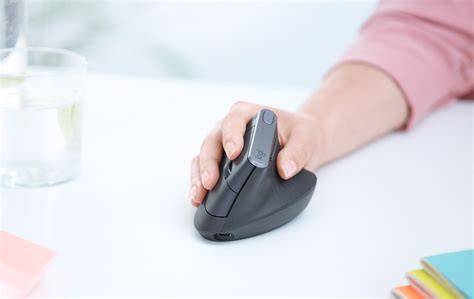
The best vertical mouse for photo and video editing (Ergo Lift or similar) emphasizes natural handshake angle, multi-device connectivity, and reduced wrist strain, with six customizable buttons and a 4000 dpi sensor.
The best cheap vertical mouse for photo editing (budget option) focuses on affordability, comfort, and basic buttons, with DPI switching and wireless operation.
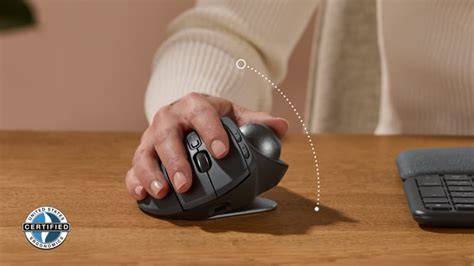
The best trackball mouse for photo editing highlights precision, adjustable tilt, USB-C charging, and quiet clicks, with the MX Ergo S as an example.
The best cheap option for travel or on-the-go editing is represented by a compact wireless mouse under $40, designed to prevent carpal strain and featuring a sleep mode after inactivity.
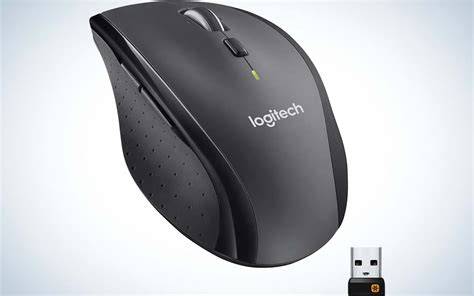
Table: Quick Feature Comparison
| Model | Sensor (DPI) | Connection | Ergonomics | Special Features |
|---|---|---|---|---|
| MX Master 3S | Up to 8000 | Bluetooth | Right-handed | MagSpeed scroll, multi-device |
| MX Anywhere 3S | Up to 8000 | Wireless | Compact | 6 buttons, long battery |
| Vertical Ergo Lift | 4000 | Bluetooth/Wi‑Fi | Left/Right options | 57° angle, multi-device |
| Budget vertical (<$40) | 1600-1800 | Wireless | Right-handed | Sleep mode |
| Trackball MX Ergo S | 2048 | Wireless | Right-handed | 60° tilt, USB-C |