The Color Picker tool in Photoshop makes it easy to find, sample, and save the perfect color, whether you’re selecting visually, using precise values, or grabbing a shade directly from an image.
You’ve probably seen the graphic representation for choosing hue, which encompasses all the tonal values and numerical settings used to choose a color, but did you know that you can also work with color aspects individually? Here is what all the letters stand for: H - hue, S - saturation, B - brightness, R - red channel, G - green channel, B - blue channel, L - luminance, a - “a” channel, b - “b” channel. CMYK values are also displayed and are editable, though they don’t have their own buttons and displays.
Understanding the color picker tool will also help you with color work using other color tools. The first thing you need to know is how to access the color picker. Either clicking the foreground/background color swatches, which are located on the bottom left of your screen in the tool panel by default, or creating a “solid color” adjustment layer will bring up the color picker. By clicking the buttons within the color picker, you change the graph to represent color options depending on the button clicked.
How to Access and Use the Color Picker
Click the foreground color swatch at the bottom of the toolbar to open the image color picker panel. Open your image, select the Eyedropper tool, and click on the color you want to sample. The foreground color is the one you use for painting or drawing; the background color is used for erasing or filling in areas as needed.
To sample a color from your image, simply click anywhere in your image to select a specific shade. The Color Picker tool supports HEX, RGB, CMYK profiles, and more, allowing for flexible workflows across different color models. You can also choose to sample a color using the Eyedropper and then refine it using the Color Picker’s controls.
Color Ranges and Selections
Color Range in Photoshop lets you create selections based on specific colors or tones within an image. The Range bar is the distance it spreads while picking up colours, and you can adjust fuzziness to control how broadly colors are sampled. Make sure the Localised Color Clusters box is ticked, otherwise the Range Bar won’t work. The three eyedroppers in the dialog help refine selections: the first is plain, the second adds to the selection, and the third removes.
When you are selecting, keep one eye on the Colour Range dialog box preview while you are selecting. The area that will stay is white, and the area that will be replaced is black on the preview. Once you are happy with your selection, press OK. This technique allows precise color-based selections beyond basic lasso or quick select tools.
Practical Tips for Using the Color Picker
To access the color picker quickly, choose either the foreground/background color swatches or create a solid color adjustment layer. This makes it easy to switch between colors during the workflow. The color picker also benefits color work across tools, so familiarizing yourself with its layout and functions will improve accuracy and efficiency.
Photoshop supports viewing and adjusting your selected shade using RGB, CMYK, HEX, and other color models. When you want a specific shade from an image, open the image and click on the desired color with the Eyedropper tool, then refine via the color picker’s settings.
Color Picker in Practice: Quick Summary
- Open the color picker via the foreground/background swatches or a solid color adjustment layer.
- Sample a color from your image with the Eyedropper tool.
- Adjust hue, saturation, brightness, or switch to RGB/CMYK/HEX values as needed.
- Use the color range controls for precise selections when working with color-based masks.
For those who want deeper understanding, CMYK values are displayed and editable within the color picker, though they don’t have their own buttons and displays, so keep an eye on how you adjust color space to match your output needs.
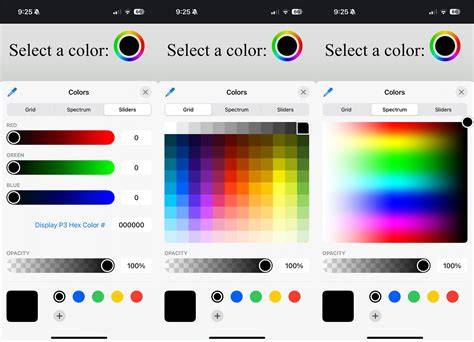
How to Use Krita Color Picker - Beginners Guide 2026
Table: Color Models and Representations
| Model | Purpose | Notes |
|---|---|---|
| RGB | Screen-based color | Primary for digital images |
| HEX | Web colors | Hexadecimal representation for online use |
| CMYK | Print color | Subtracts from white; accurate for printing |