In this guide, we explore how to use Filmora 12’s speech to text feature to transcribe audio or video into text or subtitles, and address common unknown errors that can disrupt your workflow. The focus is on practical steps, settings, and best practices to ensure reliable automatic transcription and high-quality subtitles for diverse audiences.
Getting started with Speech to Text in Filmora 12
With your video on the timeline, locate the speech to text feature. This tool supports automatic conversion of video and audio files into SRT subtitle files, helping you boost engagement and accessibility for viewers who rely on subtitles or may not understand the spoken language.
Open the speech to text dialog box, where you will see the speech to text parameter settings. The first option is the language of the audio to be transcribed. You must select the language manually since there is no automatic language detection. At the time of recording this video, Filmora supports 16 languages, including English US and English UK, among others.
Choose whether to transcribe the entire timeline sequence or a specific clip. This flexibility lets you subtitle only the desired portion of your footage. Transcriptions are automatically matched to the media if the corresponding checkbox is enabled; keeping synchronization is crucial, so it’s important to leave this box checked unless you have a specific reason to disable it.
Common issues: unknown error and steps to resolve
If you encounter an unknown error during the transcription process, first check the following:
- Language selection: Ensure you have picked the correct language for the audio. Inaccurate language choice can cause the transcription engine to fail or produce poor results.
- Media quality: Low audio quality, heavy background noise, or long silent sections can trigger errors or reduce accuracy.
- Synchronization option: If you need precise timing, keep the “automatically matched to media” option checked. Unchecking it can lead to desynchronization and potential processing errors.
- File size and length: Very long videos may require more processing time or trigger limits depending on your plan. Consider trimming the clip to a shorter segment for testing.
When the transcription starts, Filmora scans and uploads the media to generate the text. If an unknown error occurs, cancel and retry with a shorter clip, then reinitiate the process. Once the transcription finishes, you’ll see the newly generated subtitles in the timeline or in the subtitle panel, with the time remaining decreasing as processing completes.
Exporting and editing subtitles for accuracy
After transcription completes, you can export the SRT subtitle file or edit the subtitles directly inside Filmora. Right-click the generated subtitles and choose export to save the SRT file to your preferred location. If you need to adjust the appearance, open the advanced edit for subtitles where you can modify color, font, and size. Changes can be applied to individual captions or to all captions simultaneously as needed.
If playback reveals missed phrases or misinterpretations, you can manually edit the generated text. Filmora provides options to adjust style, alignment, and positioning, plus features like shadows and opacity for readability. Aligning captions precisely with the video timing helps ensure a smooth viewing experience across devices and environments.
Alternative workflows and tips for better accuracy
Filmora’s speech to text feature can produce captions in your original language and translate them into multiple languages, enhancing accessibility for multilingual audiences. For higher accuracy, consider the audio quality and environment: use a clean recording with minimal background noise, clear pronunciation, and moderate speaking pace. While automatic transcription can reach high accuracy under ideal conditions, discrepancies may still appear, so a final human check can be beneficial for professional productions.
In addition to Filmora, paid and free tools exist for audio-to-text conversion. Popular options include AI-powered services like Rev and Otter.ai, which offer robust transcription and editing capabilities. Other tools such as Google Docs Voice Typing and Windows Dictate provide convenient, free alternatives for quick transcriptions. These tools can be used to draft transcripts that you later refine in Filmora’s editor, ensuring consistency and quality across your project.
Filmora is positioned as an all-in-one solution: it combines AI-based subtitle generation with comprehensive video editing tools, enabling you to input subtitles directly, adjust timing, and publish final videos with professional-looking captions. The AI-based system supports multiple languages and an extensive library of subtitle templates to match your video’s style.
To optimize your workflow, follow these steps:
- Download, install, and open Filmora; import your video.
- Click Speech-to-Text on the toolbar; choose the audio language.
- Let the AI-driven transcription run; review the generated captions on the timeline.
- Edit text and styling as needed; ensure timing accuracy and visual clarity.
- Export the subtitle file (SRT) or apply the subtitles directly in the project for final rendering.
Frequently asked considerations
Subtitles improve accessibility and viewer engagement, especially when watching without sound. They help search engines index video content and can extend watch time by making videos usable in noisy environments or for hearing-impaired viewers. Multilingual subtitles expand reach to diverse audiences and can be managed within Filmora’s subtitle editor.
Filmora’s Speech-to-Text claims high accuracy under ideal conditions, with similar caveats to other AI transcription tools: results depend on audio quality, background noise, accents, and speech clarity. Users can enhance results by pre-processing audio, selecting the correct language, and performing post-transcription edits in Filmora’s editor.
For those who need more control or different features, you might explore other solutions like Otter.ai, Watson Speech-to-Text, or Transcribe, and compare their strengths in terms of languages supported, pricing, and accuracy. Nonetheless, Filmora’s integration of AI subtitle generation with editing capabilities makes it a strong all-in-one option for many creators.
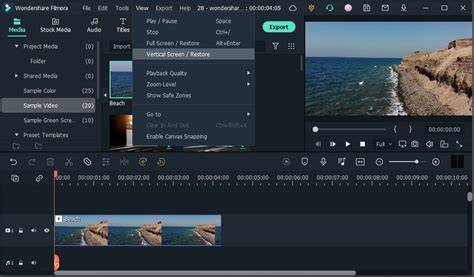
How to Use Speech to Text in Filmora
In summary, Filmora 12’s speech to text feature enables automatic transcription of audio and video into text and subtitles, with options to adjust language, clip scope, and synchronization. While unknown errors can occur, following recommended steps-checking language, ensuring good audio quality, and maintaining synchronization-will typically resolve issues and yield accurate, customizable captions.