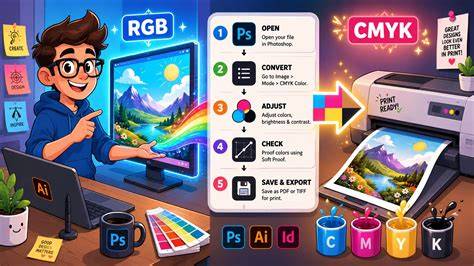
Lightroom Classic does not support CMYK color mode directly. The common workaround is to export RGB files from Lightroom and convert to CMYK later in Photoshop (or via an automated workflow), since CMYK is a printing pipeline concern rather than a camera or screen color space issue.
Understanding color spaces and formats in Lightroom Classic
Lightroom Classic works with RAW data converted to RGB during processing and export. Camera RAW formats contain unprocessed data from a digital camera’s sensor, and Lightroom reads the data from most cameras and processes it into a full-color photo. TIFF, JPEG, PSD, and PNG are among the export options, but CMYK is not natively produced by Lightroom Classic. The Digital Negative (DNG) is a publicly available archival format for raw files generated by digital cameras. DNG addresses the lack of an open standard for the raw files created by individual camera models, ensuring that photographers can access their files in the future.
TIFF is used for exchanging files between applications and platforms and supports large documents. Lightroom supports TIFFs up to 65,000 pixels per side, but very large files may face compatibility limits in some older software. JPEG and JPEGXL retain color information in RGB and compress file size, which is suitable for web but not ideal for high-end print workflows that require precise color control. PSD/PSB formats are designed for Photoshop workflows, with compatibility settings to preserve layers. PNG is a lossless format that supports 24-bit RGB and transparency, commonly used on the web.
Practical workflow: exporting from Lightroom Classic and converting to CMYK
- Export the image from Lightroom Classic as an RGB TIFF or JPEG. Use the recommended options for print when exporting as TIFF (bit depth, color space, sharpening, etc.).
- Open the exported RGB file in Photoshop and convert to CMYK using a printer- or press-specific ICC profile (for example, a Fogra profile or a CMYK profile provided by the print service).
- If dealing with multiple files, consider creating an automation in Photoshop (actions and droplet) to process CMYK conversion in bulk.
- Test proofing: soft-proof in Photoshop with the target CMYK profile to ensure color accuracy before printing.
Some practitioners report that Lightroom may process color conversions through ProPhoto RGB or another pipeline before exporting to an ICC profile, which can influence the final CMYK result. However, Lightroom Classic itself does not export CMYK data directly.
Notes on color management for print
- Work with RAW photos for the best quality; calibrate your monitor to display colors accurately.
- Decide your image’s destination: web or print; export settings will differ accordingly.
- Use the appropriate ICC CMYK profile for your print service to ensure consistent results.
Export settings and color spaces: what to consider
When exporting from Lightroom Classic to TIFF for print, you can choose a color space and bit depth. TIFF exports permit color space selection, which is important for downstream CMYK conversion. JPEGs preserve RGB color but are lossy and less suitable for high-end print work that requires precise color control. For HDR workflows, Lightroom Classic supports certain color spaces on exported TIFFs; however, the choice of color space and ICC profile is critical when moving to CMYK in Photoshop.
Additional tips for reliable CMYK results
- Consider using a dedicated CMYK profile such as PSOCoatedv3.icc or another profile that matches the printer’s conditions (e.g., Fogra 51). These profiles help align the RGB-to-CMYK conversion with real printing behavior.
- Avoid starting with ProPhoto RGB when you intend to print CMYK; some workflows produce better results starting from Adobe RGB or sRGB before CMYK conversion.
- Keep a workflow with a consistent calibration and soft-proofing step to preview how colors will look when printed.
- Automate repetitive tasks: if you have many files, set up a Photoshop action and a droplet to batch-convert RGB exports to CMYK using the chosen ICC profile.
Summary of a common path from Lightroom to CMYK
In practice, you export RGB files from Lightroom Classic, then convert those files to CMYK in Photoshop using the appropriate ICC profile. This avoids the limitation that Lightroom lacks native CMYK export options and leverages Photoshop’s stronger color management for print workflows. The approach is widely used by photographers who require precise color control for stationery, packaging, or professional print orders.